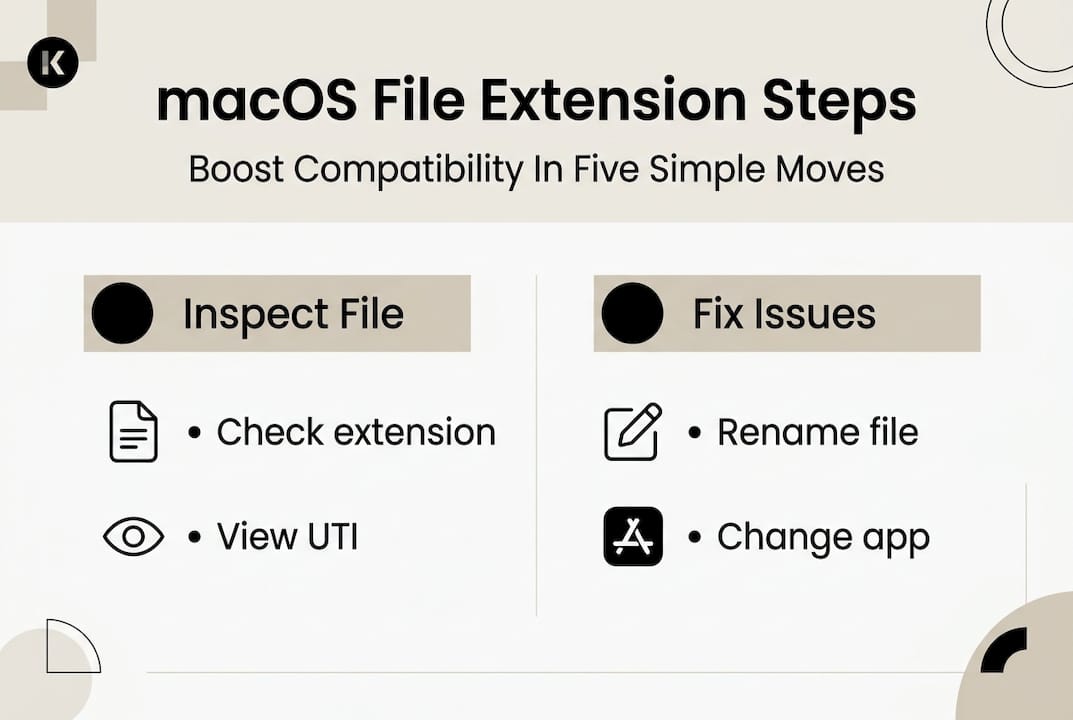
macOS file extensions: boost compatibility in 5 steps

TL;DR:
- macOS recognizes file types primarily through UTIs but relies on file extensions as a crucial fallback.
- Changing a file’s extension can alter its associated application and impact cross-platform compatibility.
- Proper management includes viewing extensions in Finder and inspecting UTIs with Terminal for accurate troubleshooting.
Many Mac users assume macOS is so smart it completely ignores file extensions. That assumption causes real problems. While macOS primarily uses Uniform Type Identifiers (UTIs) to recognize and associate file types with applications via LaunchServices, extensions remain a critical fallback in that system. Skip them and you will face broken workflows, files opening in the wrong app, and cross-platform nightmares. This guide walks you through how macOS actually identifies files, why extensions still matter, how to handle tricky edge cases, and how to manage everything like a pro.
Table of Contents
- How macOS recognizes file types: UTIs and file extensions explained
- Why file extensions still matter for compatibility and troubleshooting
- Edge cases and pitfalls: files without extensions or ambiguous extensions
- How to manage and inspect file extensions like a pro on macOS
- The overlooked power of file extensions in modern macOS
- Discover more ways to master file extensions
- Frequently asked questions
Key Takeaways
| Point | Details |
|---|---|
| macOS uses UTIs | Uniform Type Identifiers (UTIs) are macOS’s main method for recognizing file types, with extensions providing key fallback support. |
| Extensions impact compatibility | File extensions influence cross-platform compatibility and troubleshooting, especially in mixed workflows. |
| Managing extensions boosts productivity | Proactively inspecting and refining file extensions improves opening accuracy and reduces errors. |
| Ambiguous cases require inspection | Files lacking extensions or using ambiguous ones can confuse macOS; use Terminal’s ‘mdls’ command for clarity. |
| Change extensions with care | Changing a file extension alters its UTI and default app—always back up before renaming file types. |
How macOS recognizes file types: UTIs and file extensions explained
Having established why file extensions matter, let’s get clear on how macOS actually decides what a file is and how extensions fit into the bigger puzzle.
A Uniform Type Identifier (UTI) is a text string that macOS uses to uniquely describe a file type. Think of it like a social security number for file formats. Instead of relying solely on a three-letter extension, macOS uses UTIs to build a hierarchy of type information that apps can query. The system responsible for matching files to apps is called LaunchServices, and it uses UTIs as its primary language.
Here is how macOS actually determines a file’s type, in order of priority:
- Embedded UTI metadata: Some files carry their type information inside them.
- File extension: The suffix after the dot (like .pdf or .docx).
- MIME type: Used heavily in web and email contexts.
- OSType (creator codes): A legacy system from classic Mac OS, still supported.
- Pasteboard types: Used when copying and pasting between apps.
As UTI hierarchy research confirms, this flexible fallback chain means macOS rarely gets stuck, even when one method fails. But the fallback nature of extensions is exactly why you cannot ignore them.
“macOS primarily uses UTIs to recognize file types but includes file extensions as a fallback.” This fallback role is subtle but powerful, especially when files move between systems.
Comparison: Extension-only vs. UTI-based file identification
| Method | Reliability | Cross-platform support | App association accuracy |
|---|---|---|---|
| Extension only | Moderate | High (Windows/Linux) | Moderate |
| UTI only | High | Low (Mac-specific) | High |
| UTI + Extension | Very high | High | Very high |
For everyday macOS file identification, the combination of UTI and extension gives you the best of both worlds. UTIs provide precision within the Apple ecosystem. Extensions ensure compatibility when files leave that ecosystem. Understanding this layered system is the foundation for everything else in this guide, including file extension troubleshooting when things go wrong.
Why file extensions still matter for compatibility and troubleshooting
Now that you know the basics, let’s explore situations where file extensions become critical, especially for compatibility and fixing file errors.
Changing a file’s extension is not just cosmetic. Because file extensions serve as one of several inputs (along with MIME types, OSTypes, pasteboard types, and direct UTIs) to determine a file’s UTI, renaming a file from "report.txttoreport.md` can shift its UTI and change which app opens it by default. That is powerful when used intentionally, and dangerous when it happens accidentally.
For cross-platform workflows, extensions are even more important. Windows and Linux systems rely almost entirely on extensions to identify file types. macOS has the luxury of UTIs, but the moment your file lands on a Windows machine, the extension is all that matters. A missing or wrong extension can make a perfectly valid file appear broken to a colleague.
Here are the most common troubleshooting scenarios where extensions are the root cause:
- A file opens in the wrong app (e.g., a
.tsfile opening in a video player instead of a code editor). - A downloaded file shows no preview because its extension is missing.
- A colleague on Windows cannot open a file you sent from your Mac.
- An app refuses to import a file because it does not recognize the extension.
- A renamed file loses its association after a system update.
A common misconception is that macOS does not use extensions at all. The reality is that they are a key fallback in the multi-method UTI resolution and are essential for cross-platform compatibility. Ignoring them is like ignoring your car’s fuel gauge because the dashboard looks fine.
How macOS and Windows handle file extensions
| Feature | macOS | Windows |
|---|---|---|
| Primary identification | UTI via LaunchServices | File extension |
| Extension required? | No (but recommended) | Yes |
| Cross-platform reliability | Moderate without extension | High |
| Default app change on rename | Yes (via UTI shift) | Yes (directly) |
Pro Tip: When troubleshooting a file that opens incorrectly, check both the extension and the UTI using Terminal. One might be correct while the other is misleading. You can find more help with opening file extensions, file extension error fixes, and understanding file extension changes in dedicated guides.

Edge cases and pitfalls: files without extensions or ambiguous extensions
Extensions usually help, but they can also create confusion, especially in rare cases. Here’s how to recognize and fix those tricky situations.
When a file has no extension at all, macOS does not crash or give up. Instead, it defaults to the public.data UTI, which is the most generic type possible. This means the file may open in a hex editor, trigger an “unknown file” warning, or simply refuse to open in any useful app. Compatibility with other platforms drops sharply in this scenario.
Ambiguous extensions are trickier. The .ts extension is a perfect example. It can mean a TypeScript source file or an MPEG-2 transport stream video. LaunchServices priority determines which app wins, and the result depends on which apps are installed and registered on your specific Mac. Two users with the same file can get completely different results.
Here is how to resolve edge cases with unknown or conflicting extensions:
- Identify the file’s true type: Open Terminal and run
mdls filenameto inspect the UTI. Look for thekMDItemContentTypefield. - Research the extension: Search the extension in a reliable file type differences guide to confirm what it should be.
- Check the file’s contents: Open the file in a plain text editor. Many file formats have readable headers (like
%PDFfor PDFs) that reveal the true type. - Rename with the correct extension: Once confirmed, rename the file with the right extension to restore proper UTI resolution.
- Reassign the default app: Right-click the file, choose “Get Info,” and use the “Open With” panel to set the correct app permanently.
Pro Tip: Run mdls -name kMDItemContentType yourfile in Terminal for a fast, clean readout of just the UTI without all the extra metadata noise. This is the fastest way to diagnose a fixing extension errors situation on the spot.
Ambiguous extensions are more common in developer and media workflows than most users realize. A single wrong association can cascade into broken build scripts or unplayable media files, making this one of the most underrated troubleshooting skills for power users.
How to manage and inspect file extensions like a pro on macOS
Once you have identified potential extension issues, here’s how to actively manage and inspect them, making troubleshooting seamless.
Start with the basics in Finder. By default, macOS hides file extensions in Finder. To show them, follow these steps:
- Open Finder and go to Finder > Settings (or Preferences on older macOS versions).
- Click the Advanced tab.
- Check “Show all filename extensions.”
- To change a specific file’s extension, click the file once to select it, press Return to rename it, edit the extension, and press Return again.
- Confirm the change when macOS warns you that changing the extension may affect how the file opens.
For deeper inspection, Terminal gives you tools that Finder simply cannot match. The mdls command (metadata list) reads a file’s Spotlight metadata, including its UTI. You can inspect a file’s UTI with mdls filename to troubleshoot type mismatches quickly and accurately.
Here are the key places to find extension and UTI information for any file:
- Finder Get Info panel: Shows the file kind and extension.
- Terminal
mdlscommand: Shows the full UTI and content type metadata. - Terminal
filecommand: Analyzes the file’s actual binary content, independent of its extension. - Quick Look preview: Press Space in Finder to preview the file and confirm its apparent type.
Pro Tip: Always back up a file before renaming its extension. Changing a file’s extension indirectly changes its UTI and thus the default opening app, which can cause data access issues if you rename the wrong file. A quick duplicate (Command+D in Finder) takes two seconds and can save hours of recovery work.
For ongoing productivity, understanding file extension basics and bookmarking the file extension directory means you will rarely be stuck wondering what a file is. If you work with unusual formats, the guide on hidden file formats is also worth a read.
The overlooked power of file extensions in modern macOS
Here is something most Mac guides will not tell you: the elegance of the UTI system can actually work against you if you trust it too much.
Most articles celebrate UTIs as proof that macOS is smarter than Windows about file types. And in many ways, it is. But that narrative leads users to stop paying attention to extensions entirely, which creates a blind spot. When a file crosses platform boundaries or lands in an environment where UTI metadata is stripped (like a zip archive or an email attachment), the extension is all that is left.
The practical wisdom here is to treat extensions as your file’s passport. UTIs are the internal identity system, but extensions are what the rest of the world reads. A common misconception is that macOS does not use extensions. The reality is that they are essential for cross-platform compatibility and are a key fallback in the UTI resolution chain.
We recommend building a habit: whenever you save or export a file you plan to share, confirm the extension is correct before sending. It takes five seconds and prevents the most common compatibility complaints. Pair that with the troubleshooting guide and you will handle nearly any file issue with confidence.
Discover more ways to master file extensions
You now have a solid understanding of how macOS handles file types, where extensions fit in, and how to troubleshoot and manage them effectively. But this is just the starting point.

Open-The-File.com offers a complete file extension directory covering over 750 formats, with step-by-step guides for opening, converting, and fixing files on both Mac and Windows. Whether you are dealing with a mystery file, a broken association, or a cross-platform compatibility headache, the extension guides on the site give you clear, jargon-free answers fast. Bookmark it now and turn file frustration into a five-minute fix.
Frequently asked questions
What happens if a file on macOS has no extension?
When a file has no extension, macOS defaults to the public.data UTI, which is the most generic type and may trigger unpredictable app associations or limited compatibility.
How can I check a file’s UTI on macOS?
Open Terminal and run mdls filename to see the file’s Uniform Type Identifier. Look for the kMDItemContentType field for a quick, accurate result.
Does changing a file extension affect its default app in macOS?
Yes. Changing a file’s extension indirectly shifts its UTI, which tells LaunchServices to reassign the default application used to open it.
Why do ambiguous extensions cause problems in macOS?
Ambiguous short extensions like .ts can map to multiple UTIs, and LaunchServices picks based on installed app priority, which varies by machine and can cause the wrong app to open.
What is the best way to manage file extensions on macOS?
Use Finder’s Advanced settings to show all extensions, and use Terminal’s mdls command to inspect UTIs. Together, these two tools cover nearly every troubleshooting and compatibility scenario you will encounter.