Role of file formats: prevent compatibility issues

You click a file on your Mac that worked perfectly on your Windows PC yesterday, and nothing happens. The error message offers no real help, leaving you wondering why something so simple has become so complicated. File compatibility issues between Windows and Mac stem from fundamental differences in how these operating systems structure, encode, and interpret data. Understanding file formats and their role in cross-platform compatibility empowers you to open files reliably and convert them safely without risking data loss or malware infection. Today you’ll learn why formats matter, which universal options minimize headaches, and how to convert files using trusted local tools that protect your privacy and preserve quality.
Table of Contents
- Key takeaways
- Understanding file formats and their role in compatibility
- Universal file formats and system limitations
- Safe and efficient file conversion methods for Windows and Mac
- Built-in and open-source tools for format conversion within Windows and macOS
- Explore file extension guides and tools to solve compatibility issues
- Frequently asked questions about file formats and compatibility
Key Takeaways
| Point | Details |
|---|---|
| Format role clarity | File formats define data structure and encoding that determine cross platform compatibility. |
| Universal formats help | Common formats like PDF JPEG PNG MP3 and MP4 reduce compatibility issues across Windows and Mac. |
| Use local tools | Trusted offline converters protect privacy and reduce malware risk while preserving quality. |
| Know filesystem limits | exFAT offers large file support but lacks NTFS style encryption and permissions. |
Understanding file formats and their role in compatibility
File formats define data structure, encoding, and metadata standards ensuring interoperability across Windows and Mac. When you save a document or image, the format dictates how applications read and display that information. A .docx file contains XML-based instructions that Microsoft Word interprets, while a .pages file uses Apple’s proprietary structure that Windows applications cannot natively decode. These differences explain why double-clicking a .pages file on Windows produces an error instead of opening your document.
Windows primarily relies on the NTFS file system, which supports features like file permissions, encryption, and large volumes. Mac uses APFS, optimized for solid-state drives with snapshots and space sharing. These filesystem differences create compatibility friction even when file formats themselves are universal. For example, NTFS drives connected to a Mac become read-only by default, preventing you from saving files directly to that drive without third-party software or reformatting.
Common native file types illustrate this divide clearly:
- .docx and .xlsx work natively on Windows through Microsoft Office
- .pages and .numbers require macOS Pages and Numbers applications
- .exe files execute on Windows but are useless on Mac
- .dmg disk images mount on Mac but not Windows
Pro Tip: Always check the native app and file system before troubleshooting file errors. Knowing whether a file originated on NTFS or APFS helps you identify conversion or mounting issues faster.
Understanding these differences clarifies why compatibility issues occur and guides you toward solutions. Popular file formats standardize some interoperability, yet system-level nuances remain. When you encounter an unopenable file, the problem often traces back to incompatible encoding or missing application support rather than file corruption.
“File systems act as invisible gatekeepers. Even universal formats face obstacles when the underlying storage architecture differs, making format choice only half the compatibility equation.”
Recognizing how file format differences impact daily workflows prepares you to choose formats wisely and convert files safely when necessary.
Universal file formats and system limitations
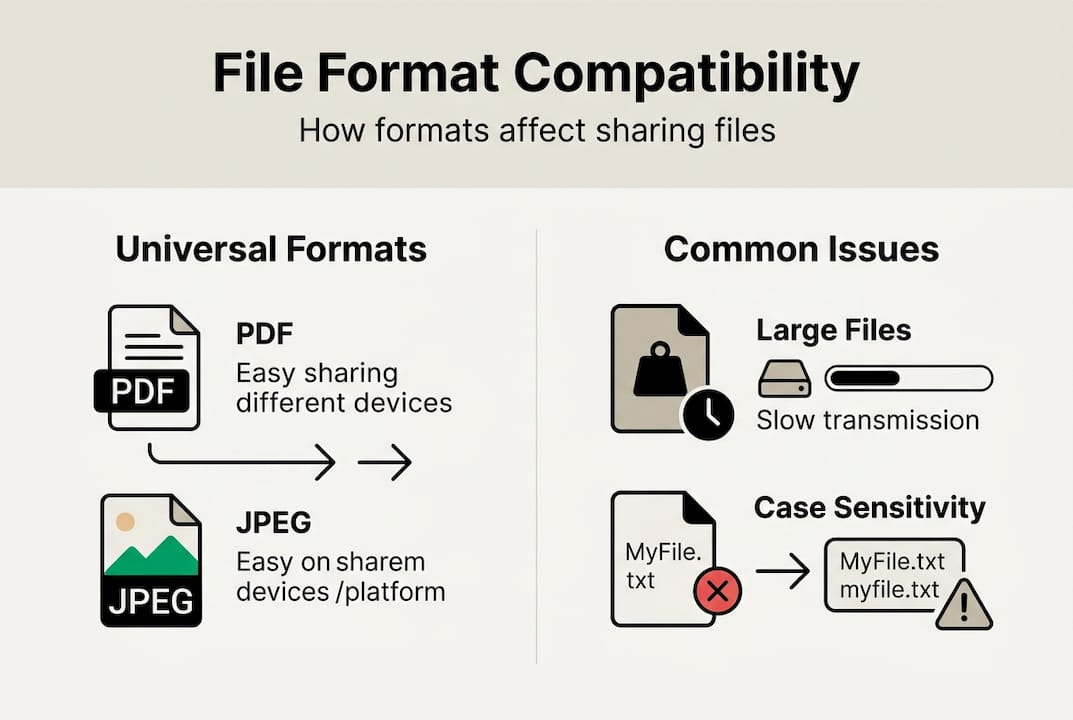
PDF, JPEG, PNG, MP3, and MP4 (H.264) minimize compatibility issues because both Windows and Mac include native support for these formats. A PDF created on Windows opens identically on Mac using Preview or Adobe Reader. JPEG images display consistently across platforms without requiring format conversion. These universal formats serve as reliable bridges when sharing files between operating systems.

exFAT emerged as a popular file system bridging Windows and Mac, supporting files larger than 4GB without the limitations of older FAT32. External drives formatted as exFAT allow you to transfer large video files or disk images seamlessly between platforms. However, exFAT lacks NTFS encryption and advanced permissions, making it unsuitable for sensitive data requiring security features.
Older FAT32 limits individual files to 4GB maximum, causing transfer failures when you attempt to copy large video projects or system backups. This restriction frustrates users who assume any external drive will handle their files. Windows filenames restrict certain characters like colons, asterisks, and question marks, while Mac permits these in filenames. Transferring files with invalid characters produces errors or automatic renaming.
Windows handles filenames as case-insensitive but preserves the original case you typed. Mac filesystems treat “Document.pdf” and “document.pdf” as identical files in most configurations. This subtle difference creates confusion when organizing files across platforms. Conversion between formats can cause metadata loss, such as HEIC EXIF data stripping during JPEG conversion, removing valuable camera settings and location information.
Pro Tip: Choose universal formats to simplify sharing and storage. Sticking with PDF for documents and JPEG for photos eliminates most compatibility headaches.
| Format | Windows Support | Mac Support | File Size Limit | Encryption | Best Use Case |
|---|---|---|---|---|---|
| exFAT | Native | Native | 16 EB theoretical | None | Cross-platform external drives |
| NTFS | Native | Read-only | 16 EB theoretical | Yes | Windows internal drives |
| APFS | Third-party only | Native | 8 EB | Yes | Mac internal drives |
| FAT32 | Native | Native | 4 GB per file | None | Legacy device compatibility |
| Native | Native | 10 GB practical | Optional | Universal documents | |
| JPEG | Native | Native | 65,535 x 65,535 pixels | None | Photos and images |
Understanding these limitations helps you select appropriate formats and filesystems before problems arise. When compatibility matters more than advanced features, universal formats and exFAT provide the smoothest experience. Exploring common image file types deepens your knowledge of format-specific trade-offs.
Safe and efficient file conversion methods for Windows and Mac
Local offline tools like HandBrake, FFmpeg, and LibreOffice reduce malware risks compared to online converters that upload your files to unknown servers. Installing trusted desktop software keeps your data on your machine throughout the conversion process. Online converters pose privacy threats because you cannot verify how sites handle uploaded files or whether they inject malware into downloads.
many online file converters carry malware or privacy risks according to security research. These sites often bundle unwanted software, track user behavior, or sell uploaded files to third parties. Sandbox environments like Docker or Windows Sandbox add layers of conversion security by isolating conversion processes from your main system. Running antivirus scans on converted files before opening them catches threats that bypass initial defenses.
Multiple lossy conversions degrade file quality progressively. Converting a JPEG to PNG, then back to JPEG, reduces image clarity each time because compression algorithms discard data. Handle original files carefully and convert only when necessary. Testing with small samples before mass conversion saves time, especially for videos and images where quality loss becomes immediately visible.
Benchmark data favors FFmpeg for fastest CLI speed, processing 100MB H.265 to H.264 in 8.3 seconds on modern hardware. VideoProc AI excels for user-friendly bulk conversions, offering 370+ format support with hardware-accelerated processing for large video files on supported hardware. These performance differences matter when converting large video libraries or time-sensitive projects.
Follow this safe file conversion workflow:
- Identify the source and target formats clearly before starting
- Download conversion software only from official websites or trusted repositories
- Verify file integrity with checksums when available
- Run conversions in a sandbox environment if handling unfamiliar files
- Scan converted files with updated antivirus software
- Test converted files with small samples before batch processing
- Back up original files before converting to prevent irreversible data loss
Pro Tip: Remove metadata to protect privacy using tools like ExifTool. Photos often contain GPS coordinates and camera details you may not want to share.
Expert safety practices include sandboxing, scanning with ClamAV, and stripping metadata before sharing files publicly. Avoid uploading sensitive documents to online converters regardless of convenience. Multiple lossy conversions compound quality degradation, so plan your conversion path carefully.
“Conversion safety requires layered defenses. Sandboxing isolates threats, antivirus catches known malware, and metadata stripping protects privacy. Combining these practices transforms risky conversions into secure workflows.”
Understanding how to open file extensions complements conversion knowledge by helping you identify when conversion is truly necessary. Consulting a file extension identification guide clarifies format requirements before you commit to converting files.
Built-in and open-source tools for format conversion within Windows and macOS
Windows built-in tools include Paint for images and WordPad for documents, while macOS offers Preview for images, Pages for documents, and Quick Actions for quick conversions. These tools ship with your operating system, requiring no additional downloads or purchases. Paint converts images between BMP, JPEG, PNG, and GIF formats through simple save-as operations. Preview on Mac handles similar image conversions plus PDF creation from various document types.
Open-source tools like ImageMagick support batch image conversions across dozens of formats with command-line precision. Audacity handles audio format conversions including MP3, WAV, FLAC, and OGG without quality loss when using lossless formats. These free tools meet professional needs while maintaining transparency through publicly available source code.
| Tool | Platform | Formats Supported | Ease of Use | Best For |
|---|---|---|---|---|
| Paint | Windows | BMP, JPEG, PNG, GIF | Very Easy | Basic image conversion |
| WordPad | Windows | TXT, RTF, DOCX | Very Easy | Simple document conversion |
| Preview | macOS | JPEG, PNG, PDF, TIFF | Very Easy | Image and PDF handling |
| Pages | macOS | PAGES, PDF, DOCX, EPUB | Easy | Document conversion |
| Quick Actions | macOS | Images, PDFs, videos | Very Easy | Batch quick conversions |
| ImageMagick | Both | 200+ image formats | Moderate | Advanced batch processing |
| Audacity | Both | MP3, WAV, FLAC, OGG | Easy | Audio editing and conversion |
Pro Tip: Familiarize yourself with built-in tools first. They meet 80% of common needs without installing third-party software.
Some advanced formats require dedicated apps or add-ons. ODS spreadsheets from LibreOffice need compatible software on systems lacking native support. ODT documents open in LibreOffice or through Microsoft Word with compatibility packs. ORF camera raw files from Olympus cameras require specialized photo editing software or camera manufacturer utilities.
Typical workflows for seamless document and media access:
- Convert HEIC photos to JPEG using Preview on Mac before sharing with Windows users
- Use Word, LibreOffice, or Print to PDF for DOCX-to-PDF conversion to preserve formatting across platforms
- Use Quick Actions to resize multiple images simultaneously without opening individual files
- Batch convert audio files in Audacity by creating processing chains
Exploring workflows for opening documents reveals additional strategies for handling various file types efficiently. Built-in tools provide immediate solutions for everyday format challenges without the security risks associated with online converters or unfamiliar software.
Explore file extension guides and tools to solve compatibility issues
You’ve learned how file formats create compatibility challenges and discovered safe conversion methods using local tools. Taking the next step means accessing detailed information about specific file extensions you encounter daily. Our comprehensive file extension directory helps you identify unknown files instantly, explaining what each format does and which applications open it on Windows and Mac.

Detailed guides walk you through troubleshooting problematic file formats step by step, eliminating guesswork when files refuse to open. Open-The-File.com offers extension guides for 750+ file types, each tailored to Windows and Mac compatibility requirements. Whether you’re handling obscure data files from legacy software or modern media formats, these resources provide actionable solutions. Bookmark our extension index as your go-to reference whenever compatibility questions arise, saving time and frustration.
Frequently asked questions about file formats and compatibility
What causes file incompatibility between Windows and Mac?
File incompatibility stems from different file systems (NTFS vs APFS), native application formats (.docx vs .pages), and encoding standards that each operating system prioritizes. Windows and Mac interpret file structures differently, causing some formats to fail when transferred between platforms.
Which file formats are safest to share across platforms?
PDF, JPEG, PNG, MP3, and MP4 with H.264 encoding work reliably across Windows and Mac without conversion. These universal formats have native support built into both operating systems, ensuring consistent rendering and playback.
How can I convert files without risking malware or data loss?
Use local offline tools like HandBrake, LibreOffice, or FFmpeg instead of online converters. Sandbox conversions when possible, scan output files with antivirus software, and always back up originals before converting to prevent irreversible loss.
Are online file converters safe to use?
Most online converters pose significant risks, with many carrying malware or privacy threats. They upload your files to unknown servers where data may be stolen, tracked, or bundled with malicious software during download.
What built-in tools can help convert files on my PC or Mac?
Windows includes Paint for images and WordPad for documents, while Mac offers Preview for images and PDFs, Pages for documents, and Quick Actions for batch conversions. These native tools handle common format changes without additional software. For more complex needs, consult our file extension identification guide to determine the right tool for your specific format.
Recommended
- File format differences explained: IT pros guide 2026 | Open-The-File.com
- Articles - File Tips & Guides | Open-The-File.com
- Common image file types: how to choose and troubleshoot | Open-The-File.com
- Workflow for opening documents: seamless file access | Open-The-File.com
- DLL file versioning explained: ensure Windows stability – FixDlls Blog
- Financial data formats for efficient conversion in 2026 - BankStatementFlow Blog