File extension identification: steps for Windows & macOS

You receive a file from a colleague, but clicking it does nothing. The extension looks familiar, yet your system refuses to open it. This frustration stems from a common issue: file extensions can mislead or vanish entirely, leaving you guessing the true file type. Accurate identification matters for both usability and security, especially when unknown files arrive from external sources. This guide walks you through clear, practical steps to identify and troubleshoot file extensions on Windows and macOS, using file signatures, system tools, and safe inspection methods to handle any file confidently.
Table of Contents
- Understand The Basics: What Are File Extensions And Signatures?
- Prepare Your Tools And Environment For Safe File Identification
- Step By Step Guide To Identify File Extensions And Types On Windows And Macos
- Troubleshoot Common Issues And Avoid Security Risks With File Extensions
- Verify Your Results And Maintain Good File Handling Practices
- Discover More About File Extensions With Open-The-File.com
- FAQ
Key takeaways
| Point | Details |
|---|---|
| File signatures reveal truth | Magic numbers and other structural checks help identify file types beyond extensions |
| Windows uses extensions heavily | Registry associations and extensions determine how Windows handles files |
| macOS employs UTIs | Uniform Type Identifiers work alongside extensions for hybrid file recognition |
| Spoofing poses security risks | Always verify file types before opening to avoid malware disguised by fake extensions |
| Tools simplify identification | Hex viewers and system commands help uncover unknown file types safely |
Understand the basics: what are file extensions and signatures?
File extensions are the two to four character suffixes following a dot in filenames, like .pdf or .jpg. They serve as convenient labels telling your operating system which program should open a file. Windows relies heavily on these labels, checking the Registry to match extensions with applications. macOS uses a hybrid approach, combining extensions with metadata and Uniform Type Identifiers for more flexible recognition.
File signatures, also called magic numbers, are recognizable byte patterns, often near the beginning of a file that identify types even when extensions are missing or incorrect. Many signatures appear at byte zero, but some formats require deeper inspection before you can identify them reliably. Extensions are convenience, but signatures are truth at the file’s start. A PDF always begins with %PDF, a ZIP with PK, and a JPEG with FF D8 FF, regardless of what extension someone attached.
Why do signatures matter more than extensions? Because extensions can be changed with a simple rename, but signatures require rewriting the file’s internal structure. This makes signatures far more reliable for verification. Common examples include:
- PDF files start with 25 50 44 46 (%PDF in hex)
- ZIP archives begin with 50 4B 03 04 (PK)
- Windows executables open with 4D 5A (MZ)
- JPEG images start with FF D8 FF
- PNG files begin with 89 50 4E 47 (PNG)
Different operating systems handle extensions uniquely. Windows depends almost entirely on extensions and Registry entries to determine file types and associations. Linux command-line tools often inspect file content, while desktop environments also use MIME rules, filename patterns, and extensions. macOS blends both approaches, using extensions for compatibility while maintaining UTIs and metadata for precise identification. Understanding these differences helps you troubleshoot cross platform file issues and recognize when common image file types behave unexpectedly.
Prepare your tools and environment for safe file identification
Before inspecting unknown files, prioritize safety. Scan files with VirusTotal to check for potential threats before opening or examining them. Malicious files often disguise themselves with innocent looking extensions, making preliminary scans essential for protection.
Use read-only tools when inspecting unknown files to prevent accidental modification or execution. Hex editors and text viewers let you examine file headers and signatures without triggering any embedded code. For Windows, Notepad++ with the HEX Editor plugin works well. On macOS, Hex Fiend provides a clean, free interface for viewing raw file data.
Recommended free tools for file identification:
- Windows: Notepad++ (with HEX Editor plugin), HxD hex editor, TrID file identifier
- macOS: Hex Fiend, BBEdit (free mode), built in file command via Terminal
- Cross platform: VirusTotal for security scanning, online hex viewers for quick checks
When examining files, focus on the first 16 to 32 bytes where signatures typically appear. Most file types declare themselves within this range. Check file properties through your operating system’s interface before diving into hex analysis. Windows File Explorer shows basic extension and type info, while macOS Finder’s Get Info panel reveals more detailed metadata.
Pro Tip: Always create backup copies of files before attempting any modifications or association changes. Store backups in a separate folder so you can restore originals if identification attempts go wrong or if you accidentally corrupt file headers during inspection.
With tools ready and safety measures in place, you can explore our header analyzer tool for automated signature checking or browse file tips and guides for specific extension help.
Step by step guide to identify file extensions and types on Windows and macOS
Start by checking the visible file extension in your file manager. On Windows, open File Explorer, click View, then enable “File name extensions” to display full names. On macOS, open Finder preferences and check “Show all filename extensions” under Advanced. This reveals what extension the file claims to have.
Next, examine the file signature using a hex editor. Open your unknown file in Notepad++ (Windows) or Hex Fiend (macOS) to view the raw bytes. Look at the first line of hex output. Compare these bytes against known signatures:

| File Type | Signature (Hex) | Signature (ASCII) | Common Extension |
|---|---|---|---|
| 25 50 44 46 | |||
| ZIP | 50 4B 03 04 | PK | .zip |
| JPEG | FF D8 FF | (binary) | .jpg |
| PNG | 89 50 4E 47 | PNG | .png |
| EXE | 4D 5A | MZ | .exe |
For Windows users, leverage Registry and command line tools for association details. Open Command Prompt and run assoc .ext (replacing .ext with your extension) to see the file type identifier. Follow up with ftype identifier to view the associated program command. These commands reveal how Windows currently handles the extension, even if the association is incorrect.
Windows relies heavily on extensions for file type determination, making Registry associations critical. If a file won’t open despite a valid extension, check whether the association points to an installed application. Broken associations occur when you uninstall software without cleaning Registry entries.
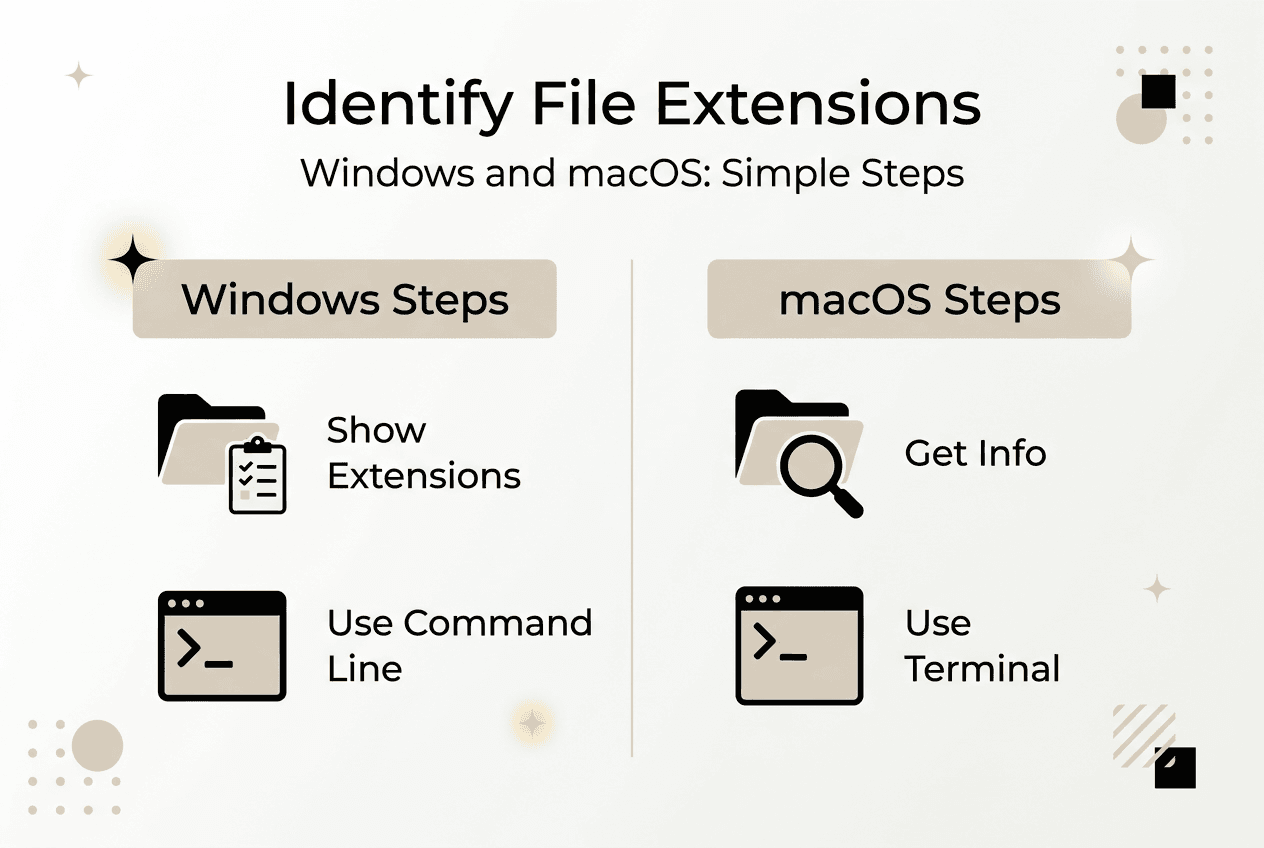
On macOS, use Get Info (Command+I) to view file type and UTI information. macOS uses Uniform Type Identifiers to identify files beyond extensions, assigning dynamic UTIs for unknown types. Open Terminal and run mdls filename to see all metadata, including kMDItemContentType which shows the UTI. For unknown files, macOS assigns generic UTIs like public.data, signaling it cannot determine the specific type.
Pro Tip: When macOS assigns a dynamic UTI to an unknown file, use the file command in Terminal for additional analysis. Type file filename to get a description based on content inspection, which often reveals the true type even when the system cannot assign a proper UTI.
Understanding file format differences explained helps you interpret results from these tools. Once identified, integrate files into your workflow for opening documents smoothly.
Troubleshoot common issues and avoid security risks with file extensions
Spoofed extensions represent a serious security threat. Attackers rename malicious executables with innocent extensions like .pdf.exe, counting on users to see only .pdf when extensions are hidden. Extension spoofing is a common attack because extensions are easily changed and relied upon by users and systems alike.
Recognize misleading extensions by checking file signatures. If a file claims to be a PDF but starts with MZ instead of %PDF, you have a mismatch indicating either corruption or deliberate spoofing. Never open files from unknown sources without verification, especially if they arrive via email or messaging apps.
Why relying solely on extensions is risky:
- Extensions can be changed with a simple rename
- Hidden extensions mask true file types from casual inspection
- Malware often disguises itself with double extensions
- Cross platform transfers sometimes strip or alter extensions
To fix incorrect associations in Windows, open Settings, navigate to Apps, then Default apps. Click “Choose default apps by file type” and scroll to your extension. Select the correct program from the list or browse for an application not shown. For deeper Registry fixes, use assoc and ftype commands to manually reassign file type identifiers and program paths.
MacOS users experiencing UTI or metadata issues should try rebuilding the Launch Services database. Open Terminal and run /System/Library/Frameworks/CoreServices.framework/Frameworks/LaunchServices.framework/Support/lsregister -kill -r -domain local -domain system -domain user to refresh file associations. This resolves cases where macOS continues opening files with the wrong application despite changing preferences.
Always verify file types using signatures before opening suspicious files. Extensions alone provide no guarantee of content safety or authenticity. When in doubt, scan with antivirus software and inspect headers before launching any unknown file.
For specific image file issues, consult our guide to common image file types for format-specific solutions.
Verify your results and maintain good file handling practices
After identifying a file type, test your conclusion by opening it in the appropriate application. If the file opens correctly and displays expected content, your identification succeeded. If errors occur or content appears corrupted, recheck the file signature and compare against alternative file types with similar signatures.
File magic numbers support data integrity and malware prevention by providing verification independent of user assigned names. Use signature checking tools to double check your manual inspection. TrID for Windows or the file command on macOS and Linux offer automated signature matching against extensive databases.
Document your findings for future reference, especially when dealing with proprietary or uncommon extensions. Create a simple text file or spreadsheet noting the extension, signature, associated application, and any special handling requirements. This reference saves time when similar files arrive later.
Maintain these ongoing practices for safe file handling:
- Keep operating system and applications updated to ensure proper handling of current file formats and security patches
- Enable file extension display in your file manager to avoid hidden extension tricks
- Scan all files from external sources with antivirus before opening
- Back up important files before attempting format conversions or association changes
- Use read only modes when inspecting unknown files to prevent accidental execution
- Verify file signatures match extensions before trusting content
- Document custom or unusual file types you encounter for team reference
Regular backups protect against data loss from corrupted files or failed identification attempts. Set appropriate file permissions to prevent unauthorized modification of critical files. On shared systems, restrict write access to system folders where file associations and UTI definitions reside.
For quick reference on any extension you encounter, bookmark our file extension directory to access detailed guides and opening instructions across platforms.
Discover more about file extensions with Open-The-File.com
Open-The-File.com has helped users navigate file extension challenges since 2008, offering detailed guides for 750+ file types across Windows and macOS. Whether you encounter a rare proprietary format or need to troubleshoot a common extension behaving unexpectedly, our resources provide clear, tested solutions.

Browse our file extension index directory to quickly find details about any file you encounter. Each entry includes opening instructions, associated programs, security considerations, and troubleshooting tips tailored to your operating system. Our extension guides for 750+ file types cover everything from mainstream formats to obscure industry specific files, ensuring you can handle whatever lands in your inbox or downloads folder.
FAQ
What is a file signature and why is it important?
A file signature is a unique pattern of bytes at the start of a file that identifies its true type, even if the extension is missing or altered. These signatures provide reliable verification independent of user assigned names. They are crucial for security because malware often disguises itself with fake extensions, but cannot easily fake the internal byte structure without breaking functionality.
How can I safely inspect a file without risking damage or infection?
Use read only viewing tools like hex editors that display file content without executing code. Always scan files with antivirus software or upload them to VirusTotal before opening. Create backup copies before any inspection or modification attempts, and avoid opening files directly from email attachments or untrusted downloads until verification is complete.
Why do Windows and macOS handle file extensions differently?
Windows relies heavily on file extensions and Registry associations to determine file types and which applications should open them. macOS uses a hybrid system combining Uniform Type Identifiers with extensions and metadata for more flexible recognition. This difference means files may behave inconsistently across platforms, especially when extensions are missing or associations are not configured.
What should I do if a file’s extension and content don’t match?
Verify the file type using signature inspection or trusted identification tools before attempting to open it. A mismatch often indicates either file corruption or deliberate spoofing for malicious purposes. Avoid opening the file until you confirm its true type, then either rename it with the correct extension or reassociate it properly after scanning for security threats.