Differences in file types: a clear guide for all users

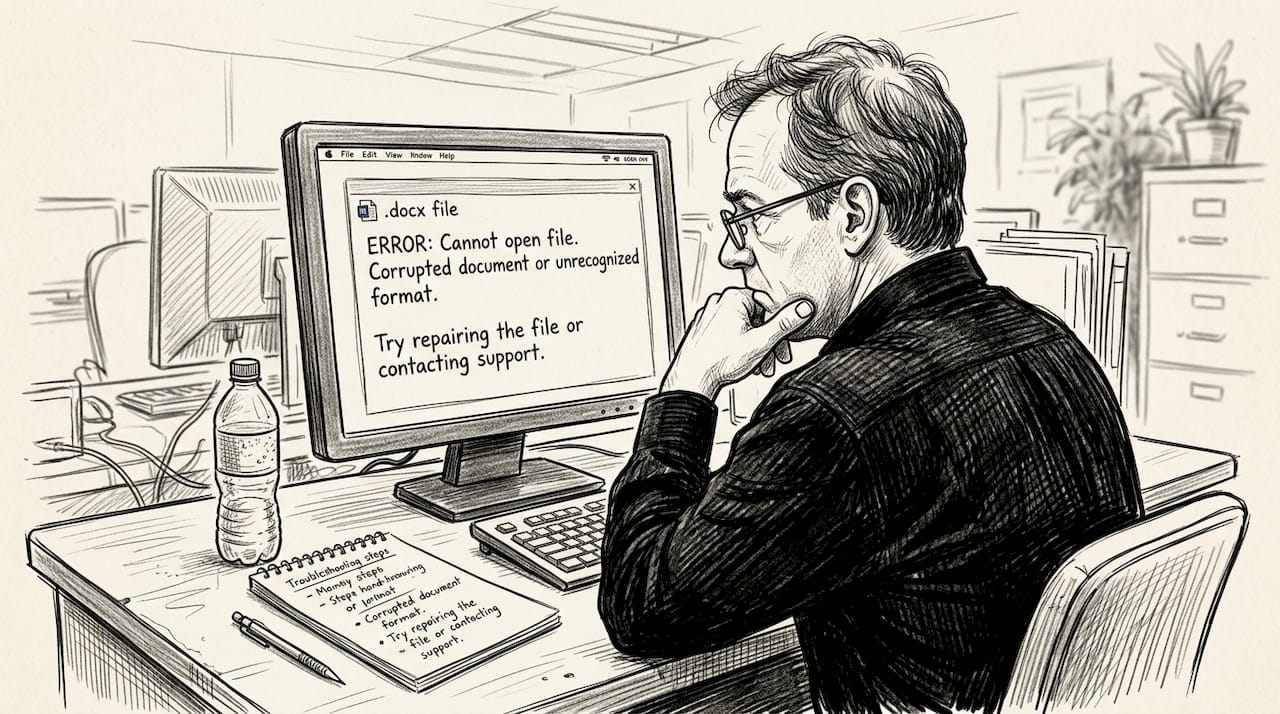
You’ve downloaded a file, double-clicked it, and nothing happens. The icon looks right, the extension seems familiar, but your system refuses to open it. This frustration affects millions of users daily, from casual computer owners to IT professionals troubleshooting client issues. Understanding file type differences isn’t just technical knowledge, it’s practical power that saves time and prevents data loss. This guide clarifies the main categories of file types, explains how compression impacts quality and size, reveals how systems identify files beyond extensions, and provides actionable troubleshooting methods you can use immediately.
Table of Contents
- Key takeaways
- Understanding main file type categories and their purposes
- Compression types: lossy vs lossless and their impact on file quality and size
- How operating systems and web use MIME types and file extensions to identify and handle files
- Specialized file types and their interoperability: CAD and data analytics formats
- Practical tips for troubleshooting and selecting the right file types
- Explore detailed file extension guides and resources
- FAQ
Key Takeaways
| Point | Details |
|---|---|
| File type categories | Knowing the main families helps predict behavior and pick compatible software for opening and editing. |
| Lossy versus lossless | Lossy reduces file size at the cost of quality, while lossless preserves data for unlimited editing. |
| Extensions and MIME | Extensions alone can mislead, so rely on MIME types or content to identify the file type. |
| Specialized formats | CAD DWG and STEP show native versus neutral formats to improve interoperability across tools. |
Understanding main file type categories and their purposes
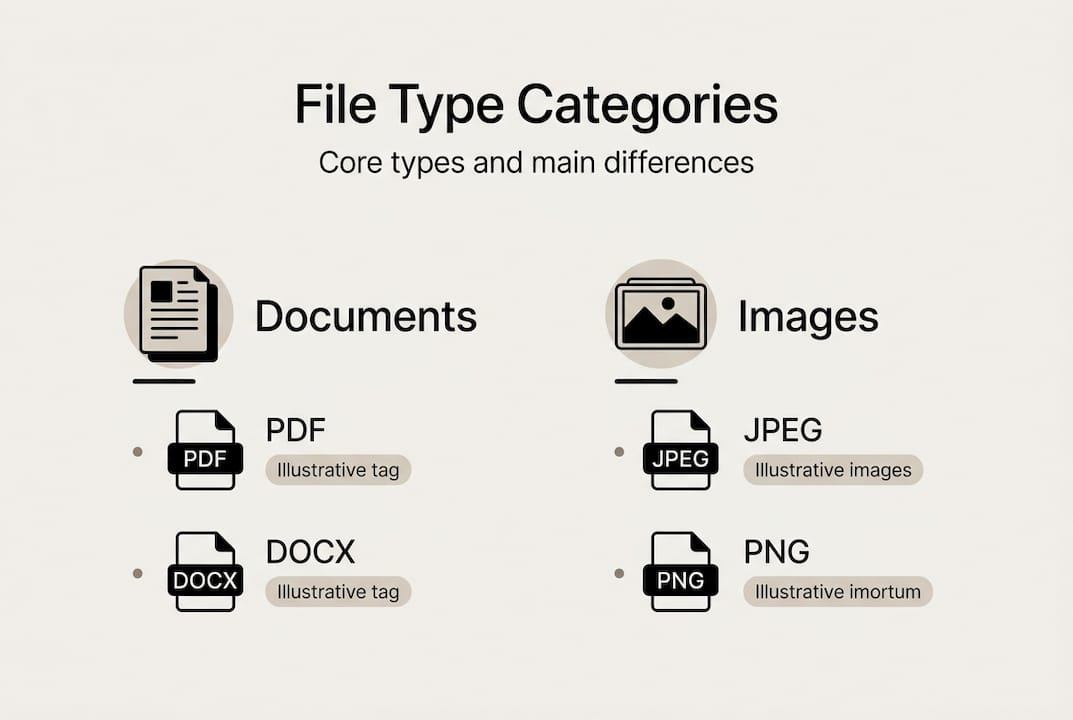
File types organize into families based on their primary function and structure. Documents include PDF and DOCX for text content with formatting, where PDF preserves layout across platforms while DOCX allows editing in word processors. Images split into two fundamental types: raster formats like JPG and PNG store pixel grids, while vector formats like SVG use mathematical paths that scale without quality loss.
Audio formats differentiate primarily by compression approach. MP3 uses lossy compression to create small files for music libraries, while WAV maintains lossless quality for professional editing. This distinction matters when you’re deciding whether to archive recordings or stream them online. Data files serve structured information storage, with CSV providing simple text-based tables and XLSX offering complex spreadsheet features with formulas and formatting.
Specialized files address industry-specific needs. CAD formats like DWG contain detailed design data for engineering software, while their neutral counterparts like STEP enable sharing across different CAD platforms. Medical imaging uses DICOM, 3D printing relies on STL, and web development employs JSON for data exchange. Each category evolved to solve particular problems in data storage, transmission, and manipulation.
The file format differences guide explains how these categories intersect with real-world workflows. Understanding which family a file belongs to helps you predict its behavior, choose appropriate software, and troubleshoot opening issues. When you encounter an unfamiliar extension, identifying its category immediately narrows down the tools you’ll need.
Pro Tip: Before converting between formats, verify you’re staying within the same category to avoid compatibility issues and unexpected data loss.
Compression types: lossy vs lossless and their impact on file quality and size
Compression algorithms reduce file size through two fundamentally different approaches. Lossy compression discards data permanently, achieving 70-95% size reduction by removing information human perception barely notices. JPEG images and MP3 audio exemplify this method, sacrificing subtle details for dramatic space savings. Each time you save a lossy file, additional quality degradation occurs, making these formats unsuitable for iterative editing.
Lossless compression preserves every bit of original data while achieving 20-50% size reduction through efficient encoding patterns. PNG images and FLAC audio use this approach, allowing unlimited editing cycles without quality loss. The tradeoff is larger file sizes compared to lossy alternatives, but the benefit is perfect reconstruction of the original data when decompressed.
| Compression Type | Size Reduction | Quality Impact | Best Use Cases | Common Formats |
|---|---|---|---|---|
| Lossy | 70-95% | Permanent data loss | Web delivery, streaming, final distribution | JPG, MP3, AAC, WebP |
| Lossless | 20-50% | Zero quality loss | Editing, archival, professional work | PNG, FLAC, WAV, TIFF |
| Hybrid | Varies | Configurable | Flexible workflows | WebP (supports both), JPEG 2000 |
Modern formats like WebP demonstrate significant advances in compression efficiency. Google’s WebP study showed 41% compression gain over JPEG while maintaining comparable visual quality. AVIF pushes this further, delivering 20-25% smaller files than WebP for equivalent quality levels. These improvements matter for website performance, where every kilobyte affects load times and user experience.
Your compression choice depends entirely on your file’s purpose. Web images destined for blog posts benefit from aggressive lossy compression since visitors won’t scrutinize pixel-level details. Photographs you plan to edit repeatedly require lossless formats to prevent cumulative degradation. Audio destined for professional mixing demands lossless preservation, while podcast distribution works fine with lossy formats optimized for speech.
The image file types guide provides specific recommendations for different scenarios. Converting from lossy to lossless doesn’t recover lost data, it simply stores the already-degraded version without further compression. This common misconception leads users to waste storage space on files that can’t improve beyond their compressed state.
Pro Tip: Always maintain lossless master copies of important images and audio before creating lossy versions for distribution, ensuring you can generate new compressed files without quality stacking.
How operating systems and web use MIME types and file extensions to identify and handle files
File extensions are suffixes following the final period in filenames, like .jpg or .docx, that hint at file content but provide no guarantee of actual format. Windows historically relied heavily on extensions for file associations, while macOS combines extensions with type and creator codes for more robust identification. This difference explains why files sometimes behave differently across operating systems despite identical extensions.
MIME types specify content type for web and network communications, using formats like image/jpeg or application/pdf. Web servers send MIME types in HTTP headers, telling browsers how to handle incoming data regardless of filename. When MIME types and extensions conflict, browsers typically trust the MIME type, which can cause unexpected behavior if server configurations are incorrect.
Magic bytes provide the most reliable file identification method by examining the actual file content. These signature sequences appear at specific byte positions within files, uniquely identifying their true format. JPEG files start with FF D8 FF, PNG files begin with 89 50 4E 47, and PDF files open with 25 50 44 46. Professional tools inspect these signatures to verify file integrity and detect format mismatches.
Identifying files accurately requires multiple verification steps:
- Check the file extension to understand the claimed format
- Verify MIME type if the file came from web or email sources
- Inspect magic bytes using hex editors or file identification tools
- Confirm your operating system has proper associations configured for the format
- Test opening with multiple compatible programs if initial attempts fail
Mismatches between these identification methods cause most file opening failures. A file with a .jpg extension but PNG magic bytes confuses software expecting JPEG data structures. Windows registry-dependent handling means incorrect associations can prevent files from opening even when the format is correct. The file identification methods article explains platform-specific troubleshooting approaches.
Security concerns arise when malicious files use misleading extensions to bypass filters. An executable disguised with a .pdf extension might fool users but not systems checking magic bytes. This is why email servers and security software inspect file signatures rather than trusting extensions alone. Understanding these identification layers helps you recognize when files might pose risks.
Pro Tip: If a file won’t open despite having the correct extension, use a hex editor to check its magic bytes and verify the actual format before attempting conversions or repairs.
Specialized file types and their interoperability: CAD and data analytics formats
CAD files demonstrate the tension between proprietary power and universal compatibility. Native formats like DWG support full editing capabilities within AutoCAD, including parametric features, layer management, and software-specific enhancements. These formats lock users into specific software ecosystems but provide the richest feature sets for professional design work.
Neutral CAD formats like STEP and IGES enable cross-platform collaboration by standardizing geometry representation. Engineers can share STEP files between SolidWorks, Fusion 360, and other CAD platforms without requiring the original software. The tradeoff is potential loss of proprietary features, parametric history, and software-specific enhancements during export and import cycles.
| Format Type | Example | Compression | Usability | Typical Use Case |
|---|---|---|---|---|
| CAD Native | DWG, SLDPRT | Minimal | Software-specific editing | Active design projects |
| CAD Neutral | STEP, IGES | Minimal | Cross-platform viewing | Client deliverables, collaboration |
| Analytics Columnar | Parquet, ORC | Excellent | Fast analytical queries | Big data processing |
| Simple Data | CSV, TSV | None | Universal compatibility | Data exchange, imports |
| Schema-Aware | Avro, Protocol Buffers | Good | Version-tolerant evolution | API communication |
Modern data analytics formats prioritize query performance over human readability. Parquet and ORC use columnar storage that groups similar data types together, enabling efficient compression and rapid filtering. These formats shine when analyzing specific columns across millions of rows, a common pattern in business intelligence and machine learning workflows.
CSV remains ubiquitous despite its limitations because every data tool can read plain text tables. The format lacks type information, requires parsing overhead, and offers no compression, but its simplicity guarantees compatibility. When sharing data with unknown recipients or importing into diverse systems, CSV serves as the lowest common denominator.
Avro and Protocol Buffers add schema definitions that describe data structure and enable version evolution. As your data models change over time, these formats allow old and new versions to coexist, preventing the breaking changes that plague simpler formats. This capability becomes critical in large organizations where different teams work with data at different update cadences.
The file format insights for IT pros explores how format choices impact infrastructure decisions. Choosing between native and neutral formats requires balancing feature richness against collaboration needs, while selecting data formats involves tradeoffs between performance, compatibility, and storage efficiency.
Pro Tip: When collaborating across different CAD platforms, export to neutral formats like STEP rather than attempting direct native format conversions, which often corrupt geometry and lose critical design intent.
Practical tips for troubleshooting and selecting the right file types
Selecting appropriate file types starts with understanding your workflow requirements. Editing demands lossless formats to prevent quality degradation through multiple save cycles. Sharing prioritizes compatibility, often requiring conversion to widely supported formats like PDF or JPEG. Storage considerations favor compression efficiency, while web delivery balances size against quality for optimal loading performance.
Verifying file integrity prevents wasted troubleshooting time on corrupted data. Check magic bytes to confirm actual format, validate MIME types for web-sourced files, and test file size against expected ranges for the format. A 50KB file claiming to be a high-resolution photograph likely contains errors or uses an unexpected format.
Common troubleshooting steps for inaccessible files include:
- Rename the file with the correct extension based on magic byte inspection
- Try opening with alternative software that supports the format
- Convert to a more compatible format using verified conversion tools
- Check file permissions and ensure you have read access
- Scan for corruption using format-specific validation utilities
- Review system logs for specific error messages that indicate the failure cause
Extension mismatches cause frequent failures when files are renamed incorrectly or transferred between systems with different default associations. The image file troubleshooting tips guide addresses scenarios where image files appear corrupted but simply need proper format identification.
Backup strategies should prioritize lossless formats for master copies, even if you distribute lossy versions. This approach lets you regenerate compressed files for new platforms or quality requirements without returning to original sources. Cloud storage costs continue declining, making the space overhead of lossless archives increasingly affordable.
MessagePack achieves 3x faster serialization than JSON, while bzip3 delivers superior compression ratios compared to zstd and xz, demonstrating how format selection dramatically impacts performance in data-intensive applications.
Format selection for web delivery requires balancing multiple factors. WebP offers excellent compression for modern browsers, but you need JPEG fallbacks for older clients. Progressive rendering benefits from formats that support incremental loading, letting users see low-resolution previews while full images download. The file extension troubleshooting resource provides platform-specific guidance for resolving format conflicts.
Pro Tip: Maintain a library of lossless master files before converting to compressed formats for distribution, ensuring you can always generate new versions without cumulative quality loss from repeated compression cycles.
Explore detailed file extension guides and resources
Navigating the landscape of file types becomes simpler with comprehensive reference materials. The file extension directory organizes 750+ file extension guides by category, providing quick access to opening instructions, compatible software, and troubleshooting guidance. Each entry explains the format’s purpose, typical applications, and platform-specific considerations.
Specialized guides dive deeper into particular formats that cause frequent confusion. The TD file extension guide demonstrates how focused resources help users understand niche formats they encounter in specific workflows. These detailed articles supplement the broader category overviews with actionable steps for immediate problem resolution.

Whether you’re troubleshooting a client’s file access issue or optimizing your own data workflows, these resources provide the technical depth and practical advice you need. The extension guides collection continues expanding to cover emerging formats and updated software compatibility information, ensuring you have current solutions for evolving file type challenges.
FAQ
What are the most common file types and their differences?
Documents like PDF and DOCX handle text with formatting, where PDF preserves layout universally while DOCX enables editing. Images divide into raster formats (JPG, PNG) that store pixel grids and vector formats (SVG) using scalable mathematical paths. Audio includes lossy MP3 for compact music libraries and lossless WAV for professional editing without quality compromise.
How does compression affect image and audio file types?
Lossy compression removes data permanently to achieve 70-95% size reduction, degrading quality with each save cycle. Lossless compression preserves all original data while reducing size 20-50% through efficient encoding patterns. WebP delivers better lossy compression than JPEG with 25-34% smaller files, while PNG provides common lossless image storage and WAV serves professional audio workflows.
What should I do if a file won’t open on my system?
Verify the file extension matches the intended format by checking magic bytes with a hex editor or file identification tool. Confirm your system has appropriate software installed for the format, and check that MIME types align with the actual file content. Try the file extension troubleshooting steps to identify mismatches between claimed and actual formats, then convert to a compatible format if necessary.
Why do files sometimes work on one computer but not another?
Operating systems handle file associations differently, with Windows relying heavily on registry entries while macOS uses hybrid identification methods. Software availability varies between platforms, and some formats require specific applications that may not be installed. MIME type configurations and default program associations also differ, causing identical files to behave inconsistently across systems.
When should I choose native versus neutral file formats?
Native formats like DWG provide full editing capabilities within specific software ecosystems, ideal for active projects requiring all features. Neutral formats like STEP enable cross-platform collaboration by standardizing data representation, perfect for sharing with clients or partners using different tools. Choose native for internal work and neutral when interoperability matters more than preserving every proprietary feature.
How can I prevent data loss when converting between file formats?
Maintain lossless master copies before creating compressed versions for distribution or web use. Understand that converting from lossy to lossless doesn’t recover lost data, it only prevents further degradation. Test conversions on sample files before processing entire libraries, and verify output quality matches your requirements before deleting originals.