Why convert file formats: boost compatibility now

Most people think file format conversion is just about opening a document on a different device. You click convert, wait a few seconds, and assume the file works perfectly everywhere. This oversimplification causes countless headaches when layouts break, images degrade, or screen readers fail to parse content properly. Understanding why and how conversions work transforms file handling from guesswork into strategic decisions that preserve quality, ensure accessibility, and maintain compatibility across every platform you use.
Table of Contents
- Why File Format Conversion Matters For Compatibility And Accessibility
- Understanding The Risks And Limitations Of File Format Conversions
- Comparing Performance And Quality: Choosing The Right Conversion Approach
- Best Practices For Effective File Format Conversion In 2026
- Explore File Format Resources And Tools
- Frequently Asked Questions About File Format Conversions
Key takeaways
| Point | Details |
|---|---|
| Compatibility across platforms | Converting file formats ensures documents, images, and media work seamlessly on different devices and software applications. |
| Accessibility compliance | Proper format conversion enables screen readers and assistive technologies to interpret content, meeting WCAG standards for users with disabilities. |
| Quality preservation risks | Lossy conversions degrade file quality with each transformation, impacting visual fidelity and AI model accuracy in unexpected ways. |
| Performance variation | Conversion tools show dramatic speed differences, with native formats processing faster than some complex document transformations in specific benchmarks. |
| Strategic format selection | Choosing the right conversion path from lossless originals prevents cumulative degradation and maintains semantic structure. |
Why file format conversion matters for compatibility and accessibility
File formats define the structural blueprint for how software interprets and displays your data. A DOCX file contains XML-based instructions for text formatting, while a PDF embeds fonts and layout commands as fixed visual elements. When you open a file, the application reads these instructions and renders content accordingly. Different platforms and devices support varying format specifications, creating compatibility gaps that conversions bridge.
Converting formats expands accessibility for users who rely on assistive technologies. Screen readers require properly structured content with semantic tags to navigate documents effectively. Accessibility requires conversion to tagged PDF/UA or HTML formats that embed hierarchical information about headings, lists, and alternative text for images. Without these structural elements, visually impaired users encounter jumbled text that conveys no meaningful organization.
Compatibility improvements extend beyond accessibility compliance. Workflow efficiency depends on seamless document sharing across teams using different software ecosystems. Converting a Photoshop PSD to PNG allows collaborators without Adobe Creative Suite to view and comment on designs. Similarly, transforming spreadsheets from XLSX to CSV enables data import into specialized analytics tools that lack native Excel support.
Understanding file format differences reveals why some conversions work smoothly while others introduce problems. Proprietary formats like DOCX store rich metadata about styles and formatting that open standards like plain text cannot preserve. When converting between dramatically different format types, expect some information loss as the target format lacks capacity to represent all source features.
Pro Tip: Always verify that your converted files meet accessibility standards by testing with actual screen reader software like NVDA or JAWS, not just automated validators that miss contextual interpretation issues.
The practical benefits of format conversion include:
- Enabling cross-platform collaboration without requiring everyone to purchase identical software licenses
- Meeting legal and regulatory requirements for document archival in standardized formats
- Reducing file sizes for faster transmission and storage efficiency
- Preparing content for specialized workflows like print production or web publishing
Understanding the risks and limitations of file format conversions
Conversions introduce technical complexity that frequently strips away features the source format supported. Photoshop files lose individual layer data when converted to JPEG, permanently flattening all elements into a single image. Excel macros disappear during XLSX to CSV transformation because CSV supports only raw cell values without embedded programming logic. These feature losses occur because target formats lack the structural capacity to represent advanced source capabilities.

PDF to editable format conversions present particularly challenging obstacles. PDFs store content as positioned visual elements without inherent semantic structure about paragraphs, tables, or columns. Conversion software must infer document organization by analyzing spatial relationships between text blocks, a process prone to errors. Edge cases include layout inference failures where multi-column designs become scrambled single-column text, or tables transform into disconnected text fragments that require extensive manual reconstruction.
Color space mismatches create subtle but significant visual alterations during image conversions. A photograph in Adobe RGB color space contains a wider gamut of colors than standard sRGB displays can reproduce. Converting to sRGB for web use shifts these out-of-gamut colors to the nearest displayable values, altering the image’s appearance in ways photographers may find unacceptable. Similar issues arise when converting between CMYK print colors and RGB screen colors.
Converting files without understanding format limitations is like translating poetry through multiple languages. Each transformation loses nuances until the final result barely resembles the original intent.
Encoding errors compound conversion problems when character sets mismatch between source and target formats. Text files using UTF-8 encoding display correctly across modern systems, but legacy formats expecting ASCII or Windows-1252 encoding render accented characters and special symbols as gibberish. These corrupted conversions require identifying the original encoding and re-converting with correct character mapping.
Common conversion pitfalls include:
- Transparent backgrounds becoming solid white or black in formats lacking alpha channel support
- Font substitution when target systems lack embedded typefaces, altering document appearance
- Metadata loss including creation dates, author information, and revision history
- Hyperlink breakage when converting between document formats with different linking mechanisms
Always examine converted files thoroughly before relying on them for critical purposes. Open documents in multiple applications to verify consistent rendering. Check that formulas calculate correctly after spreadsheet conversions. Confirm that document conversion nuances haven’t introduced subtle errors that only become apparent during actual use.
Comparing performance and quality: choosing the right conversion approach
Conversion performance varies dramatically based on tool implementation and format complexity. Empirical benchmarks show Carbone DOCX to PDF conversion at 16ms compared to Collabora’s 71ms for identical documents, a 4x speed difference. Native format ingestion consistently outperforms conversions because applications read their own format specifications directly without translation overhead. When processing large document batches, these millisecond differences accumulate into hours of productivity impact.
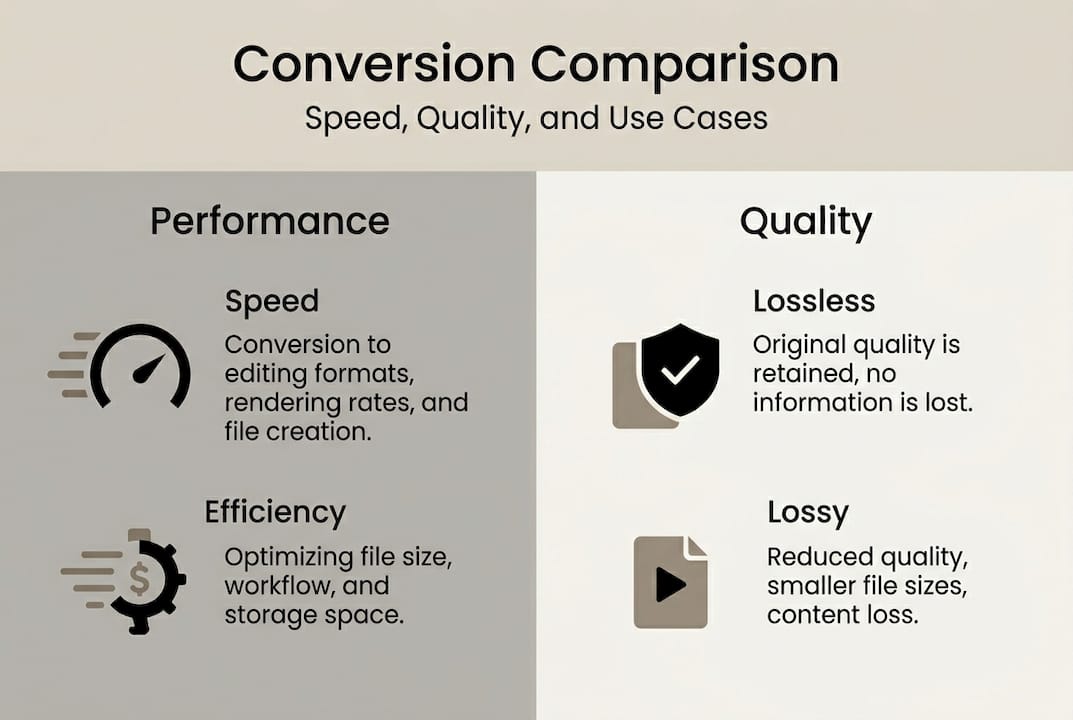
Quality degradation follows predictable patterns during lossy conversions. Each transformation from one lossy format to another compounds quality loss through generation degradation. Converting a JPEG to PNG preserves existing compression artifacts, then converting back to JPEG at lower quality adds new artifacts atop the old ones. This cumulative damage becomes visually apparent after just three or four conversion cycles as images develop blocky artifacts and color banding.
Lossy conversion risks affect AI model accuracy in ways humans may not immediately perceive. Machine learning systems trained on high-quality images struggle to classify compressed versions of the same subjects because compression artifacts alter the statistical patterns models rely on for recognition. A neural network achieving 95% accuracy on original images may drop to 78% accuracy on heavily compressed conversions, despite humans rating both versions as visually similar.
The following table compares conversion approaches across key quality and performance metrics:
| Conversion Type | Speed | Quality Preservation | Use Case |
|---|---|---|---|
| Native format | Fastest | Perfect | Direct application use |
| Lossless to lossless | Fast | Excellent | Archival and editing |
| Lossless to lossy | Moderate | Good | Web publishing |
| Lossy to lossy | Moderate | Poor | Avoid if possible |
| PDF to editable | Slow | Fair | Document recovery |
Selecting optimal conversion paths requires understanding your workflow’s quality requirements. Web graphics tolerate moderate compression because screen display resolution masks subtle artifacts. Print production demands lossless formats because high-resolution output reveals every compression defect. Effects on AI file conversions become critical when preparing training datasets or feeding images into automated analysis systems.
Pro Tip: Maintain a master file library in lossless formats like PNG for images or DOCX for documents, then generate lossy derivatives like JPEG or PDF only when needed for specific distribution channels. This workflow prevents quality degradation from accumulating across multiple conversions.
Performance optimization strategies include batching conversions during off-peak hours, selecting tools with proven benchmark results for your specific format combinations, and preprocessing files to remove unnecessary complexity before conversion. A 50-page document with embedded high-resolution photos converts slower than the same document with web-optimized images, even though the final PDF may look identical.
Best practices for effective file format conversion in 2026
Preserving master files in their original lossless formats provides insurance against conversion mistakes and quality degradation. Store Photoshop PSD files alongside exported JPEGs, keep InDesign INDD files with generated PDFs, and maintain Excel XLSX originals separate from CSV exports. This archival strategy allows regenerating derivatives with different settings if initial conversions prove unsatisfactory or requirements change.
Accessibility compliance demands specific format choices and conversion parameters. Tagged PDF/UA or HTML formats embed the semantic structure assistive technologies require. Converting a Word document to PDF without enabling accessibility tags creates a file that looks correct visually but remains incomprehensible to screen readers. Similarly, image conversions must include alternative text descriptions that convey visual information to users who cannot see pictures.
Follow these conversion workflow steps:
- Verify source file integrity by opening and checking content before conversion
- Select conversion tools with documented reliability for your specific format combination
- Configure accessibility options including tagging and alternative text embedding
- Execute conversion with appropriate quality settings for your intended use case
- Review output files in multiple applications to confirm consistent rendering
- Test accessibility with screen reader software, not just automated validators
- Archive both source and converted files with clear naming conventions
Avoiding repeated lossy conversions prevents cumulative quality degradation. Each lossy-to-lossy transformation compounds artifacts and reduces fidelity. Converting JPEG to PNG to JPEG creates worse results than converting directly from the original source to final JPEG format. Plan conversion paths that minimize transformation steps between source and final delivery format.
PDF to editable format conversions require manual review because automated inference of document structure frequently introduces errors. Tables may split across pages incorrectly, multi-column layouts often scramble into single columns, and complex formatting like nested lists rarely survives intact. Budget time for cleanup work proportional to document complexity rather than expecting perfect automated results.
Maintaining pre-conversion backups protects against data loss from failed conversions or corrupted output files. Cloud storage and external drives provide inexpensive insurance that allows experimenting with different conversion settings without risking your only copy. Version control systems track changes across multiple conversion attempts, enabling rollback to earlier states if problems emerge.
Additional quality assurance practices include:
- Comparing file sizes between source and converted versions to detect unexpected compression or data loss
- Checking embedded metadata preservation for copyright, licensing, and attribution information
- Verifying hyperlink functionality after document format conversions
- Testing converted files on target platforms before distributing to end users
- Documenting conversion settings and tool versions for reproducibility
Tool selection significantly impacts conversion success rates. Research performance benchmarks and user reviews for your specific format combinations rather than assuming all converters produce equivalent results. DOCX file conversion tips highlight format-specific considerations that generic advice overlooks.
Explore file format resources and tools
Navigating the complex landscape of file formats becomes manageable with comprehensive reference materials and proven conversion strategies. open-the-file.com maintains an extensive file extension directory covering 750+ file extension guides with detailed opening instructions, compatibility notes, and troubleshooting guidance. Whether you encounter an obscure legacy format or need platform-specific advice for common types, these resources provide tested solutions.

Our extension guides for file types include step-by-step tutorials for converting between popular formats while preserving quality and accessibility. Each guide addresses format-specific challenges like the layout preservation issues in DOCX file format conversions or the color space considerations for image transformations. These practical resources help you avoid common pitfalls and execute conversions confidently.
Frequently asked questions about file format conversions
Why does converting PDF to Word often ruin formatting?
PDFs store content as positioned visual elements without semantic structure about paragraphs or tables. Conversion software must infer document organization by analyzing spatial relationships, a process that frequently misinterprets multi-column layouts, tables, and complex formatting. Manual cleanup after conversion remains necessary for most complex documents.
How can I maintain accessibility when converting files?
Use tagged PDF/UA or HTML formats that embed semantic structure for screen readers. Enable accessibility options in conversion tools to preserve heading hierarchies, alternative text for images, and proper reading order. Always test converted files with actual screen reader software to verify usability beyond automated validation checks. Understanding file format differences helps select formats that support accessibility features.
What are the performance impacts of different conversion tools?
Conversion speed varies dramatically between tools, with some processing documents 4x faster than others for identical files. Native format ingestion consistently outperforms conversions because applications read their own specifications directly. Batch conversions amplify these differences, turning millisecond variations into significant productivity impacts across large document sets.
Is quality always lost during format conversion?
Lossless-to-lossless conversions like PNG to TIFF preserve perfect quality because both formats support identical data without compression. Lossy conversions to formats like JPEG introduce compression artifacts that degrade quality. The critical factor is avoiding repeated lossy-to-lossy conversions that compound degradation with each transformation.
How do I choose the best format for sharing documents?
Consider your audience’s software capabilities, accessibility requirements, and whether recipients need editing access or just viewing. PDF works well for fixed-layout documents requiring consistent appearance across platforms. DOCX enables editing but may render differently across software versions. Following proper document workflow tips ensures your format choice matches collaboration needs.