How to open files with unknown extensions on Windows and macOS in 2026

You’ve just received an important file, but when you try to open it, nothing happens. The extension looks unfamiliar, and your system doesn’t recognize it. This frustrating scenario is common for anyone working with diverse file types across Windows and macOS. Understanding how each operating system identifies and opens files through extensions can save you time and eliminate confusion. This guide walks you through the process of opening files with unknown extensions on both platforms, from basic associations to advanced troubleshooting techniques that work in 2026.
Table of Contents
- Understanding File Extensions And Associations
- How To Open Unknown Or Unsupported File Extensions On Windows
- How To Open Unknown Or Unsupported File Extensions On Macos
- Common Tools And Tips For Managing And Opening File Extensions
- Discover Detailed Guides On File Extensions With Open-The-File.com
Key takeaways
| Point | Details |
|---|---|
| Windows uses Registry mappings | File associations in Windows are stored in the Registry, connecting extensions to specific applications. |
| macOS relies on UTIs | macOS uses Uniform Type Identifiers (UTIs) to recognize file types, not just extensions, for more flexible identification. |
| Manual association changes work on both systems | Users can override default apps through system settings or right-click menus on Windows and macOS. |
| Unknown extensions get dynamic handlers | Both operating systems assign fallback or dynamic handlers when encountering unfamiliar file types. |
| Online resources help identify extensions | Comprehensive databases and extension guides provide recommended software for opening unknown files. |
Understanding file extensions and associations
File extensions are the suffixes attached to filenames, like .doc for Word documents or .jpg for images. These three or four character codes tell your operating system what type of data the file contains and which application should open it. Without this system, your computer wouldn’t know whether to launch a text editor, image viewer, or video player when you double click a file.
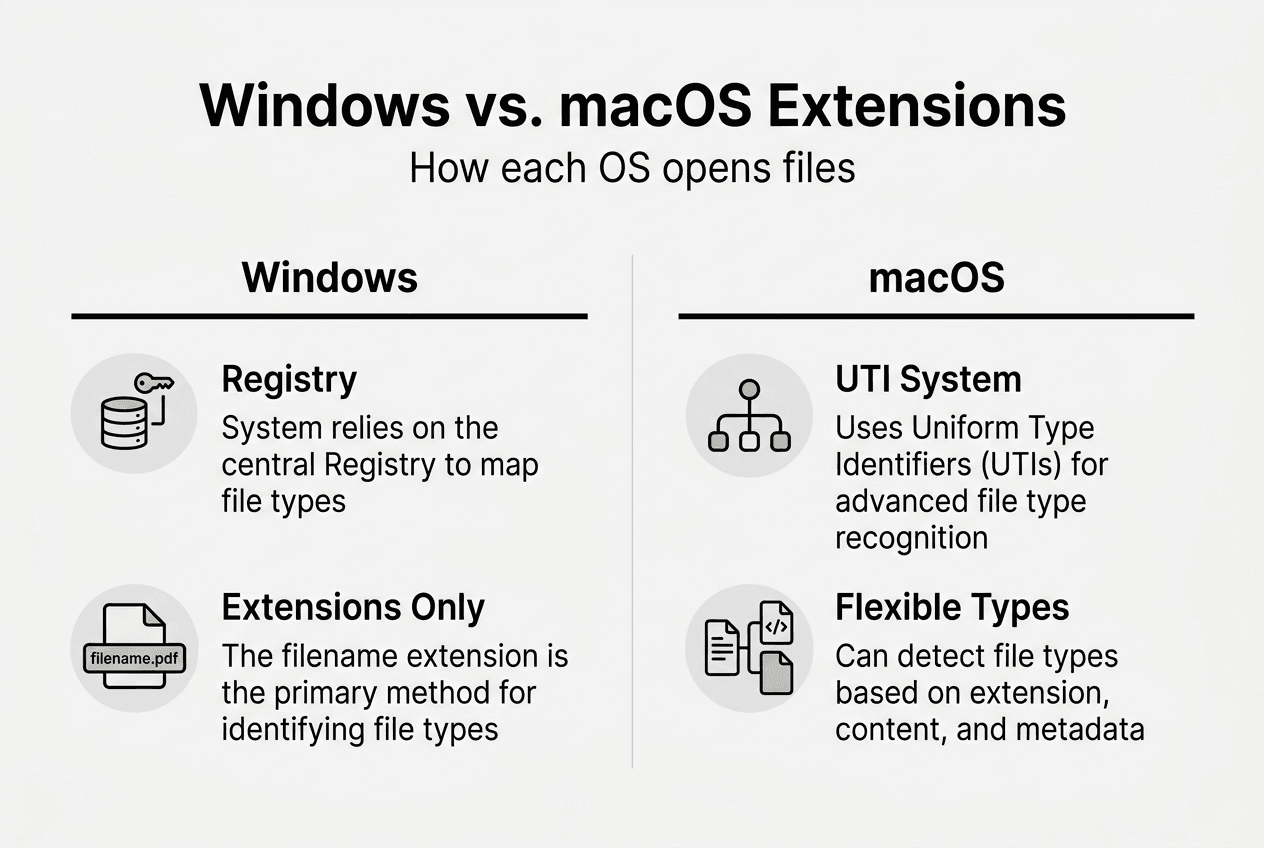
Windows and macOS handle these associations differently under the hood. Windows stores file associations in the Registry, a centralized database that maps each extension to a specific program. When you double click a .pdf file, Windows checks the Registry to find which application handles that extension, then launches it automatically. This system is straightforward but relies entirely on the extension being present and recognized.
macOS takes a more sophisticated approach. Instead of depending solely on extensions, macOS uses Uniform Type Identifiers (UTIs) to recognize file types. UTIs can examine file content, metadata, and structure to identify formats even when extensions are missing or incorrect. This system evolved from Classic Mac OS, which used type and creator codes to identify files. UTIs provide greater flexibility and accuracy, especially when working with files from different sources or platforms.
Both systems assign default handlers when they encounter files without recognized extensions. Windows typically prompts you to choose an application or search the Microsoft Store. macOS generates dynamic UTIs for unknown types and attempts to match them with capable applications. Understanding these fundamental differences helps you troubleshoot file opening issues more effectively on either platform.
The key differences between Windows and macOS file handling include:
- Windows depends heavily on visible file extensions for identification
- macOS can identify files through content analysis and metadata
- Registry edits affect Windows associations system wide
- macOS UTIs use reverse DNS format for universal compatibility
- Both systems let users manually override default associations
Grasping how your operating system recognizes and opens files gives you control over your workflow. When you understand the association mechanism, you can quickly resolve issues with unfamiliar extensions or reassign file types to your preferred applications. This knowledge becomes especially valuable when working with specialized formats or files from different platforms that may not follow standard conventions.
How to open unknown or unsupported file extensions on Windows
Windows provides several built in methods for opening files with unfamiliar extensions. The most accessible option is File Explorer’s ‘Open With’ feature, which lets users override file association defaults without making permanent changes. Right click any file, select ‘Open With,’ and choose from installed applications. If you want this choice to become permanent, check the box labeled ‘Always use this app to open files.’
For users comfortable with command line tools, Windows offers powerful utilities to examine and modify associations. The ‘assoc’ and ‘ftype’ commands reveal file associations and associated applications directly from the command prompt. Type ‘assoc .extension’ to see which file type is linked to that extension, then use ‘ftype’ with the file type name to view the associated application path. These commands give you precise control over how Windows handles specific extensions.
Here’s the step by step process for opening unknown extensions on Windows:
- Right click the file and select ‘Open With’ from the context menu
- Choose ‘Choose another app’ if your preferred program isn’t listed
- Browse for the application executable if it doesn’t appear in the list
- Check ‘Always use this app’ to set a permanent association
- Click OK to open the file with your selected application
Windows 10 and 11 include a centralized settings panel for managing default applications by file type. Navigate to Settings, then Apps, then Default Apps to access this interface. Scroll down to ‘Choose default apps by file type’ to see a comprehensive list of every extension Windows recognizes. You can click any extension to change which program opens it, making this the cleanest method for permanent association changes.
Pro Tip: Before changing associations for common extensions like .txt or system files, create a restore point. Incorrect associations for critical file types can make Windows difficult to use, and a restore point lets you revert changes instantly.
Advanced users can explore the Registry directly using regedit to view or modify associations at a deeper level. The HKEY_CLASSES_ROOT hive contains all file type registrations, though editing here requires caution. Each extension has a key that points to a ProgID, which then defines the associated application and context menu options. This level of control is rarely necessary but helpful when troubleshooting persistent association problems.
When you encounter a completely unknown extension, searching online for the file type often reveals recommended applications. Sites like open-the-file.com maintain extensive databases of extensions with detailed opening instructions. For example, if you receive a .BOO file, first identify whether it is Kermit BOO encoded data, Boo language source, or another application-specific format before choosing software. Even common formats like .TXT files may benefit from alternative applications depending on your workflow needs.
How to open unknown or unsupported file extensions on macOS
macOS handles unknown extensions more gracefully than Windows thanks to its UTI system. macOS uses UTIs with reverse DNS format and supports dynamic UTIs for unknown file types, allowing the system to make educated guesses about file content even without recognized extensions. When you double click an unknown file, macOS analyzes its structure and metadata to suggest appropriate applications. This intelligent matching reduces the frustration of encountering unfamiliar formats.

The Finder’s ‘Get Info’ window provides complete control over file associations on macOS. Select any file, press Command+I or right click and choose ‘Get Info,’ then expand the ‘Open With’ section. You’ll see the currently assigned application and can choose a different one from the dropdown menu. Click ‘Change All’ to apply this choice to every file with the same extension, creating a permanent association. This method works identically whether the extension is recognized or completely unknown.
Follow these steps to open unknown extensions on macOS:
- Right click the file and select ‘Open With’ to see available applications
- Choose ‘Other’ to browse for applications not listed in the menu
- Enable ‘All Applications’ in the browse dialog to see every installed app
- Select your preferred application and click ‘Open’
- Use ‘Get Info’ and ‘Change All’ to make the association permanent for all similar files
One common source of confusion on macOS is hidden file extensions. By default, Finder hides extensions for known file types, which can make it difficult to identify what you’re working with. Open Finder Preferences, click the Advanced tab, and check ‘Show all filename extensions’ to make every extension visible. This simple change eliminates ambiguity and helps you quickly identify file types before attempting to open them.
Pro Tip: Hold the Option key while right clicking a file to access the ‘Always Open With’ menu directly. This shortcut skips the ‘Get Info’ window and lets you set permanent associations in one step, saving time when you’re processing multiple unknown files.
UTIs eliminate problems of relying solely on extensions, creator, or type codes by providing a hierarchical type system. A JPEG image, for example, conforms to multiple UTIs: public.jpeg, public.image, and public.data. Applications can register to handle broad categories or specific formats, giving macOS flexibility in matching files to capable programs. This system explains why macOS often succeeds in opening files even when Windows struggles with the same extension.
For particularly obscure or proprietary formats, you may need specialized applications beyond what macOS includes. The Mac App Store offers numerous file viewers and converters designed to handle uncommon extensions. Third party apps like file identification utilities can analyze unknown files and suggest compatible software. When all else fails, consulting file extension guides provides expert recommendations for opening specific formats on macOS.
The macOS approach to file handling prioritizes user experience and flexibility. Unlike Windows, which can become confused when extensions are missing or incorrect, macOS maintains functionality through content based identification. This difference becomes especially apparent when working with files from Unix systems, older Macs, or cross platform projects where extensions may not follow Windows conventions.
Common tools and tips for managing and opening file extensions
Beyond operating system features, dedicated file opener applications provide support for hundreds of formats in a single program. These universal file viewers can open documents, images, archives, and multimedia files without requiring format specific software. They’re particularly useful when you regularly encounter diverse file types and want to avoid installing dozens of specialized applications. Many offer preview capabilities, format conversion, and batch processing features that extend beyond simple file opening.
Online extension databases serve as invaluable resources when you encounter completely unfamiliar formats. These comprehensive references catalog thousands of extensions with detailed descriptions, recommended software, and platform specific instructions. open-the-file.com maintains an extensive directory covering more than 750 file extension guides, making it a go to resource for quick identification and opening guidance. Whether you’re dealing with a common format or an obscure proprietary type, these databases typically provide the information you need.
Security considerations matter when opening unknown files. Extensions can be spoofed to disguise malicious executables as harmless documents. Always scan downloaded files with updated antivirus software before opening them, especially when they arrive via email or from untrusted sources. Be particularly cautious with double extensions like filename.pdf.exe, which often indicate attempts to trick users into running malware. Your operating system’s built in security features provide the first line of defense, but vigilance remains essential.
Here’s a comparison of file association methods across major operating systems:
| Operating System | Association Method | Flexibility | User Control |
|---|---|---|---|
| Windows | Registry based extensions | Moderate | High via settings and Registry |
| macOS | UTI content analysis | High | High via Get Info |
| Linux GUI | MIME type associations | High | Varies by desktop environment |
Keyboard shortcuts streamline file management across both Windows and macOS. On Windows, selecting a file and pressing Alt+Enter opens Properties where you can view and change associations. macOS users can press Command+Option+I to open an inspector window that updates as you select different files, making it easy to review associations for multiple items quickly. Learning these shortcuts reduces the time spent navigating menus when managing file types.
Understanding that extensions don’t guarantee file content is crucial for troubleshooting. A file named document.pdf might actually contain a ZIP archive, image data, or corrupted information. When an expected application refuses to open a file, the extension may be incorrect rather than the association. File identification tools can analyze the actual content and reveal the true format, letting you choose the appropriate application regardless of what the extension suggests.
Linux GUIs use MIME type based associations, which function similarly to macOS UTIs in their flexibility. While this guide focuses on Windows and macOS, understanding that multiple systems exist for file identification helps when working across platforms. Files that behave unexpectedly on one system may work perfectly on another due to these different recognition methods. Cross platform compatibility often requires ensuring files have correct extensions and valid internal structure.
For users managing large file collections, batch association tools can save hours of manual work. Windows PowerShell scripts can reassign hundreds of files at once, while macOS Automator workflows accomplish similar tasks through a visual interface. These advanced techniques become valuable when you’ve imported files from another system or need to standardize associations across a network. The investment in learning these tools pays off quickly when dealing with extensive file management tasks.
Specialized formats like .SI files or industry specific extensions often require niche applications that aren’t widely installed. Researching these extensions through comprehensive guides reveals not just which software can open them, but also free alternatives, conversion options, and compatibility notes. This research prevents the frustration of downloading incompatible software or paying for applications you’ll rarely use.
Discover detailed guides on file extensions with Open-The-File.com
Navigating the world of file extensions becomes significantly easier with the right resources at your fingertips. open-the-file.com has specialized in file extension guidance since 2008, building an extensive library of detailed instructions for opening, converting, and managing 750+ file types. Whether you’re struggling with a proprietary format from specialized software or need quick help with a common extension, the site’s file extension index provides expert recommendations and step by step instructions tailored to your operating system.

The platform excels at offering practical solutions for real world file management challenges. Each guide includes platform specific instructions for Windows and macOS, recommended software options ranging from free to professional tools, and troubleshooting tips for common issues. When you encounter formats like .TR files that aren’t immediately recognizable, having access to curated guidance saves time and eliminates guesswork. Visit the Open-The-File.com homepage to explore the full directory and bookmark it for future reference when unfamiliar extensions inevitably appear in your workflow.
FAQ
How can I open a file if I don’t know its extension?
Use file identification tools or websites like open-the-file.com to research the file type and find recommended software. You can also try opening it with common applications like text editors or image viewers to test whether the file contains readable data in those formats.
Can I change the default program to open a specific file extension?
Yes, both operating systems allow adjusting default programs through system settings or right-click menus. The ‘Open With’ option and system settings let users change default apps permanently or temporarily. Windows supports this through the Default Apps control panel, while macOS uses the ‘Get Info’ window in Finder.
Why does macOS sometimes open files without extensions correctly?
macOS uses Uniform Type Identifiers to accurately identify files beyond filenames, analyzing file content and metadata rather than relying solely on extensions. This sophisticated system allows macOS to correctly match files with appropriate applications even when extensions are missing, incorrect, or completely absent.
Are file extensions the same across all operating systems?
Extensions often overlap between systems, but Linux, Windows, and macOS use different methods (MIME types, Registry, UTIs) for file associations. While a .jpg file works similarly across platforms, the underlying recognition and association mechanisms differ significantly. This explains why some files open smoothly on one system but cause problems on another despite having identical extensions.