Fix file extension errors fast on Windows and Mac

You double-click a file, and instead of it opening, you get a warning that the format doesn’t match the extension, or the file simply refuses to open at all. It’s one of the most common and confusing computer frustrations out there. The primary cause of these errors is a mismatch between a file’s extension and its actual content format, which breaks how your operating system tries to open it. The good news: most of these errors are fixable in minutes, and this guide walks you through every step on both Windows and Mac.
Table of Contents
- Understanding file extension errors
- What you need before starting
- Step-by-step: Fixing file extension errors on Windows
- Step-by-step: Fixing file extension errors on Mac
- Dealing with Excel and Office file extension mismatches
- Advanced troubleshooting and edge cases
- Find more solutions and expert file guides
- Frequently asked questions
Key Takeaways
| Point | Details |
|---|---|
| Check file identity | Always verify a file’s true type, not just its extension, before making changes. |
| Use platform tools | Windows and Mac have built-in features for revealing and fixing extensions. |
| Correct associations | Reset file type associations if errors persist after changing the extension. |
| Repair before converting | Try built-in repair tools for office files or suspected corruption first. |
| Avoid risky sources | Never open or rename files from untrusted or unknown sources to prevent security risks. |
Understanding file extension errors
Before you can fix the problem, it helps to know exactly what’s going wrong. A file extension is the short suffix after the dot in a filename, like ".pdf, .jpg, or .xlsx`. It tells your operating system which program to use when you open that file. But the extension is just a label. It doesn’t guarantee anything about what’s actually inside.
To understand what file extensions are and why they matter, think of them as name tags. A file actually has three identity layers:
- Extension: The visible label after the dot (e.g.,
.docx) - MIME type: A standardized content identifier used by browsers and servers
- Magic bytes: Hidden data at the start of the file that reveals its true format
According to Microsoft, a file’s true format is determined by these three layers together, not just the extension. When they don’t match, errors happen.
The way Windows and Mac handle this differs. Windows relies heavily on extensions to determine which app opens a file, while Mac uses a combination of metadata and extensions. That’s why the same mismatch can produce different errors on each platform. There are several types of file extension errors you might encounter, from wrong associations to outright corruption.
Pro Tip: If you downloaded a file from the internet and it won’t open, always check the source first. A renamed or mismatched extension is sometimes a sign of a corrupted or unsafe file.
What you need before starting
Rushing into changes without preparation can make things worse. Here’s what to have ready before you touch any file settings.
Essential checklist:
- A backup copy of the problem file (copy it before changing anything)
- Administrator access on your computer
- Knowledge of where the file came from and what it’s supposed to be
- A file repair tool if the file may be corrupted
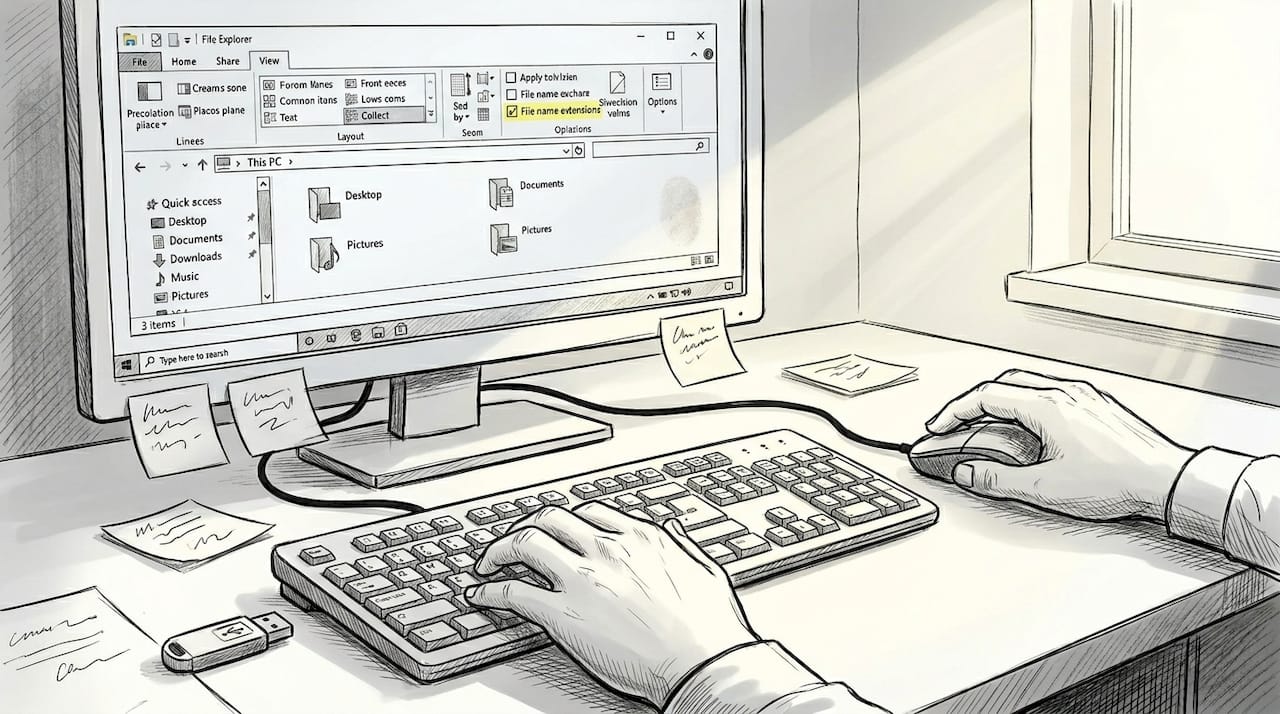
On Windows, you’ll need to enable file name extensions in File Explorer’s View tab before you can even see what extension a file has. On Mac, you reveal extensions through Finder settings by going to Finder > Settings > Advanced and checking “Show all filename extensions.”
Here’s a quick reference table for what you’ll need on each platform:
| Requirement | Windows | Mac |
|---|---|---|
| Show extensions | File Explorer > View tab | Finder > Settings > Advanced |
| Admin access | Yes, for system changes | Yes, for system changes |
| Backup tool | File copy or backup software | Time Machine or file copy |
| File repair tool | Office Repair, third-party tools | Disk Utility, third-party tools |
| Identify file type | Properties > Type of file | Get Info (Cmd+I) |
Knowing how to identify file extensions before making changes is the single most important preparation step.
Pro Tip: Always duplicate the file and work on the copy. Renaming or changing an extension on the original can make recovery much harder if something goes wrong.
Step-by-step: Fixing file extension errors on Windows
Ready with your tools and backups? Here’s how to fix extension errors on Windows, step by step.
- Show file extensions. Open File Explorer, click the View tab, and check the box labeled “File name extensions.” Now you can see the full filename including its extension.
- Check the file’s properties. Right-click the file and select Properties. Under “Type of file,” you’ll see what Windows thinks the file is. Compare this to the extension shown in the filename.
- Rename the extension if needed. If the extension is wrong, right-click the file, choose Rename, and change the extension to match the actual file type. Windows will warn you, but confirm the change.
- Fix the file association. If the right app isn’t opening your file, right-click it, choose “Open with,” and select the correct program. Check “Always use this app” to make it permanent.
- Reset default apps if needed. Go to Settings > Apps > Default apps to fix file associations for a specific extension across your whole system.
For a broader look at how to open file extensions on Windows, including less common formats, there are detailed guides available for specific file types.
Pro Tip: Be careful with the “Reset” option in Default Apps. It resets all default programs for that file type system-wide, which can affect other files you didn’t intend to change.
Files from untrusted sources are a real risk. If a file came from an unknown email or sketchy website, don’t just rename the extension and open it. Scan it with antivirus software first. A bad actor can disguise malware as a harmless document by changing its extension. Knowing how fixing file type associations works helps you stay safe while solving the problem.
Step-by-step: Fixing file extension errors on Mac
After covering Windows, here’s how to solve these problems on your Mac.
- Reveal all extensions in Finder. Go to Finder > Settings > Advanced and check “Show all filename extensions.” This makes every file’s extension visible.
- Use Get Info to inspect the file. Select the file and press Cmd+I. The “Name & Extension” field shows the current extension. You can edit it directly here.
- Change the extension safely. In the Get Info window, uncheck “Hide extension,” then edit the extension in the name field. Mac will ask you to confirm.
- Update the file association. Right-click the file, choose “Open With,” and pick the correct app. To change the app for all files of that type, use Get Info and click “Change All” after selecting the app.
- Verify the fix. Open-The-File.com with the new association and confirm it works correctly before deleting your backup copy.
Here’s a summary of Mac tools and what each step does:
| Step | Tool/Option | What it does |
|---|---|---|
| Show extensions | Finder > Settings > Advanced | Reveals all file extensions |
| View/edit extension | Get Info (Cmd+I) | Shows and lets you change the extension |
| Open with specific app | Right-click > Open With | Opens file with chosen app once |
| Change for all files | Get Info > Change All | Updates association for all files of that type |
| Confirm extension display | Show extensions in Finder | Ensures extensions are always visible |
For more on how to open file extensions on Mac, including tricky formats like disk images, you can also check out the guide on how to open DMG files on Mac for a real-world example.
“Changing a file association in Mac using ‘Change All’ affects every file with that extension on your system. Make sure you’re choosing the right app before confirming.”
Dealing with Excel and Office file extension mismatches
Some of the trickiest extension errors happen with Office files like Excel. Here’s how to resolve them confidently.
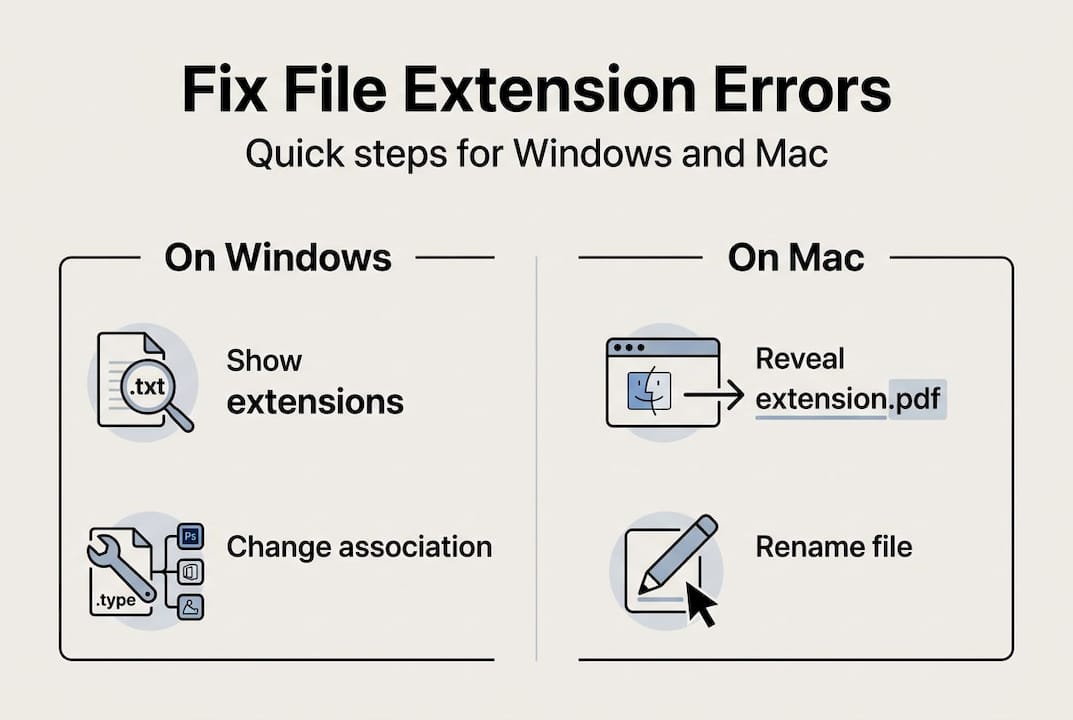
When you open an Excel file and see a warning that the file format doesn’t match its extension, it usually means the file was saved in one format but given a different extension. For example, a file saved as a CSV but named with .xlsx will trigger this warning every time.
Here’s how to handle it safely:
- Verify the true format. Open-The-File.com in a text editor like Notepad (Windows) or TextEdit (Mac) to see if it’s plain text (CSV) or binary data (true Excel format).
- Rename to the correct extension. If it’s a CSV, rename it from
.xlsxto.csv. If it’s a true Excel file, keep.xlsx. - Use Open and Repair. In Excel, go to File > Open, select the file, click the dropdown arrow next to Open, and choose “Open and Repair.” This can fix Excel mismatches caused by minor corruption.
- Never open untrusted Office files. Malicious macros can be embedded in Office documents. If you don’t know the source, don’t open it.
For specific help with open XLSX file errors, there are dedicated guides that walk through every scenario.
Pro Tip: Always make sure your version of Microsoft Office is fully updated before troubleshooting. Many extension-related bugs in Office have been patched in recent updates.
Advanced troubleshooting and edge cases
With the basics and Office files covered, here’s what to do if your error is especially stubborn or your file seems damaged.
Some files won’t open even after you fix the extension. That usually means the file itself is corrupted, not just mislabeled. Corrupted files require repair tools, and sometimes the data inside is simply unrecoverable.
Here are solutions for the most common edge cases:
- Corrupted file: Use a dedicated repair tool for the file type (e.g., Office Repair for Word/Excel, Disk Utility for Mac disk images). Third-party tools like Stellar Repair or similar software can recover data from badly damaged files.
- File has no extension: Use a hex editor or file identification tool to read the magic bytes and determine the true format, then add the correct extension.
- Download lost its extension: Check your browser’s download history for the original filename, or contact the sender for the correct file.
- File opens but looks wrong: The extension may be correct but the file was saved incorrectly. Try opening it in a different app that supports multiple formats.
- Unusual formats: For obscure file types, check dedicated guides. For example, open NT data files or open JXL image files have their own specific steps.
Warning: If a file from an unknown source has a double extension (like
document.pdf.exe), do not open it. This is a classic trick used to disguise malware as a safe file. Delete it immediately and run a full antivirus scan.
If none of these steps work, the file may be beyond simple repair. At that point, contacting the original sender for a fresh copy is your best option.
Find more solutions and expert file guides
Still stuck? open-the-file.com has you covered with one of the most thorough file extension resources available online.

The site’s searchable file extension directory covers over 750 file formats, with step-by-step instructions tailored to both Windows and Mac. Whether you’re dealing with a common format like PDF or something far more obscure, you’ll find a dedicated guide that walks you through exactly what to do. The extension guides are written in plain language, without confusing jargon, so you can get your file open fast. If your error is unusual or the file type is rare, the directory is the fastest way to find a solution built specifically for your situation.
Frequently asked questions
What causes file extension errors?
They happen when a file’s extension doesn’t match its actual format, which breaks how apps try to open it. As Microsoft confirms, the mismatch between extension and content is the primary trigger for these errors.
How do I show or change file extensions on Windows?
Open File Explorer, go to the View tab, and check “File name extensions” to reveal all extensions. Then right-click your file and choose Rename to change the extension.
How can I fix the file type association in Windows?
Right-click the file, choose “Open with,” select your app, and check “Always use this app.” You can also reset default apps in Settings > Apps > Default apps for a system-wide fix.
How do I reveal and change file extensions on a Mac?
Go to Finder > Settings > Advanced and check “Show all filename extensions.” To change a specific file’s extension, use Get Info in Finder by pressing Cmd+I and editing the name field.
What should I do if my file still won’t open after changing the extension?
The file may be corrupted. Try a dedicated repair tool for that file type, or ask the sender for a fresh copy of the file.
Recommended
- Open-The-File.com - Extension Guides for 750+ File Types
- File extension identification: steps for Windows & macOS | Open-The-File.com
- How to open file extensions on Windows and macOS in 2026 | Open-The-File.com
- Types of file extensions: troubleshooting guide 2026 | Open-The-File.com
- DLL error types explained: fix Windows issues fast – FixDlls Blog