What is a file extension? A 2026 guide for file management

Most computer users assume file extensions reliably tell them what a file contains. You see .docx and expect a Word document, or .jpg and anticipate an image. This assumption creates vulnerabilities. Extensions are naming conventions, not guarantees of content. Malicious actors exploit this trust by disguising harmful files with innocent-looking extensions. Understanding how operating systems actually identify files and learning to verify file types beyond their extensions transforms how you manage digital files safely in 2026.
Table of Contents
- What Is A File Extension And Why Does It Matter?
- How Different Operating Systems Handle File Extensions
- Limitations And Security Risks Of Relying Solely On File Extensions
- Practical Tips For Managing And Troubleshooting File Extensions
- Explore File Extensions With Open-The-File.com
- FAQ
Key takeaways
| Point | Details |
|---|---|
| Extensions suggest format | File extensions indicate intended format but don’t validate actual content type or guarantee safety |
| OS handle extensions differently | Windows relies heavily on Registry mappings while macOS uses metadata and Linux treats extensions as optional |
| Security requires verification | Combining extension checks with magic numbers and MIME validation prevents exploitation and malware |
| Magic numbers provide accuracy | Content inspection using file signatures achieves high accuracy compared to 63% from extensions alone |
| Cross-platform awareness matters | Understanding how different systems treat extensions improves troubleshooting and file sharing |
What is a file extension and why does it matter?
A file extension is a suffix appended to a filename indicating the file’s format and associated application. The practice originated in MS-DOS, where the 8.3 filename convention limited names to eight characters plus a three-character extension. This constraint forced developers to create shorthand identifiers like .txt for text files or .exe for executables. The period separator became standard, establishing a pattern that persists decades later across modern operating systems.
File extensions serve multiple practical functions in your daily computing. They help operating systems associate files with appropriate applications, determine which icon to display, and suggest default actions when you double-click. When you see a .pdf file, your system knows to open Adobe Reader or a similar viewer. Extensions also enable quick filtering and searching, letting you locate all .xlsx spreadsheets or .mp4 videos in a folder instantly.
Common misconceptions about extensions create problems. Many users believe extensions contain embedded metadata about file creation or modification. They don’t. Extensions are simply part of the filename, characters you can change as easily as renaming the file itself. Some assume changing a .txt extension to .pdf magically converts the file format. It doesn’t. The underlying data structure remains unchanged, and opening the renamed file will likely produce errors or garbage output.
Consider these key limitations:
- Extensions don’t validate file contents or structure
- Renaming extensions doesn’t convert file formats
- Multiple programs can claim the same extension
- Hidden extensions mask the true filename from users
- Case sensitivity varies across operating systems
Pro Tip: Always enable viewing of file extensions in your operating system settings. Hidden extensions create security blind spots where malicious files disguised as documents or images can fool even careful users. Transparency in filenames is your first defense against deceptive files.
How different operating systems handle file extensions
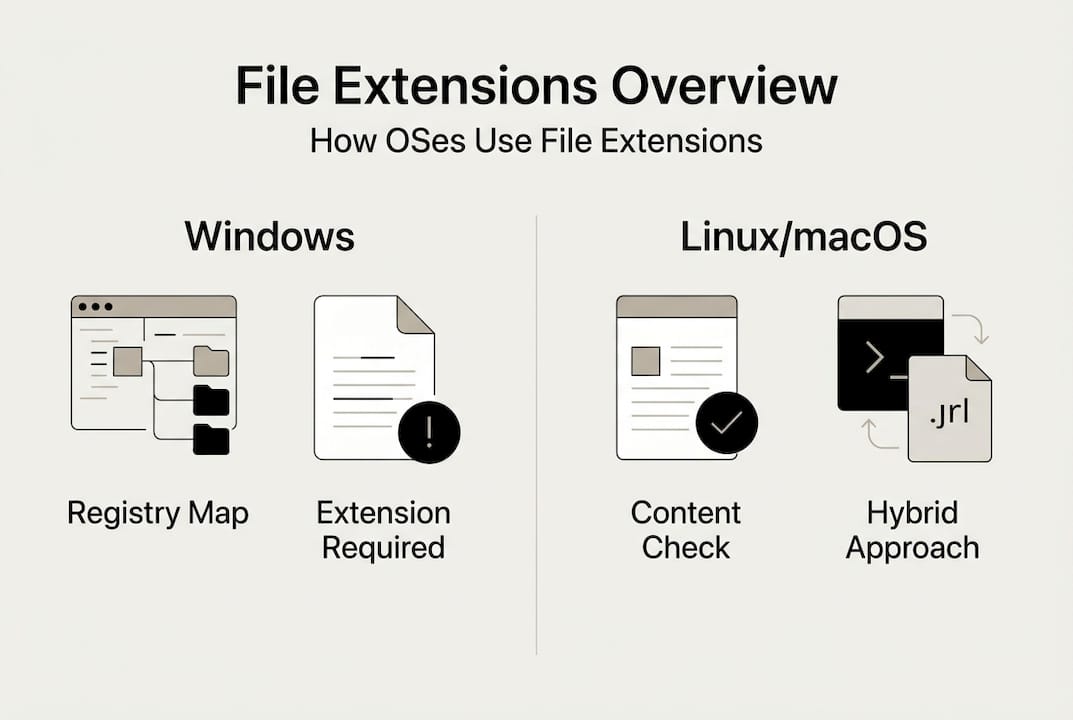
Windows depends heavily on file extensions through its Registry system. When you install an application, it registers which extensions it can handle, creating associations stored in the Registry. Double-clicking a .docx file triggers a Registry lookup that identifies Microsoft Word as the handler. This extension-centric approach means Windows struggles with files lacking extensions or those with unregistered types. The system prioritizes the extension over actual file content, which creates vulnerabilities attackers exploit.

macOS takes a hybrid approach combining extensions with Uniform Type Identifiers and metadata. While extensions matter, macOS also examines file creator codes, type codes, and content signatures. This multi-layered identification makes macOS more resilient to simple extension spoofing. The system can often open a file correctly even if its extension is wrong or missing, using metadata to determine the appropriate application. However, this complexity can confuse users troubleshooting file association problems.
Linux treats extensions as helpful conventions rather than requirements. Most Linux applications and utilities inspect file contents directly using magic numbers and MIME types. The file command, standard on Unix-like systems, reads the first bytes of a file to identify its true format regardless of extension. Linux also handles case-sensitive filenames, meaning document.txt and Document.TXT are distinct files. This flexibility supports diverse workflows but requires users to understand content-based identification.
| Operating System | Primary Method | Extension Dependency | Content Inspection |
|---|---|---|---|
| Windows | Registry mappings | High | Minimal |
| macOS | UTIs + metadata | Moderate | Moderate |
| Linux | Magic numbers | Low | High |
Edge cases complicate cross-platform file management. Files with multiple extensions like .tar.gz indicate compound operations: tar creates an archive, then gzip compresses it. Some systems process both extensions sequentially while others require manual handling. Dotfiles common in Unix environments like .bashrc or .env have no extension but serve specific configuration purposes. Windows historically struggled with these files, though modern versions handle them better.
Case sensitivity differences cause problems when sharing files across platforms. A Linux system happily stores Report.PDF and report.pdf as separate files in the same directory. Moving these to Windows or macOS creates conflicts since those systems treat filenames case-insensitively. Understanding these platform-specific behaviors prevents data loss and confusion when working in multi-OS environments. For more details on managing these differences, explore our file extension identification guide covering platform-specific techniques.
Limitations and security risks of relying solely on file extensions
File extensions create a false sense of security. Attackers manipulate extensions to disguise malicious files as harmless documents or images. Security frameworks warn against relying solely on extensions for validation, yet many systems and users continue this risky practice. The gap between perceived safety and actual file content enables sophisticated attacks that bypass basic defenses.
Double extension attacks exploit how operating systems display filenames. A file named invoice.pdf.exe appears as invoice.pdf to users when Windows hides known extensions. Clicking what looks like a PDF document actually executes malware. Null byte injection attacks insert a null character in filenames, truncating the displayed name at that point. A file named image.jpg%00.exe shows as image.jpg in vulnerable systems while remaining executable.
Common extension-based attacks include:
- Executable files disguised with document extensions
- Script files hidden inside archives with benign names
- Malicious macros embedded in office documents
- Image files with embedded exploit code
- Polyglot files valid in multiple formats simultaneously
Magic numbers provide reliable file identification by examining actual content. Every file format begins with specific byte sequences called file signatures or magic numbers. JPEG images start with FF D8 FF, PNG files with 89 50 4E 47, and PDF documents with 25 50 44 46. These signatures exist in the file data itself, independent of the filename or extension. Checking magic numbers achieves high accuracy compared to just 63% when relying on extensions alone.
The Unix file command demonstrates content inspection power. Running file suspicious.jpg returns the true format regardless of extension. If the file contains executable code, file reports it as an executable, exposing the deception. Python libraries like python-magic provide similar functionality for automated validation in scripts and applications. These tools read file headers and compare them against databases of known signatures.
“Relying on file name or extension for type identification creates exploitable vulnerabilities. Validate file contents through signature inspection and MIME type verification.” CWE-646 guidance
Pro Tip: Implement defense in depth for file validation. Check the extension against an allowlist, verify the MIME type from upload headers, and inspect magic numbers in the file content. This triple validation catches sophisticated attacks that fool single-method checks. Learn more about format verification in our file format differences guide.
Security best practices combine multiple validation layers. Web applications accepting file uploads should never trust client-provided extensions or MIME types alone. Server-side validation must inspect actual file contents, rename uploads with random identifiers, and store files outside web-accessible directories. Users should enable full filename display, avoid opening unexpected attachments, and use updated antivirus software that performs content inspection beyond extension checks.
Practical tips for managing and troubleshooting file extensions
Enabling full filename display removes dangerous blind spots. Windows hides known extensions by default, a convenience feature that creates security risks. Open File Explorer, click View, then Options. In the View tab, uncheck “Hide extensions for known file types” and click Apply. Now you see complete filenames including extensions, making disguised executables immediately obvious. This simple change dramatically improves your ability to spot suspicious files.
macOS also hides extensions by default in Finder. Open Finder Preferences, click Advanced, and check “Show all filename extensions.” This reveals the complete name of every file, eliminating ambiguity about file types. Both operating systems remember this setting across restarts, providing permanent transparency. Users who handle files from untrusted sources should consider this configuration mandatory.
Command-line tools provide powerful file identification capabilities:
- Open Terminal (macOS/Linux) or Command Prompt (Windows)
- Navigate to the directory containing the suspicious file
- Run file filename to see content-based identification
- Use file * to analyze all files in the current directory
- Add the -i flag for MIME type output: file -i filename
The file command works on Windows through WSL (Windows Subsystem for Linux) or third-party ports. It reads magic numbers and compares them against comprehensive signature databases. Output shows the true file type regardless of extension, exposing mismatches instantly. This tool proves invaluable when troubleshooting corrupted files or investigating suspicious downloads.
Hex editors let advanced users inspect raw file contents. Programs like HxD for Windows or Hex Fiend for macOS display files as hexadecimal values. Opening any file shows its magic number in the first few bytes. You can manually verify that a .jpg file starts with FF D8 FF or confirm a .zip archive begins with 50 4B. This direct inspection provides absolute certainty about file format when automated tools aren’t available.
| Tool | Platform | Use Case | Skill Level |
|---|---|---|---|
| file command | Linux/macOS/WSL | Quick content identification | Intermediate |
| python-magic | Cross-platform | Automated validation scripts | Advanced |
| HxD / Hex Fiend | Windows/macOS | Manual signature inspection | Advanced |
| ExifTool | Cross-platform | Metadata examination | Intermediate |
Cross-platform file systems affect extension handling during file sharing. FAT32 and exFAT work across Windows, macOS, and Linux but have limitations. FAT32 restricts individual file sizes to 4GB and uses case-insensitive filenames. exFAT removes the size limit while maintaining broad compatibility. Neither filesystem stores Unix permissions or extended attributes, potentially causing issues with files that depend on metadata. Understanding these constraints helps you choose appropriate formats when preparing portable drives.
Pro Tip: When accepting file uploads in web applications, implement these safeguards: maintain an allowlist of permitted extensions, rename uploaded files with UUIDs to prevent execution, validate extension plus MIME type plus magic number, and store uploads outside the web root directory. This layered approach blocks most common upload-based attacks. For step-by-step guidance on opening and verifying files safely, visit our guide on how to open file extensions on Windows and macOS in 2026.
Troubleshooting file association problems requires understanding OS-specific mechanisms. Windows users can right-click a file, choose “Open with,” and select “Choose another app” to change associations. The “Always use this app” checkbox makes the change permanent. macOS users right-click, select “Get Info,” change the application under “Open with,” then click “Change All” to apply the association to all files with that extension. Linux users typically edit MIME type associations through desktop environment settings or by modifying .desktop files directly. Each approach reflects the underlying philosophy of how that operating system handles file type identification, as detailed in our file extension identification guide.
Explore file extensions with Open-The-File.com
Navigating the world of file extensions becomes simpler with the right resources. Open-The-File.com maintains a comprehensive directory covering 750+ file types across every category you encounter. Whether you’re dealing with obscure legacy formats or the latest compression standards, you’ll find detailed information about what each extension represents and how to work with it safely.

Our platform provides step-by-step guides for opening and troubleshooting files on Windows, macOS, and Linux. Each guide addresses platform-specific challenges and offers practical solutions for common problems. You’ll learn which applications handle specific formats best, how to convert between types when necessary, and what to do when files won’t open as expected. The file extension directory organizes information logically, making it easy to find exactly what you need.
Security remains central to our guidance. Every file type entry includes safety considerations, potential risks, and best practices for handling files from untrusted sources. We help you understand which extensions commonly hide malware, how to verify file authenticity, and when to exercise extra caution. Explore our extension guides for 750+ file types to build your expertise in safe, effective file management across all platforms.
FAQ
What does it mean if a file has no extension?
Files without extensions may be identified by content inspection or metadata rather than suffix conventions. Linux and Unix systems commonly use extensionless files for configuration, scripts, and executables, relying on magic numbers and permissions to determine file types. Windows and macOS handle these files less gracefully, often requiring manual application selection. The file command or similar tools can identify extensionless files by examining their content signatures. For techniques on identifying files without extensions, see our file identification guide.
How can I protect myself from malicious files with misleading extensions?
Verify files beyond their extensions using magic number inspection and MIME type validation. Enable full filename display in your operating system to see complete extensions including hidden characters. Never open unexpected email attachments or downloads from untrusted sources, even if they appear to have safe extensions. Implement allowlists for file uploads, rename files with random identifiers, and use antivirus software that performs content-based scanning. Multiple validation layers catch attacks that single checks miss. Review our file format security guide for detailed protection strategies.
What does it mean when a file has multiple extensions like .tar.gz?
Multiple extensions indicate compound formats or sequential processing operations. A .tar.gz file is a tar archive that has been compressed with gzip, requiring two steps to access the original contents. First, decompress with gzip to create a .tar file, then extract the tar archive to access individual files. Some operating systems and applications handle these compound formats automatically, while others require manual processing for each extension. Understanding the sequence helps you choose appropriate tools and troubleshoot extraction problems. Learn more about specific formats in our guides for .tar files and .gz files.
Why are file extensions sometimes hidden and how can I view them?
Operating systems hide extensions by default to simplify the user interface and reduce visual clutter for non-technical users. This convenience creates security vulnerabilities by masking the true nature of files, allowing malicious executables to masquerade as documents or images. Windows users can show extensions through File Explorer’s View options by unchecking “Hide extensions for known file types.” macOS users enable this in Finder Preferences under the Advanced tab by checking “Show all filename extensions.” Making extensions visible is a critical security practice that costs nothing and prevents many common attacks. See our guide on viewing hidden file extensions for detailed instructions.