Unpacking hidden file formats: types, risks, and detection

Most people assume hidden files are just system clutter sitting quietly in the background. That’s only half the story. Hidden file formats range from simple dot-prefixed configuration files to sophisticated polyglot files that are valid in multiple formats simultaneously, capable of slipping past security checks undetected. Whether you’re troubleshooting a stubborn file error, auditing your system for risks, or just curious about what’s lurking in your directories, understanding hidden file formats is a skill that pays off fast.
Table of Contents
- Standard hidden file formats on Windows and Mac
- Beyond basics: Polyglot files and advanced hidden formats
- Why are files hidden? Pros, cons, and real risks
- How to detect and access hidden or obscure file formats
- Explore file extensions and unlock hidden files with Open-The-File.com
- Frequently asked questions
Key Takeaways
| Point | Details |
|---|---|
| Hidden files vary by design | Some files are hidden for protection, while others use advanced techniques to avoid detection. |
| Polyglot files combine formats | A single file can hold multiple formats simultaneously, which can be risky if misused. |
| Check content, not just extensions | File extensions can lie; examine headers or use trusted tools to identify real file types. |
| Legitimate and malicious uses | Hidden files can help your system or hide threats—knowing the difference is crucial. |
| Safe access is possible | With the right steps and tools, you can reveal and safely manage hidden or obscure files. |
Standard hidden file formats on Windows and Mac
Before you can manage hidden files, you need to know what they actually are. A hidden file isn’t a special file type in itself. It’s a file that the operating system deliberately keeps out of plain view, either through a naming convention, a file attribute, or both. Understanding file extension basics helps you recognize why these files behave differently from the ones you interact with every day.
On Windows, files are hidden using the Hidden attribute in the file system. Common examples include ".iniconfiguration files,desktop.ini, and system files like pagefile.sys`. These files are hidden to prevent accidental deletion or modification that could break system behavior. You can toggle visibility through File Explorer by going to View > Show > Hidden items.
On macOS, hidden files start with a period, such as .DS_Store and .bash_profile, which Finder hides by default. You can reveal them instantly with the keyboard shortcut Command + Shift + Period. Mac systems also use obscure formats like .hqx and .bin that require specific tools to open, since they encode binary data or disc images in ways standard apps won’t handle.
Here’s a quick breakdown of common hidden file types and their purpose:
- .DS_Store — Stores Finder window settings and icon positions on Mac
- .bash_profile — User shell configuration file on Mac and Linux
- .ini files — Windows application configuration data
- desktop.ini — Windows folder customization metadata
- .hqx — BinHex encoded file, a legacy Mac transfer format
- .bin — Raw binary or disc image, often hidden from casual view
A word of caution: Hidden and system files are hidden for a reason. Deleting or modifying them without understanding their purpose can cause application crashes, broken system settings, or even an unbootable OS. Always research a file before you touch it.
For a deeper look at how troubleshooting file extensions connects to hidden file behavior, it helps to understand the full picture of how operating systems use extensions to manage file associations.
Beyond basics: Polyglot files and advanced hidden formats
Standard hidden files are just the tip of the iceberg. There’s a far more sophisticated class of hidden file formats designed to deliberately evade detection, and they’re called polyglot files.
A polyglot file is a single file that is simultaneously valid in two or more completely different file formats. Open it one way, and it behaves like a JPEG image. Open it another way, and it executes as a PHP script. This isn’t a glitch. It’s an engineered behavior that exploits how different parsers read file data. Understanding file format differences is key to grasping why this is even possible.
Polyglots are built using four main construction techniques. Here’s how they compare:
| Technique | How it works | Common use case |
|---|---|---|
| Stack | Two complete files concatenated together | PDF + ZIP combinations |
| Parasite | One format embedded inside another’s unused space | JPEG + HTML in comment data |
| Cavity | Data hidden inside a format’s ignored or padding bytes | PNG ancillary chunks |
| Zipper | Interleaved data readable by two parsers simultaneously | Rare, used in CTF challenges |
PNG is particularly well-suited for polyglot construction because its ancillary chunks can be ignored by standard image viewers, leaving room to embed secondary payloads without breaking the image. That’s a design feature being used against its original intent.
The risks are real. Polyglots evade file validation by exploiting the fact that different parsers read the same bytes differently. A file upload system might check the MIME type and see a harmless image, while a web server later executes it as a script. This technique has been used in actual malware campaigns, not just theoretical security research.

Pro Tip: Never trust a file extension or MIME type alone to determine what a file actually is. Content-based analysis using a hex editor or file signature checker is the only reliable method.
Polyglots also show up in legitimate contexts. Security researchers use them in Capture the Flag (CTF) competitions. Some developers use them for clever cross-format compatibility tricks. But the same mechanics that make them useful also make them dangerous in the wrong hands.
Why are files hidden? Pros, cons, and real risks
With an understanding of how files are hidden, let’s look at why this is done and how it impacts you as a user or professional.
Legitimate reasons for hiding files are straightforward. Operating systems hide critical configuration and metadata files to protect them from accidental deletion. Cross-platform tools hide compatibility metadata so it doesn’t clutter the user’s view. Application developers hide preference files to keep the user interface clean. These are all reasonable, user-friendly decisions.
The malicious side of hidden files is a different story entirely. Here’s where things get dangerous:
- Malware disguised as media — Attackers embed executable code inside image or video files using polyglot techniques
- Double extension tricks — A file named
invoice.pdf.exehides its true nature when extensions aren’t visible - Hidden startup scripts — Malicious
.bash_profilemodifications run code every time you open a terminal - Upload filter bypass — Polyglot files pass image validation checks on web platforms while carrying active payloads
- Social engineering — Users are tricked into opening files that look harmless based on icon or name alone
Security insight: Re-encoding uploads and deep MIME sniffing are among the most effective defenses against polyglot-based attacks. Simply checking a file’s extension or declared MIME type is not enough to confirm its true nature.
For everyday users, the biggest risks are accidental file loss and unknowingly running infected files. Deleting a hidden system file because it looks unfamiliar can break an application or destabilize your OS. Opening a file that looks like a PDF but executes as a script can compromise your entire system. The balance here is simple: be curious, but be careful. Research before you delete, and verify before you open.
How to detect and access hidden or obscure file formats
So what do you do if you suspect a hidden file is causing problems, or you want to be sure what’s really on your system? Here’s a practical approach.
Step 1: Reveal hidden files on your OS
- Windows: Open File Explorer, click the View tab, select Show, then check Hidden items. Also enable File name extensions to spot double-extension tricks.
- Mac: In Finder, press Command + Shift + Period to toggle hidden file visibility.
- Mac (Terminal): Run
defaults write com.apple.finder AppleShowAllFiles YESand relaunch Finder for persistent visibility. - Windows (Command Prompt): Use
dir /ato list all files including hidden and system files in a directory.
Mismatched or hidden extensions are one of the most common causes of file access errors. A file named report.txt that is actually an executable is a classic disguise. Showing extensions on both platforms is a basic but powerful security habit.
Step 2: Check the file signature, not just the extension
Many binary file formats have recognizable byte signatures called a magic number or file signature. A JPEG always starts with FF D8 FF. A PDF starts with %PDF. These signatures don’t lie, even when the extension does. Use identifying file extensions tools to cross-reference what a file claims to be versus what its signature says.
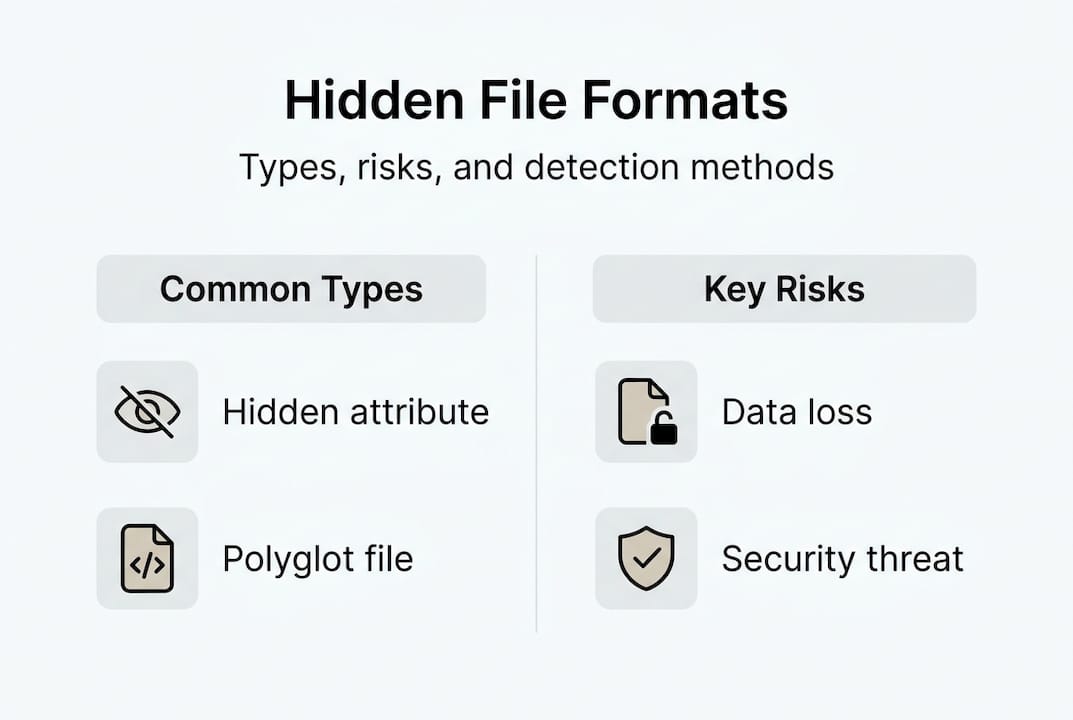
Here’s a comparison of tools for accessing and analyzing hidden or obscure files:
| Tool | Platform | Best for | Cost |
|---|---|---|---|
| File Explorer (Show Hidden) | Windows | Revealing hidden files quickly | Free |
| Finder (Cmd+Shift+.) | Mac | Toggling hidden file visibility | Free |
| HxD Hex Editor | Windows | Reading raw file signatures | Free |
| Hex Fiend | Mac | Lightweight hex analysis | Free |
| TrID | Windows/Mac | Identifying file types by signature | Free |
| file header analyzer | Web | Quick header-only analysis | Free |
Pro Tip: Before opening any unfamiliar file, run it through a header-only analysis tool to confirm its true format. This takes 30 seconds and can save you from a serious security mistake.
For deeply obscure formats, hex editors are your best friend. They let you read the raw bytes of any file, spot embedded payloads, and identify format signatures without executing anything. That last point matters a lot when you’re dealing with potentially malicious files.
Explore file extensions and unlock hidden files with Open-The-File.com
Understanding hidden file formats is one thing. Having the right tools to act on that knowledge is another. Whether you’ve stumbled across a mystery file, hit a “cannot open file” error, or just want to know what .bin or .hqx actually contains, you need a reliable place to look it up fast.

Open-The-File.com covers over 750 file formats with clear, jargon-free guides for both Windows and Mac. The file extension directory lets you search any extension and get instant guidance on what it is, what opens it, and how to convert it safely. From system files to obscure legacy formats, the site is built to give you answers without making you feel like you need a computer science degree to follow along. It’s the practical next step after reading this guide.
Frequently asked questions
How do I show hidden files on Windows and Mac?
On Mac, press Command + Shift + Period in Finder to toggle hidden file visibility. On Windows, go to File Explorer > View > Show > Hidden items.
Can hidden files harm my computer?
Most hidden files are safe and essential, but malicious hidden files absolutely can cause harm. Deleting system files risks instability, so never remove an unknown hidden file without researching it first.
What are polyglot files in simple terms?
A polyglot file is one file that works as multiple formats at once, like a JPEG that also runs as a script, which can trick security systems into treating dangerous files as harmless.
What should I do about files with extensions I don’t recognize?
Look up the extension using a trusted resource before opening anything. Obscure formats like .hqx and .bin require specific tools and context to open safely, and guessing wrong can cause problems.
Recommended
- File format differences explained: IT pros guide 2026 | Open-The-File.com
- Differences in file types: a clear guide for all users | Open-The-File.com
- File extension identification: steps for Windows & macOS | Open-The-File.com
- Types of file extensions: troubleshooting guide 2026 | Open-The-File.com
- Missing DLL errors: what they are and how to fix them – FixDlls Blog