Best Practices for Opening Files on Windows & Mac 2026

TL;DR:
- Preparing files by showing extensions and verifying software helps prevent opening errors.
- Correct app matching and cautious troubleshooting are key to opening various file types safely.
- Always scan unknown files and verify sources to protect against malware and security threats.
You click a file and nothing happens. Or worse, you get an error message that tells you absolutely nothing useful. This is one of the most common frustrations for Windows and Mac users in 2026, and it happens to everyone from beginners to seasoned professionals. The good news is that most file opening failures follow predictable patterns and have straightforward fixes. This guide walks you through preparation, step-by-step opening methods, troubleshooting, and security checks so you can open virtually any file safely and confidently, no matter what operating system you use.
Table of Contents
- Preparation: Essential file opening best practices
- Step-by-step: How to open common and unknown files
- Troubleshooting: What to do when files won’t open
- Verification: Safeguarding your device when opening files
- Our take: Why most users overlook file opening security in 2026
- Need more help? Explore our file extension guides
- Frequently asked questions
Key Takeaways
| Point | Details |
|---|---|
| Always check extensions | Making file extensions visible prevents common opening mistakes across platforms. |
| Use trusted programs | Choose official or well-known software like Word or Adobe for safer file access. |
| Scan before opening | Run security scans on unknown files to protect your device from malware and threats. |
| Avoid risky websites | Skip obscure online file openers and instead rely on desktop solutions or official tools. |
Preparation: Essential file opening best practices
Before you try to open any file, especially one you received from someone else or downloaded from the web, a little preparation goes a long way. Most file opening failures happen not because the file is broken, but because the user’s system isn’t set up to handle it correctly.
The first thing to do is make file extensions visible. An extension is the short suffix after the dot in a filename, like .pdf, .docx, or .mp4. Understanding file extension basics is the foundation of everything else. By default, both Windows and macOS hide these extensions, which makes it nearly impossible to know what you’re dealing with.
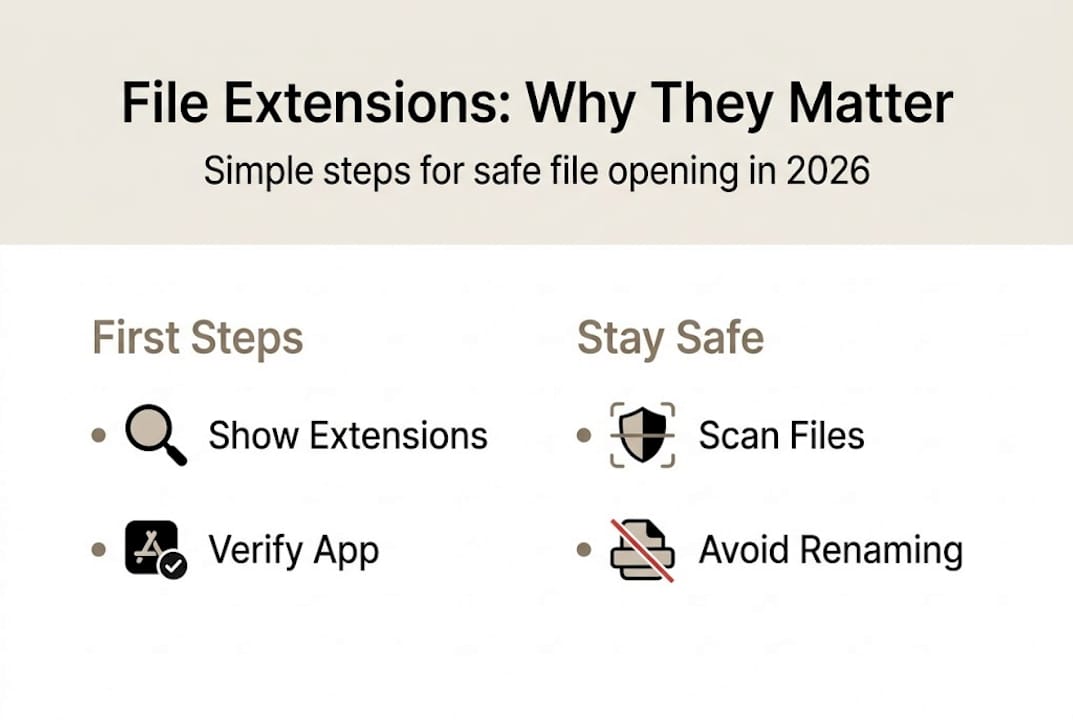
On Windows 11, open File Explorer, click View, hover over Show, and check File name extensions. On macOS Ventura or later, open Finder, go to Settings (or Preferences on older versions), click Advanced, and enable Show all filename extensions. As a step-by-step file guide recommends, you should make file extensions visible, verify app installation, and unblock files on both Windows and Mac before attempting to open anything unfamiliar.
Next, verify that you have the right software installed. Identifying extensions tells you which app to use, but the app has to actually be on your device. If it’s not, your system will either do nothing or prompt you to search the web, which can lead you to unsafe downloads.
Always run a quick security scan on files from unknown sources before opening them. Windows Defender and macOS’s built-in Gatekeeper both offer baseline protection, but a dedicated scanner adds another layer of safety. Knowing the types of files you commonly receive also helps you spot anything out of the ordinary fast.
Remember: A file that looks like a PDF but has a .exe extension is a red flag. Never open it without scanning first.
Pro Tip: Right-click any downloaded file on Windows and select Properties. If you see an Unblock checkbox at the bottom of the General tab, check it and click OK. This removes a hidden security flag Windows places on files from the internet.
| Preparation step | Windows 11 | macOS |
|---|---|---|
| Show file extensions | File Explorer > View > Show | Finder > Settings > Advanced |
| Verify installed apps | Settings > Apps | Finder > Applications |
| Unblock downloaded files | Right-click > Properties > Unblock | System Settings > Privacy & Security |
| Run a security scan | Windows Defender or third-party | Malwarebytes or built-in XProtect |
| Check file source | Download history in browser | Download history in browser |
Step-by-step: How to open common and unknown files
With preparation done, follow these steps to open or convert virtually any file type. The process is the same whether you’re on Windows or Mac, with minor differences in which menus you use.
- Identify the file extension. Look at the suffix after the dot. If extensions are now visible (you set that up in the previous section), this is easy.
- Match the extension to a trusted app. Common formats like .docx open in Microsoft Word or LibreOffice. Files like .pdf open in Adobe Acrobat or your browser. Use open file extensions as a reference when you’re unsure.
- Right-click and use “Open With.” Don’t double-click blindly. Right-clicking gives you control over which app handles the file.
- If no app is available, search for a trusted one. Go directly to the developer’s official website. Avoid random download sites.
- For truly unknown files, use a file identification tool. Sites like TrID or the file extension index at Open-The-File.com can tell you what a mystery extension actually is.
As a step-by-step file guide confirms, you should identify the file extension, search for dedicated tools, and use trusted programs like Word, Pages, or Adobe.
| File extension | Best app (Windows) | Best app (Mac) |
|---|---|---|
| .docx | Microsoft Word, LibreOffice | Microsoft Word, Pages |
| Adobe Acrobat, browser | Adobe Acrobat, Preview | |
| .xlsx | Microsoft Excel, LibreOffice Calc | Microsoft Excel, Numbers |
| .jpg / .png | Photos, IrfanView | Preview, Photos |
| .mp4 | VLC, Windows Media Player | VLC, QuickTime |
| .zip | Built-in extractor, 7-Zip | Built-in extractor, The Unarchiver |
When you hit a wall with a stubborn file, check fixing file errors for targeted solutions. And if the extension itself is confusing you, file extension troubleshooting breaks down the most problematic formats.
Pro Tip: Never rename a file extension to try to force it open in a different app. Changing .xlsx to .csv, for example, can corrupt the file structure and make it unreadable. Use a proper conversion tool instead.
Troubleshooting: What to do when files won’t open
Even if you follow the steps, files sometimes refuse to open. Here’s how to troubleshoot quickly without losing your mind.
The most common errors fall into a few clear categories. Knowing what each one means cuts your troubleshooting time in half.
- “Windows cannot open this file” or “There is no application set to open the document” on Mac: No compatible app is installed. Install the correct software.
- “The file is corrupted”: The file may have been damaged during download or transfer. Re-download or request a new copy.
- “Access denied”: Permissions are blocking you. On Windows, right-click the file, go to Properties > Security, and adjust permissions. On Mac, use Get Info (Cmd+I) to check sharing settings.
- “The file format is not supported”: Your current app version may be outdated. Update the app or use an alternative viewer.
- File opens but displays garbled text or broken images: The file may be encoded differently. Try opening with a different app that supports the format.
For deeper issues, fix file issues covers platform-specific solutions in detail. If you’re dealing with files that don’t even show a recognizable extension, hidden file formats explains what’s going on under the hood.
Security reminder: As a step-by-step file guide highlights, you should scan unknown files and unblock those downloaded from the internet for best security. This applies even if the file came from a colleague.
If re-downloading doesn’t fix the problem, try opening the file in a different app. A .pdf that won’t open in Adobe Acrobat might open just fine in your browser. A .docx that crashes Word might open perfectly in LibreOffice. Flexibility is your friend here. Also check your file opening workflow to make sure you’re not skipping a step that’s causing the failure.

Pro Tip: Keep your operating system and apps updated. Many “cannot open file” errors in 2026 are caused by outdated software that doesn’t recognize newer file format versions.
Verification: Safeguarding your device when opening files
Beyond troubleshooting, it’s essential to verify safety before launching a file, especially anything you didn’t create yourself.
File-based threats remain one of the most common attack vectors in 2026. Malicious files often disguise themselves as ordinary documents or images. A file named “invoice.pdf.exe” is actually an executable program, not a PDF. Keeping extensions visible (as covered earlier) is your first line of defense.
Here are the key checks to run before opening any unfamiliar file:
- Check the file size. A .pdf that’s only 2KB is suspicious. Legitimate documents are rarely that small.
- Verify the source. Did the file come from a known sender through a secure channel? Or did it arrive in an unsolicited email?
- Scan with antivirus software. Right-click the file and select the scan option from your security software before opening.
- Look up the extension. Use a trusted database to confirm what the extension actually does. Some extensions are designed to look like safe formats.
- Watch for unusual prompts. If a file asks you to enable macros, disable security settings, or install additional software, close it immediately.
Understanding the risks of hidden files is especially important when dealing with files from unfamiliar sources, since some formats can execute code without obvious warning signs.
As a step-by-step file guide makes clear, scanning unknown files and avoiding obscure online openers are key to staying safe in 2026.
Do’s and Don’ts for safe file opening in 2026:
- Do scan every file from an unknown source before opening
- Do keep your antivirus and OS updated
- Do verify the sender before opening email attachments
- Don’t use random online file openers for sensitive documents
- Don’t disable security warnings just to open a file faster
- Don’t assume a file is safe because it has a familiar extension
Our take: Why most users overlook file opening security in 2026
Here’s something most guides won’t tell you: the biggest risk isn’t the malware itself. It’s the false sense of security that comes from following the basics. Users who know to “just scan the file” often stop there, assuming that’s enough. It’s not.
Default operating system behavior on both Windows and macOS is designed for convenience, not security. The “Open With” suggestions your system offers are based on file associations, not safety checks. Relying on those defaults without verifying the file source is where most people get into trouble.
After working through thousands of file-related problems, we’ve seen that the users who stay safe aren’t the ones with the best antivirus software. They’re the ones who built a habit around optimal file workflows that include verification as a standard step, not an afterthought. A proactive mindset, where you question every unfamiliar file before clicking, is worth more than any software tool. Education is genuinely your best defense here.
Need more help? Explore our file extension guides
If you’ve worked through this guide and still have a file that won’t cooperate, you’re not out of options. Open-The-File.com has one of the largest online resources for file format help, covering over 750 file extensions with platform-specific instructions for both Windows and Mac.

Whether you’re dealing with a rare archive format, a legacy document type, or a media file that nothing seems to play, our complete file extension directory has a dedicated guide for it. Browse by extension, search by file type, or explore troubleshooting articles built for real-world problems. Visit Open-The-File.com to find the exact guide you need and get your files open fast.
Frequently asked questions
How do I show file extensions in Windows 11 and macOS Ventura?
In Windows 11, open File Explorer, click View, hover over Show, and select File name extensions. On macOS Ventura, go to Finder, open Settings, click Advanced, and enable Show all filename extensions.
What should I do if a file asks for a password when opening?
You’ll need the password from the original sender or file creator. Do not attempt to bypass it, as doing so may trigger your security software or indicate the file has been tampered with.
Are free online file openers safe in 2026?
Most carry real risk, especially lesser-known services. Avoid obscure online openers and always scan any file before uploading it to a third-party service.
Can I change a file extension to open it with a different app?
Renaming extensions rarely works and can corrupt your file entirely. Use a dedicated conversion tool or a trusted app that natively supports the format you need.