Fix files that won’t open: proven solutions for Windows & Mac

You click on a file and nothing happens. Or worse, an error message appears where your document, photo, or audio track should be. It’s one of the most common and frustrating computer problems, and it happens on both Windows and Mac. The causes range from simple extension mismatches to deep system-level security blocks. This guide walks you through exactly why files refuse to open, how to diagnose the problem fast, and which fixes actually work, so you can stop guessing and get back to work.
Table of Contents
- Common reasons files won’t open
- How to diagnose file opening errors
- Platform-specific fixes: Windows and macOS
- File type and format troubleshooting
- What most troubleshooting guides miss about file errors
- Find your fix with Open-The-File.com
- Frequently asked questions
Key Takeaways
| Point | Details |
|---|---|
| Identify the root cause | Compatibility, permissions, or format mismatches are the most common reasons files won’t open. |
| Use native diagnostic tools | Built-in utilities like SFC on Windows and Disk Utility or xattr on macOS are safer and faster than third-party apps. |
| Apply platform-specific fixes | Certain issues need unique solutions, such as copying files to external volumes on Mac or repairing shell extensions on Windows. |
| Check file type and associations | Files may need to be re-associated or converted for proper compatibility with installed applications. |
| Leverage expert resources | Open-The-File.com offers guides and troubleshooting support for more than 750 file extensions. |
Common reasons files won’t open
Before you start clicking through menus, it helps to know what you’re actually dealing with. File opening failures fall into a few clear categories, and knowing which one applies to you saves a lot of time.
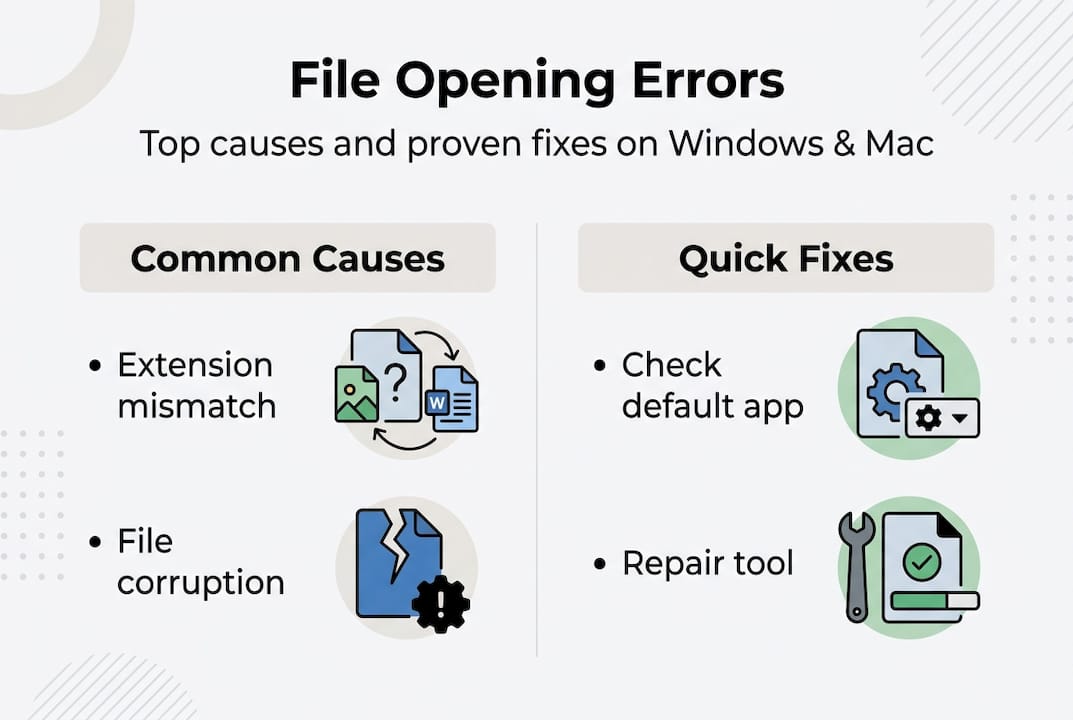
The most common culprit is a file extension mismatch. Your operating system uses the extension (the letters after the dot in a filename) to decide which app should open the file. If that association is broken or wrong, the file just sits there. Learning about opening file extensions on your specific platform is a solid first step.
Another frequent cause is file corruption. This happens when a download gets interrupted, a drive has bad sectors, or a file transfer fails partway through. The file exists, but its internal data is damaged. Incomplete downloads are especially common with large files like video archives or disk images.

Permission errors are sneakier. Your user account may not have the rights to read a file, especially if it was created by another user, moved from a network drive, or transferred from a different machine. A smooth file access workflow can help you avoid these traps.
Then there are post-update issues. On Windows, updates can break shell extensions, causing dllhost.exe to fail silently. On macOS, the com.apple.macl xattr attribute is SIP-protected and can block even local files you own, with the workaround being to copy the file to an external volume.
Here’s a quick comparison of how these issues show up differently across platforms:
| Issue | Windows | macOS |
|---|---|---|
| Extension mismatch | Common, easy to fix | Common, fix via Get Info |
| File corruption | SFC scan helps | Disk Utility First Aid |
| Permission error | Properties > Security tab | Info panel > Sharing & Permissions |
| Post-update block | Shell extension failure | SIP/xattr attribute lock |
When identifying file types is unclear, start with the table above to narrow down your category before diving into fixes.
How to diagnose file opening errors
Understanding the causes helps, but next comes figuring out what’s going wrong with your specific file. Diagnosis first, fixes second. Jumping straight to repairs without knowing the root cause often wastes time.
Here’s a step-by-step approach that works on both platforms:
- Check the file extension. Right-click the file and look at the full filename. Is the extension what you expect? A .jpg renamed to .png won’t open correctly in all apps.
- Verify the file size. A 2KB “video file” is almost certainly corrupted or incomplete. Compare it to what the file should reasonably weigh.
- Check permissions. On Windows, right-click the file, go to Properties, then the Security tab. On Mac, press Cmd+I and scroll to Sharing & Permissions.
- Run a native diagnostic. On Windows, open Command Prompt as administrator and run
sfc /scannow. On Mac, open Disk Utility and run First Aid on the affected drive. - Use xattr on Mac. Open Terminal and type
xattr -l [filename]to see if any extended attributes are blocking the file.
Pro Tip: Before running any third-party repair tool, try the native options first. Native repair tools like SFC and Disk Utility First Aid are benchmarked at faster speeds and lower CPU usage than most paid alternatives, with Word document repairs clocking in at a quick.
Here’s a quick benchmark comparison to guide your tool choice:
| Tool | Platform | Speed | CPU impact | Best for |
|---|---|---|---|---|
| SFC (System File Checker) | Windows | Fast | Low | System and app files |
| Disk Utility First Aid | macOS | Fast | Low | Drive and volume errors |
| xattr (Terminal) | macOS | Instant | Minimal | Attribute/permission blocks |
| Third-party repair apps | Both | Variable | High | Last resort only |
For a broader look at troubleshooting file types, the diagnostic steps above apply across nearly every format. And if you want to build a repeatable process, a structured seamless document access workflow prevents most of these issues from recurring.
Platform-specific fixes: Windows and macOS
With a diagnosis in hand, you can apply fixes that match your operating system and file situation. Generic advice rarely works here. The right fix depends on your platform.
Windows fixes:
- Run
sfc /scannowin an elevated Command Prompt to repair corrupted system files. - Right-click the file, go to Properties > General, and click Unblock if you see a security warning at the bottom. This is common for files downloaded from the internet.
- If a recent Windows update broke file associations, open Settings > Apps > Default Apps and reassign the correct app to the file type.
- For shell extension failures after updates, check Event Viewer for dllhost.exe errors. Reinstalling or updating the associated app usually resolves this.
macOS fixes:
- Open Disk Utility, select your drive, and click First Aid to check for volume errors.
- In Terminal, run
xattr -d com.apple.quarantine [filepath]to remove a quarantine flag blocking a downloaded file. - For files blocked by the com.apple.macl SIP-protected attribute, copying the file to an external volume and back can reset the attribute.
- Use Cmd+I on the file, expand Sharing & Permissions, and click the lock icon to adjust read/write access.
Pro Tip: If a Mac file stubbornly refuses to open even after permission fixes, try duplicating it with Cmd+D. The duplicate often inherits fresh permissions without the problematic extended attributes.
Remember: On macOS, SIP (System Integrity Protection) is a security feature, not a bug. It protects core system files from tampering. Working around it for your own files is fine, but never disable SIP entirely just to open a document.
For a full walkthrough of how to open files on Windows and Mac across different formats, the platform differences matter more than most guides admit. And when you’re unsure what type of file you’re dealing with, file extension identification is the fastest path to the right fix.
File type and format troubleshooting
Beyond operating system fixes, file format mismatches can be surprisingly stubborn, and here’s how to tackle them. Not every file problem is a system issue. Sometimes the file itself is the problem.
Every file format has rules about how its data is structured. When the app you’re using doesn’t understand those rules, it can’t open the file, even if the file is perfectly healthy. This is especially common with older, obscure, or proprietary formats.
Common format troubleshooting steps:
- Re-associate the file. Right-click (Windows) or use Cmd+I (Mac) to change which app opens the file type by default. Pick an app that actually supports the format.
- Convert the file. If the original app is unavailable, convert the file to a more common format. Free tools like HandBrake (video), Audacity (audio), and LibreOffice (documents) handle most conversions well.
- Check for hidden extensions. Windows sometimes hides extensions by default. Enable “Show file name extensions” in File Explorer > View to see the real extension.
- Look up the format. Some extensions are genuinely obscure. For example, if you’re trying to open Audible files with a .AA extension, you need a specific compatible player. Similarly, CCC files can belong to multiple different programs, making identification tricky.
Format tip: A file named “report.docx” that was actually saved as a .txt file internally will confuse Word. Renaming the extension to match the real format, or opening it in a plain text editor first, often reveals what you’re working with.
For unusual or niche formats, native repair tools still outperform third-party software in most benchmarks. Don’t reach for a paid utility just because a format looks complicated.
For a deeper look at extension-specific problems, the troubleshooting file extensions guide covers 750+ file extension guides with platform-specific instructions.
What most troubleshooting guides miss about file errors
Stepping back, here’s the hard-won wisdom most guides don’t tell you when files stubbornly refuse to open.
The biggest mistake users make is reaching for a third-party repair tool the moment a file fails. These tools are marketed aggressively, but they often introduce new problems: bloatware, false positives, and in some cases, further file corruption. The reality is that native tools are faster and safer, with benchmarks showing SFC and Disk Utility First Aid outperforming paid alternatives on both speed and CPU load.
Another thing guides skip over: sometimes the smartest fix is the simplest one. Moving a file to a different folder, renaming it, or copying it to an external drive resolves a surprising number of errors, especially on macOS where SIP and xattr attributes can lock files in ways that no repair tool can touch.
Proper file extension management is also underrated. Most users never learn what extensions actually do until something breaks. Understanding the relationship between extensions, apps, and formats turns a frustrating mystery into a solvable puzzle every time.
The uncomfortable truth is that most file errors are preventable with a little upfront knowledge, and fixable in minutes once you know where to look.
Find your fix with Open-The-File.com
If you’ve worked through the steps above and still have a file that won’t cooperate, you don’t have to keep guessing.

Open-The-File.com is built specifically for this situation. Whether you’re dealing with a rare audio format, a legacy document type, or a file that came from an unfamiliar device, the site’s extension guides cover over 750 file formats with clear, jargon-free instructions for both Windows and Mac. The file extension directory lets you search by extension and get straight to the fix, without wading through irrelevant results. Persistent file problems deserve specific answers, and that’s exactly what you’ll find there.
Frequently asked questions
What should I do if a file won’t open after a Windows update?
Run System File Checker (sfc /scannow) in an elevated Command Prompt and check Event Viewer for shell extension errors tied to dllhost.exe, then reinstall the associated application.
How can I fix a file blocked by macOS security settings?
Copy the file to an external volume and back, or use Terminal with xattr -d com.apple.quarantine to remove the block. SIP-protected attributes like com.apple.macl may require the copy workaround specifically.
Are third-party repair tools better than built-in utilities?
No. Native tools like SFC and Disk Utility are benchmarked as faster and safer, and they should always be your first choice before trying any paid repair software.
How do I know which app opens a specific file type?
Check the file extension and look it up in the Open-The-File.com directory, which lists compatible apps and step-by-step instructions for 750+ file extension guides across Windows and Mac.
What is the easiest way to fix file association issues?
Right-click the file on Windows or use Cmd+I on Mac, then select a new default app that supports the file’s actual format.
Recommended
- Open-The-File.com - Extension Guides for 750+ File Types
- How to open file extensions on Windows and macOS in 2026 | Open-The-File.com
- Workflow for opening documents: seamless file access | Open-The-File.com
- File extension identification: steps for Windows & macOS | Open-The-File.com
- Troubleshooting DLL Errors: Step-by-Step Fix for Windows – FixDlls Blog