File compatibility workflow: reliable solutions for Windows and Mac

TL;DR:
- Cross-platform file issues mainly stem from differences in file systems, formats, and metadata.
- Using native drivers, proper conversion tools, and backups ensures reliable file transfer and compatibility.
- Moving away from convenience solutions like exFAT to robust, journaled file systems reduces data corruption risks.
You click on a file sent by a colleague, and nothing opens. Or worse, it opens but looks completely broken. Fonts are wrong, tables are shifted, and the video won’t play. Cross-platform file errors between Windows and Mac are one of the most common and frustrating workflow problems users face today. Data loss, missed deadlines, and corrupted projects are real consequences, not just minor annoyances. This guide walks you through exactly why these problems happen, what tools you need, and a proven step-by-step workflow to fix and prevent file compatibility issues for good.
Table of Contents
- Understand the causes of file compatibility issues
- Prepare: Tools and requirements for a smooth workflow
- Step-by-step file compatibility workflow
- Troubleshooting and advanced tips for persistent file issues
- Why most file compatibility advice misses the real risks
- Find compatible solutions for every file type
- Frequently asked questions
Key Takeaways
| Point | Details |
|---|---|
| Use the right file system | Choose exFAT for simple transfers but prefer native drivers and journaling file systems for critical data. |
| Verify file integrity | Always check files after conversion or transfer to catch formatting or data loss early. |
| Rely on trusted tools | Use proven software and cloud solutions for safe conversion and sharing across platforms. |
| Troubleshoot with best practices | Solve persistent issues by understanding limitations and standard file system quirks. |
Understand the causes of file compatibility issues
Before you can fix a compatibility problem, you need to know what’s causing it. Most cross-platform issues come down to three things: file systems, file formats, and metadata. Each one behaves differently depending on whether you’re on Windows or Mac.
File system differences are the most common root cause. Windows uses NTFS (New Technology File System) as its default, while Mac uses APFS (Apple File System) or the older HFS+. These two systems don’t naturally talk to each other. As cross-platform compatibility research shows, macOS can read NTFS drives but cannot write to them without third-party drivers, and exFAT is often used as a workaround for external drives, though it lacks journaling, which means it cannot recover from interrupted writes and risks data corruption.
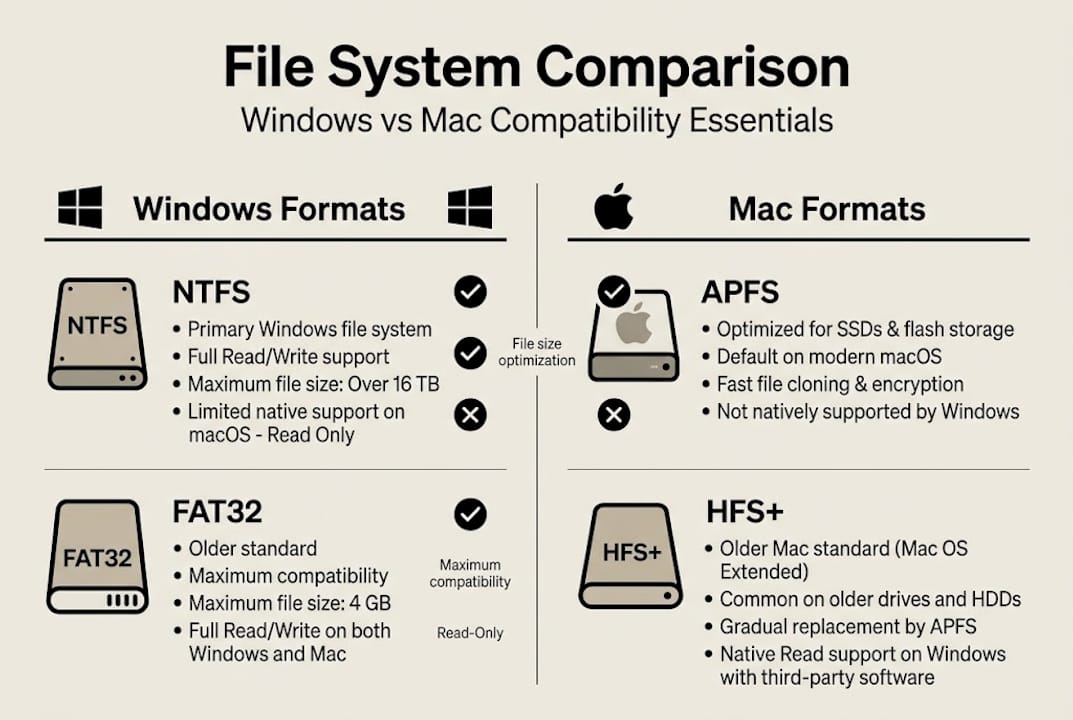
Here’s a quick breakdown of the most common file systems and their cross-platform behavior:
| File system | Windows support | Mac support | Journaling | Best use case |
|---|---|---|---|---|
| NTFS | Full read/write | Read-only | Yes | Windows-primary drives |
| APFS/HFS+ | None (needs driver) | Full read/write | Yes | Mac-primary drives |
| exFAT | Full read/write | Full read/write | No | Basic cross-platform transfers |
| FAT32 | Full read/write | Full read/write | No | Legacy devices, small files |
File format compatibility is the second major issue. Microsoft Office formats like DOCX, XLSX, and PPTX are generally compatible between Windows and Mac if both apps are recent versions, but layout shifts can occur due to differences in printer drivers or fonts installed on each machine. PDF files are usually safe, but PDF-to-Word conversions often break complex layouts.
The most common file types with compatibility risks include:
- Office documents (DOCX, XLSX, PPTX): Font and layout shifts
- Media files (MKV, AVI, MOV): Codec and container mismatches
- Archive files (ZIP, RAR, 7Z): Encoding differences
- Image files (TIFF, RAW, PSD): Color profile and metadata loss
Metadata and permissions round out the problem. Mac files often carry hidden metadata (like resource forks and extended attributes) that Windows ignores or strips. Permissions set on one OS may not transfer correctly to the other. Understanding how file extensions work across platforms is a practical first step, and knowing the role of file formats in preventing these issues helps you make smarter choices before problems start.
Prepare: Tools and requirements for a smooth workflow
Getting the right tools in place before you start transferring or converting files saves a lot of pain later. The good news is that most of what you need is either free or low-cost.

Here’s a comparison of the key tool categories you should have ready:
| Tool category | Windows option | Mac option | Purpose |
|---|---|---|---|
| File system driver | Paragon APFS for Windows | Paragon NTFS for Mac / MacDrive | Read/write across file systems |
| Cloud sync | OneDrive, Google Drive | OneDrive, Google Drive | Format-neutral file sharing |
| Office conversion | LibreOffice | LibreOffice | Open/convert DOCX, XLSX, PPTX |
| Media conversion | HandBrake, FFmpeg | HandBrake, FFmpeg | Video format conversion |
| Image conversion | IrfanView | Preview, ImageMagick | Image format and color fixes |
For professional workflows, native file systems with proper drivers are strongly recommended over exFAT. Cloud services like OneDrive and Google Drive handle format-neutral syncing well, and virtualization (running Windows on a Mac via Parallels, for example) solves app-level compatibility entirely.
For offline conversion, trusted conversion tools like LibreOffice, HandBrake, and FFmpeg are reliable choices that don’t send your files to a third-party server. This matters when you’re handling sensitive documents or proprietary data.
Safe file handling also means having a backup strategy. Before you convert or transfer anything important, make a copy. Store it somewhere separate from your working directory.
Pro Tip: Always keep a copy of your original file before running any conversion. Conversion tools can introduce subtle errors, especially with complex layouts or embedded media, and you’ll want the original to compare against.
Knowing why converting file formats matters for compatibility will help you decide when conversion is necessary and when it’s better to use a universal format from the start.
Step-by-step file compatibility workflow
Here’s a practical workflow you can follow every time you move files between Windows and Mac. It’s designed to catch problems early and fix them before they become costly.
- Diagnose the format and OS combination. Identify the file extension and check whether the receiving OS has a native app to open it. A .pages file won’t open on Windows without conversion.
- Prepare your transfer medium. For external drives, format as exFAT for basic transfers or use a native file system with drivers for professional work. For network transfers, use cloud sync or SMB file sharing.
- Convert to a compatible format if needed. Use LibreOffice for Office documents, HandBrake or FFmpeg for video, and ImageMagick for images. For final delivery, PDF and MP4 are the safest universal formats.
- Verify the converted file. Open it on the target OS and check visually. For critical files, run a checksum comparison to confirm no data was lost.
- Check fonts and layouts. Office files are especially prone to layout shifts. Open the converted file on the target machine and scroll through every page before sending.
- For professional environments, use native drivers. APFS with MacDrive on Windows or NTFS with Paragon NTFS on Mac gives you full read/write access with journaling protection.
As Apple’s file system troubleshooting guidance confirms, identifying the format and OS issue first, then using the right transfer method, is the foundation of a reliable workflow. Choosing the right container format alone resolves the majority of playback failures for media files, which is why fixing file playback failures often starts with the container, not the codec.
Pro Tip: After converting any Office file, open it on the destination machine and check headers, footers, and any embedded tables or images. These are the first things to break and the last things people check.
For a broader look at managing documents across platforms, the guide on seamless file access covers the full picture from opening to editing.
Troubleshooting and advanced tips for persistent file issues
Some compatibility problems don’t go away with a simple conversion. Here are the edge cases that catch even experienced users off guard.
Persistent issues to watch for:
- NTFS write errors on Mac (error -50): This usually signals file system corruption or permissions conflicts, not a simple driver issue.
- Path separator mismatches: Windows uses backslashes () while Mac uses forward slashes (/), which breaks file links in documents and scripts.
- Lost metadata on exFAT: Mac metadata and extended permissions are silently dropped when copying to exFAT drives, which can break app-specific files.
- Excel date system conflicts: As noted in Apple Support community discussions, Excel uses a 1900 base date on Windows and a 1904 base date on Mac, causing date values to shift by four years when files move between platforms without proper settings.
- PDF-to-Word layout failures: Complex multi-column layouts, embedded fonts, and form fields rarely survive PDF-to-Word conversion intact.
Warning: Do not rely on exFAT for professional or archival data. As professional drive format research makes clear, exFAT has no journaling, meaning a sudden power loss or disconnection during a write can corrupt your entire drive without any recovery path. Use APFS or NTFS with proper drivers for anything that matters.
For permissions errors, the fastest fix is to right-click the file, check its properties or Get Info panel, and reset permissions manually. For broken links in documents, use Find and Replace to update path references after moving files. When metadata loss is a concern, use cloud sync instead of direct drive transfer.
For a full guide on diagnosing and fixing extension-related problems, the resource on fixing file extension errors covers the most common scenarios on both platforms.
Why most file compatibility advice misses the real risks
Here’s something most guides won’t tell you: the biggest danger in cross-platform file work isn’t the file format. It’s the assumption that convenience tools are safe enough.
exFAT gets recommended constantly because it works on both platforms without extra software. But that convenience hides a real risk. Imagine a video editor finishing a project at midnight, copying 80 GB of footage to an exFAT drive to hand off to a Windows editor, and the drive disconnects mid-copy. No journaling means no recovery. The footage is gone. This isn’t a rare scenario. It happens regularly in professional environments that chose convenience over reliability.
Online converters carry a similar blind spot. Most users don’t think twice about uploading a sensitive contract or financial spreadsheet to a free online converter. But those files often pass through third-party servers with unclear data retention policies.
The mindset shift that actually protects your work is moving from convenience-first to data integrity-first. That means using native file systems with drivers, keeping verified backups before any conversion, and treating file verification as a required step, not an optional one. The IT pro guide to file formats lays out exactly how to build this kind of reliable, professional-grade approach to cross-platform file management.
Find compatible solutions for every file type
Dealing with file compatibility issues across Windows and Mac doesn’t have to mean hours of trial and error. Open-The-File.com gives you direct, jargon-free guidance for over 750 file formats, all in one place.

Whether you’re trying to open a file that won’t launch, convert a format safely, or understand why your files look different on another machine, the file extension index has step-by-step instructions for every major format on both Windows and Mac. You’ll find troubleshooting guides, safe conversion methods, and platform-specific tips. Visit Open-The-File.com to explore the full library of extension guides and get your files working the way they should.
Frequently asked questions
What’s the safest file system for moving files between Windows and Mac?
exFAT works for basic transfers, but for professional data, use native file systems (NTFS or APFS) with drivers like Paragon NTFS or MacDrive to maintain journaling and data integrity.
How do I fix Office files that look different on Mac and Windows?
Keep both Office versions up to date and use fonts installed on both machines. As Microsoft’s compatibility guidance notes, layout shifts are most often caused by font differences or printer driver settings, not the file itself.
What should I do before converting file formats?
Always back up your original file first and use trusted offline tools like LibreOffice or HandBrake. Reliable conversion software keeps your data local and gives you more control over the output.
Why do my Excel dates change between Windows and Mac?
Excel uses a 1900 base date system on Windows and a 1904 date system on Mac, which causes date values to shift when files move between platforms without adjusting the workbook’s date settings.
Are cloud services safe for cross-platform file sharing?
Cloud services like OneDrive and Google Drive handle cross-platform sharing well and avoid file system conflicts entirely, but you should always open and verify the file on the receiving end before treating it as final.