File container formats: fix common playback failures
You rename a video file, double-click it, and nothing plays. Or worse, you get audio but a black screen. Most people blame the file extension, but the real culprit is almost always a mismatch between the file container and the codec inside it. Container/codec mismatches account for the vast majority of playback failures, yet most troubleshooting guides skip right past this distinction. This guide breaks down exactly what file container formats are, how they affect compatibility, and what you can do right now to fix or prevent playback problems.
Table of Contents
- What is a file container format?
- Key functions of file containers
- Popular container formats and where to use them
- Troubleshooting and converting container formats
- Performance and storage: what most users overlook
- open-the-file.com makes format troubleshooting simple
- Frequently asked questions
Key Takeaways
| Point | Details |
|---|---|
| Containers bundle streams | They combine video, audio, subtitles, and metadata into one manageable file. |
| Codecs drive compression | Containers handle structure, but codecs compress and decompress the streams inside. |
| Compatibility is key | Choose a container that matches your playback device and preferred codecs for minimum headaches. |
| Use the right tools | Troubleshooting or converting containers is easy with apps like FFmpeg, VLC, or ffprobe. |
| Performance varies | Your choice of container affects storage size, repair options, and streaming speed. |
What is a file container format?
Think of a file container as a shipping box. The box holds everything together, but it does not determine what is inside or how it was packaged. A file container is a wrapper that bundles video streams, audio streams, subtitles, chapter markers, and metadata into one single file. The container itself does not compress anything. That job belongs to the codec.
File container formats encapsulate multiple media streams into a single file, which is why two files with the same extension can behave completely differently depending on which codecs are stored inside. Understanding the differences in file types is the first step toward diagnosing why a file refuses to open.
Here is what a container actually manages:
- Video streams: the raw visual data encoded by a codec like H.264 or AV1
- Audio streams: one or more audio tracks encoded by codecs like AAC or MP3
- Subtitles and captions: text or image-based subtitle tracks
- Metadata: title, duration, creation date, and chapter information
- Synchronization data: timing information that keeps audio and video in sync
The process of combining these streams into one file is called multiplexing (or muxing). Pulling them apart during playback is called demultiplexing (or demuxing). When this process breaks down, you get the dreaded black screen or out-of-sync audio. You can browse the file extension directory to see how specific formats handle these streams differently.
“Mismatch causes 90% of playback failures. Always verify both the container and the codecs inside it using a tool like ffprobe before assuming the file is corrupt.”
Pro Tip: Run "ffprobe -v quiet -print_format json -show_streams yourfile.mp4` in a terminal to instantly see every stream inside a container, including codec names, resolution, and bitrate.
Key functions of file containers
Containers do more than just hold data. They actively manage how that data is stored, accessed, and played back. Here are the four core functions every container performs:
- Stream multiplexing: Combines video, audio, and subtitle streams into one file so a single download or transfer delivers everything at once.
- Playback synchronization: Stores timing data so your player knows exactly when to display each video frame alongside the correct audio sample.
- Structured metadata storage: Embeds information like track language, codec parameters, and chapter names so players and editors can read the file correctly.
- Indexed access: Provides a map of the file so players can jump to any point without reading the entire file from the start.
Containers use multiplexing to combine streams and demuxing to separate them during playback, which is why a broken index can make seeking impossible even when the video data itself is intact. For a broader look at how this fits into file management, the clear guide to file types covers the full picture.
Pro Tip: If subtitles are missing or an extra audio track disappears after conversion, the problem is almost always a faulty mux. Re-muxing with FFmpeg without re-encoding usually fixes it in seconds.
Popular container formats and where to use them
Not all containers are created equal. Choosing the wrong one for your workflow creates compatibility headaches that are entirely avoidable. Here is a side-by-side comparison of the five most common containers:

| Container | Compatibility | Codec flexibility | Streaming | Best use case |
|---|---|---|---|---|
| MP4 | Universal | Moderate | Excellent | Web, mobile, general distribution |
| MKV | Good (needs player support) | Very high | Limited | Archiving, home media servers |
| WebM | Modern browsers | Limited (VP8/VP9/AV1) | Excellent | Web video delivery |
| AVI | Legacy systems | Low | Poor | Older Windows workflows |
| MOV | Apple ecosystem | Moderate | Good | Video editing on macOS |
Common containers each serve a distinct purpose, and picking the right one saves you from conversion headaches later. A few key points worth knowing:
- MP4 compatibility is unmatched across phones, smart TVs, browsers, and editing software
- MKV for archiving is the go-to choice because it supports virtually any codec combination without re-encoding
- WebM streaming is purpose-built for the web and works natively in Chrome, Firefox, and Edge without plugins
- AVI is a legacy format with no support for modern codecs or streaming features
- MOV works well inside Apple’s ecosystem but can cause issues on Windows without QuickTime
For a deeper look at media container best practices, the tradeoffs between flexibility and compatibility are worth studying before you commit to a format for a large project.
“Use MKV for archiving where codec flexibility matters most. Use MP4 or WebM for distribution where broad compatibility is the priority.”
Troubleshooting and converting container formats
When a file refuses to play, most users reinstall their media player or assume the file is corrupt. Nine times out of ten, the real fix is much simpler. Here is a practical workflow for diagnosing and resolving container issues:
- Analyze the streams: Use
ffprobeor VLC’s Media Information dialog to identify the container type and every codec inside the file. - Check codec support: Confirm your player supports both the container and the specific codecs listed. A player may support MP4 but not the AV1 codec stored inside it.
- Re-mux without re-encoding: If the container is the problem but the streams are fine, use FFmpeg to copy streams into a new container. This is fast and lossless.
- Re-encode if necessary: If the codec itself is incompatible, re-encode to H.264 video and AAC audio inside an MP4 container for maximum compatibility.
- Test on multiple players: After conversion, test on VLC, your browser, and a mobile device to confirm the fix works across platforms.
Use FFmpeg or VLC for remuxing and always check streams with ffprobe before deciding whether to re-mux or fully re-encode. Re-encoding costs quality and time. Re-muxing costs neither.
90% of playback failures trace back to a container/codec mismatch, not file corruption. Checking the actual streams before assuming the worst saves hours of unnecessary troubleshooting.
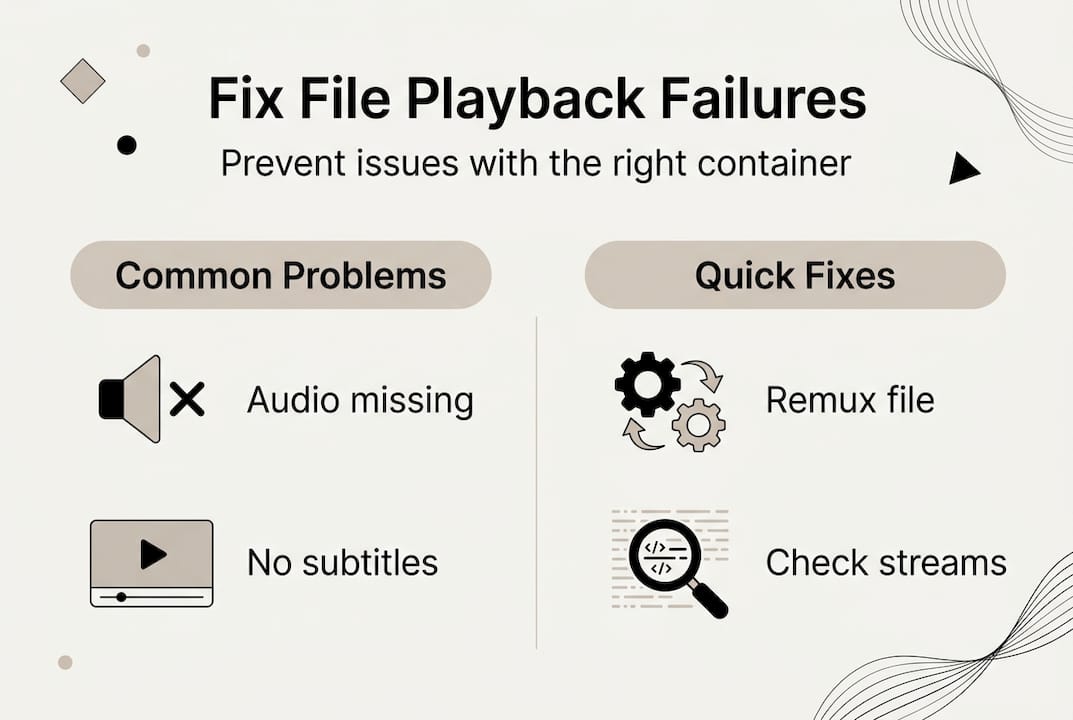
For more on improving compatibility through smart format choices, and for additional file tips and guides covering dozens of formats, open-the-file.com has step-by-step walkthroughs for the most common scenarios.
Pro Tip: For the easiest cross-platform experience, always default to MP4 with H.264 video and AAC audio. This combination plays on virtually every device made in the last 15 years.
Performance and storage: what most users overlook
Beyond compatibility, your container choice directly affects how fast a file seeks, how much storage it uses, and how easy it is to repair if something goes wrong. Most users never think about this until they are scrubbing through a two-hour video and the player freezes.
| Container | Index structure | Seek performance | Overhead | Repair ease |
|---|---|---|---|---|
| MP4 | Moov atom (front or end) | Fast | Low | Moderate |
| MKV | Cue-based index | Fast | Moderate | Good |
| WebM | Cue-based index | Fast | Low | Good |
| AVI | Simple index | Slow | Low | Difficult |
| MOV | Atom-based | Fast | Low | Moderate |
Containers add minor overhead for metadata and indexing, but the structure of that index has a real impact on scrubbing speed and file repair. MP4 is especially efficient for streaming because its index can be placed at the front of the file, allowing playback to begin before the full file downloads.
Here are the key factors to weigh when choosing a container for long-term storage or distribution:
- Compatibility: Will the target device or platform support this container natively?
- Performance: Does the index structure support fast seeking and smooth scrubbing?
- Storage efficiency: Does the container add unnecessary overhead for your file size?
- Future-proofing: Is the format actively maintained and likely to be supported in five years?
For a technical breakdown of file format differences that goes deeper into how containers interact with codecs at the byte level, that resource is worth bookmarking. The container performance guide also covers how index structures affect real-world streaming behavior.
“No single container wins on every metric. Index structures affect scrubbing speed and repair capability in ways that raw file size comparisons never reveal.”
open-the-file.com makes format troubleshooting simple
File container issues can feel overwhelming when you are staring at a black screen or an error message with no clear cause. open-the-file.com exists to cut through that confusion with clear, jargon-free guides built specifically for users dealing with file compatibility and conversion problems.

Whether you need to understand why your MP4 file will not open, figure out the best way to work with MKV archives, or explore the full file extension directory covering 750+ file extension guides, the site gives you step-by-step instructions tailored to both Windows and Mac. No guesswork, no jargon. Just practical answers to the exact problem you are trying to solve right now.
Frequently asked questions
What is the difference between a file container and a codec?
A file container holds multiple data streams together in one file, while a codec handles compression and decompression of each individual stream. The container is the box; the codec is how the contents were packed.
Which container format is best for broad compatibility?
MP4 with H.264 and AAC offers the widest compatibility across devices, operating systems, and browsers, making it the safest default for general distribution.
How can I fix a corrupted or unplayable media container?
Start by remuxing with FFmpeg or VLC to rebuild the container index without re-encoding. This resolves most playback errors caused by broken or missing index data.
Why does my file play audio but not video (or vice versa)?
Your player likely supports the container but is missing the codec for one of the streams. Verify both container and codecs using ffprobe or VLC’s media info panel to identify exactly which codec is unsupported.