Why Files Need Indexing: Faster Searches and Smarter Organization

TL;DR:
- File indexing creates a searchable map, enabling near-instant search results by avoiding full disk scans.
- Properly optimized indexing improves speed, reduces disk wear, and allows smarter file organization across Windows and Mac.
- Customizing indexing settings and focusing on relevant folders and file types enhances search efficiency and workflow.
Your computer doesn’t magically know where every file lives. Without a pre-built map of your storage, every search would force your system to open and check each file one by one, like flipping through every page of every book in a library just to find one sentence. That process would take minutes, not milliseconds. File indexing is the invisible system that makes near-instant search results possible, and understanding it gives you real control over how your computer organizes and surfaces your work. This guide breaks down what indexing is, how it differs between Windows and Mac, and how you can use it smarter.
Table of Contents
- What is file indexing and how does it work?
- Key benefits: Speed, efficiency, and smarter organization
- How Windows and Mac file indexing systems compare
- Advanced nuances: Metadata vs content indexing and performance tradeoffs
- Our perspective: How to make indexing work for you
- Get more out of your files with our guides
- Frequently asked questions
Key Takeaways
| Point | Details |
|---|---|
| File indexing enables speed | Indexing allows computers to find files almost instantly instead of performing slow, full-disk scans. |
| Indexing boosts organization | Files are catalogued by type, date, and content, making searches smarter and more accurate. |
| Customization improves results | You can target which files and folders are indexed to balance performance, privacy, and search accuracy. |
| Different systems, similar need | Windows Search and macOS Spotlight use distinct methods, but both rely on indexing for efficiency. |
What is file indexing and how does it work?
File indexing is the process of scanning your storage and building a structured map of what’s on it, so your operating system can find files in a fraction of a second instead of scanning everything from scratch. Think of it like the index at the back of a textbook. Instead of reading every page to find a topic, you look it up in the index and jump straight to the right page. Your computer does the same thing, just with file names, locations, and content.
When your OS builds an index, it reads through your files and records key details: file names, folder paths, creation dates, and, in some cases, the actual text inside documents. These details get stored in a searchable database. The next time you search, your system queries that database rather than scanning raw storage. As indexing explained by computer science educators, this structure is what separates fast, practical search from slow, exhausting disk crawls.
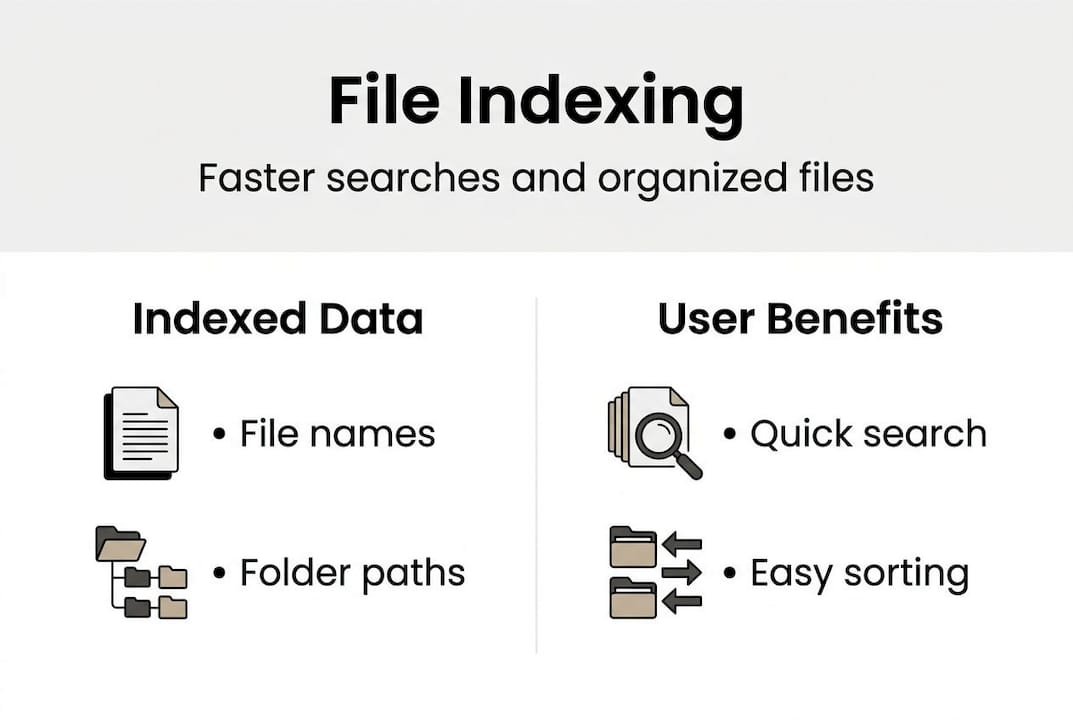
One of the most common structures used is an inverted index, which maps individual words or terms back to the files that contain them. It’s the same logic search engines use. Files need indexing to enable fast retrieval without scanning entire storage, using structures like inverted indexes that map terms to file locations.
Here’s what a typical index captures for each file:
- File name and extension (understanding file extension basics is key here)
- File path (where it lives on your drive)
- Timestamps (created, modified, last accessed)
- File size and type
- Content snippets (for documents, PDFs, and similar formats)
- Metadata tags (author, camera model, GPS data for photos)
Without this index, your system has no shortcut. It reads every file sequentially, which is impractical when you have thousands of documents, images, and videos. The differences in file types also affect how much data gets indexed per file, since a plain text file is far simpler to scan than a layered Photoshop document.
“Without indexing, searches require full filesystem scans, which are impractical for large collections.”
The index is rebuilt or updated incrementally as files change, so it stays current without requiring a full rescan every time.
Key benefits: Speed, efficiency, and smarter organization
Understanding how file indexing works, it’s easy to see why performance matters. Here’s exactly how indexing delivers speed and organization advantages.
The most obvious win is raw speed. Indexing minimizes disk I/O by pre-processing metadata and content into searchable databases, speeding up queries from O(N) full scans to near O(1) lookups. In plain terms, an O(N) scan means your system checks every single file. An O(1) lookup means it goes directly to the answer. The difference is enormous when you have tens of thousands of files.
Real-world benchmarks make this concrete. Search latency benchmarks show that Everything (a lightweight NTFS indexer for Windows) returns results in 0.09 to 0.22 seconds, while Windows Search takes 1.8 to 4.3 seconds for the same queries. On Mac, an optimized Spotlight search runs in about 0.64 seconds compared to 1.72 seconds unoptimized, a 62% improvement.
| Tool | Platform | Avg. search time |
|---|---|---|
| Everything (NTFS) | Windows | 0.09 to 0.22 seconds |
| Windows Search | Windows | 1.8 to 4.3 seconds |
| Spotlight (optimized) | macOS | 0.64 seconds |
| Spotlight (unoptimized) | macOS | 1.72 seconds |
Beyond raw speed, indexing also improves how you organize and filter files. Because metadata is pre-stored, you can sort search results by date modified, file type, author, or size instantly. This is especially valuable for digital creators managing hundreds of assets across formats. Check your search performance with indexing by browsing how different extensions are handled.

Indexing also reduces repetitive disk reads. Without it, every search hammers your drive. With it, your system reads from a compact database instead, which lowers wear on mechanical drives and reduces energy use on laptops.
Pro Tip: Exclude folders like your Downloads folder, Trash, or backup directories from your index. These rarely need to be searched and bloat the index unnecessarily, slowing updates and wasting resources. Most indexing best practices recommend a lean, targeted approach.
- Faster search results across all file types
- Instant metadata filtering (date, type, size)
- Lower disk wear and energy consumption
- Cleaner, more targeted search results when you exclude noise
How Windows and Mac file indexing systems compare
To appreciate how indexing works in real life, let’s compare how it’s handled differently on today’s major desktop platforms.
MacOS uses Spotlight, a system-level search engine backed by a sophisticated indexing architecture. macOS Spotlight uses mdworker processes with mdimporter plugins triggered by FSEvents to extract metadata and content separately into inverted indexes stored in a hidden folder called .Spotlight-V100. When you add a file, Spotlight typically indexes it within about seven seconds. The mdworker processes run quietly in the background, and specialized importers handle different file types, from PDFs to images to audio files.
Windows uses Windows Search, a centralized indexing service that monitors file changes through the NTFS change journal. It stores its index in a proprietary database format and supports a wide range of file types through IFilter plugins, similar in concept to macOS’s mdimporter system.
Here’s how they compare side by side:
| Feature | macOS Spotlight | Windows Search |
|---|---|---|
| Index location | .Spotlight-V100 | C:\ProgramData\Microsoft |
| Update trigger | FSEvents | NTFS change journal |
| New file index time | ~7 seconds | Varies (seconds to minutes) |
| Plugin system | mdimporter | IFilter |
| Resource impact | Moderate during indexing | Moderate to high |
| User control | Exclude folders/file types | Exclude folders/file types |
For file extension identification on Windows and Mac, the underlying index is what makes type-based searches possible on both platforms.
A few practical differences stand out. Spotlight tends to index new files faster and integrates more deeply with app-specific metadata (like music tempo or photo EXIF data). Windows Search is more configurable at the enterprise level and works well with network drives. For a seamless file access workflow, knowing your platform’s indexing quirks helps you avoid frustrating delays.
- Open your platform’s search settings (Spotlight Preferences on Mac, Indexing Options on Windows).
- Review which folders are currently included.
- Remove locations you never search (system folders, external drives you rarely use).
- Add any custom project folders that aren’t indexed by default.
- Rebuild the index if searches feel stale or inaccurate.
Pro Tip: On Mac, exclude external drives from Spotlight indexing unless you search them regularly. Every time you reconnect a drive, Spotlight may trigger a full re-index, which slows your system noticeably.
Advanced nuances: Metadata vs content indexing and performance tradeoffs
While broad indexing boosts general speed, there are important nuances power users and digital creators should consider.
Not all indexing is the same. There are two distinct layers: metadata indexing and content indexing. Metadata indexing captures file names, types, sizes, and timestamps. It’s fast, lightweight, and covers the vast majority of everyday searches. Content indexing goes deeper, reading the actual text or data inside a file so you can search by what a document says, not just what it’s called.
Here’s where it gets interesting: deep content indexing is rarely needed, covering only about 6.3% of real-world search queries. Most of the time, file name and metadata are enough. This means enabling aggressive content indexing across your entire drive adds overhead without proportional benefit for most users.
“Separate metadata and content indexes; use transient tables for updates before merging to static inverted indexes.”
This expert approach, used by Spotlight internally, keeps the index fast and accurate. Temporary changes go into a transient table first, then get merged into the main static index in batches. This prevents constant rewrites to the core database every time a file is saved.
Spotlight handles dynamic changes via FSEvents and mdworkers, but image text extraction through a process called mediaanalysisd adds noticeable delay. If you have thousands of photos, this background process can slow your system after a large import.
For format differences in indexing, the file type matters a lot. Consider these tradeoffs:
- Plain text and Markdown files: Indexed instantly, full content available
- PDFs: Content indexed but slower due to parsing complexity
- Images (JPEG, PNG): Metadata fast; text extraction slow
- Video files: Metadata only by default; content indexing rarely supported
- Proprietary formats (PSD, INDD): Depends on available plugins
Power users should selectively enable content indexing only for file types they actually search by content. For everything else, metadata indexing is the smarter, leaner choice.
Our perspective: How to make indexing work for you
With the nuances in mind, here’s a perspective that goes beyond mainstream shortcuts: most users treat file indexing as an on/off switch, and that’s exactly why they never get the full benefit.
The real power of indexing isn’t speed in isolation. It’s selective speed. When you fine-tune which folders and file types get indexed, and at what depth, you create a search environment that reflects how you actually work. A photographer who indexes RAW files by EXIF data finds shots in seconds. A developer who excludes node_modules and build folders gets cleaner results instantly. A writer who enables content indexing only for their drafts folder can search across manuscripts without wading through unrelated noise.
Most guides tell you to either enable indexing or disable it. Neither is the full answer. The better move is to treat your index like a curated workspace. Review your indexing rules monthly as your projects change. What you needed to find last quarter may be completely different today. Explore file indexing strategies that match your actual workflow, not a generic default.
Index organization is a creative enabler, not just a technical setting. Treat it that way.
Get more out of your files with our guides
Now that you understand how file indexing shapes your search experience, the next step is knowing your files themselves. Open-The-File.com covers over 750 file formats with detailed, jargon-free guides built for exactly this kind of practical knowledge.

Whether you’re troubleshooting a file that won’t open, trying to understand what a specific extension actually does, or looking to convert between formats safely, our file extension index has you covered. Browse our full library of extension guides to sharpen your file management skills and make your indexing setup even more effective. Better search starts with knowing what you’re searching for.
Frequently asked questions
What happens if I disable file indexing?
Disabling indexing forces your system to scan every file during searches, making them much slower, especially on large drives with thousands of files.
Does indexing expose my private files to search or other apps?
Indexing helps your computer locate files faster, but you control which folders are included. Excluding low-value files from your index also keeps sensitive locations out of search results.
How often does file indexing update after I add or change files?
Modern systems update almost instantly. macOS indexes new files in approximately seven seconds, while Windows Search updates on a similar near-real-time schedule.
Should I index everything or just selected folders?
Index only what you regularly search. Excluding low-value files like backups, temporary folders, and system directories keeps your index lean and your searches accurate.
What file types benefit most from content indexing?
Documents, PDFs, and text-based files respond best. Deep content indexing covers only about 6.3% of real searches, so most other formats need only metadata indexing.