Open file formats and standards: compatibility, safety & solutions

You send a job application with your resume saved as an .odt file. The recruiter opens it in Microsoft Word and sees scrambled fonts, broken bullet points, and missing sections. Sound familiar? This happens every day. It is a story about interoperability between office suites, not about a vague label like “open source file types.”
Open source normally means software whose source code is available under an open license. File formats are a different topic: many office formats are defined by open standards—public specifications anyone can read and implement. This article focuses on open standard office formats, especially ODF (OpenDocument) and Office Open XML (OOXML) used by .docx, .xlsx, and .pptx, and what that means for compatibility and safety on Windows and Mac.
Table of Contents
- What open file formats and open standards mean
- ODF and common open standard office formats
- Compatibility: ODF, OOXML, and mixed editors
- Advanced nuances: edge cases and expert recommendations
- Get help with conversions and open standard formats
- Frequently asked questions
Key Takeaways
| Point | Details |
|---|---|
| Use precise terms | Prefer open standard / open file format; reserve open source for software licensing. |
| OOXML is standardized | .docx is Office Open XML, standardized as ECMA-376 and ISO/IEC 29500—not an undocumented proprietary blob. |
| ODF vs OOXML in practice | Friction usually comes from layout engines, optional features, macros, and fonts—not from “one side has a spec and the other does not.” |
| Compatibility habits | Pick one primary format per project, avoid endless round-tripping, and export PDF when layout must be frozen. |
| Get unstuck | Extension guides help you open, convert, and troubleshoot real files on Windows and Mac. |
What open file formats and open standards mean
Not every format you can open for free is an open standard format. In standards language, an open file format is backed by a publicly maintained specification that independent implementations can target. The OpenDocument Format (ODF) at OASIS is the canonical example for the .odt, .ods, .odp, and .odg family.
Office Open XML (OOXML)—the format behind .docx, .xlsx, and .pptx—is also standardized. The specification is published as ECMA-376 and as ISO/IEC 29500. That matters for this article’s accuracy: it is misleading to describe DOCX only as “a proprietary format where Microsoft alone controls a secret spec.” The real-world differences for users are ecosystem, optional features, Strict vs Transitional behavior, extensions, and how faithfully each application implements the same standard—not raw secrecy of the container format.
ODF and OOXML are both ZIP archives of XML (and related) parts. You can unzip either family and inspect XML with ordinary tools. Transparency for security review is therefore a property of both families at the container level; remaining risks are things like macros, embedded objects, and active content, which can exist in either workflow.
Here is a compact comparison focused on standards and ecosystems (not “open source” vs “closed”):
| Dimension | ODF (OpenDocument) | Office Open XML (OOXML) |
|---|---|---|
| Core specifications | OASIS ODF; ISO/IEC 26300 | ECMA-376; ISO/IEC 29500 |
| Typical “home” ecosystem | LibreOffice and many FLOSS stacks | Microsoft 365 / Office |
| Container style | ZIP + XML | ZIP + XML |
| Practical interoperability | Strong when ODF is the hub | Strong when Microsoft Office is the hub |
| Neutrality goal | Designed around multi-vendor maintenance | Standard exists, but one vendor’s implementation dominates day-to-day |
For a broader structural comparison of formats, see file format differences. For ODF itself, see what is ODF.
ODF and common open standard office formats
The ODF suite covers everyday office work. Under the OASIS ODF standard line (including ODF 1.4), common extensions include .odt (text), .ods (spreadsheets), .odp (presentations), and .odg (graphics), with mature support in LibreOffice on Windows and Mac.
| ODF format | Purpose | Common OOXML counterpart | Typical cross-editor fidelity |
|---|---|---|---|
| .odt | Word processing | .docx | High for simple documents; drops with complex styles |
| .ods | Spreadsheets | .xlsx | High for basic sheets; watch formulas and pivot details |
| .odp | Presentations | .pptx | Moderate (animations, media, master slides) |
| .odg | Vector graphics | .vsdx / .emf | Limited |
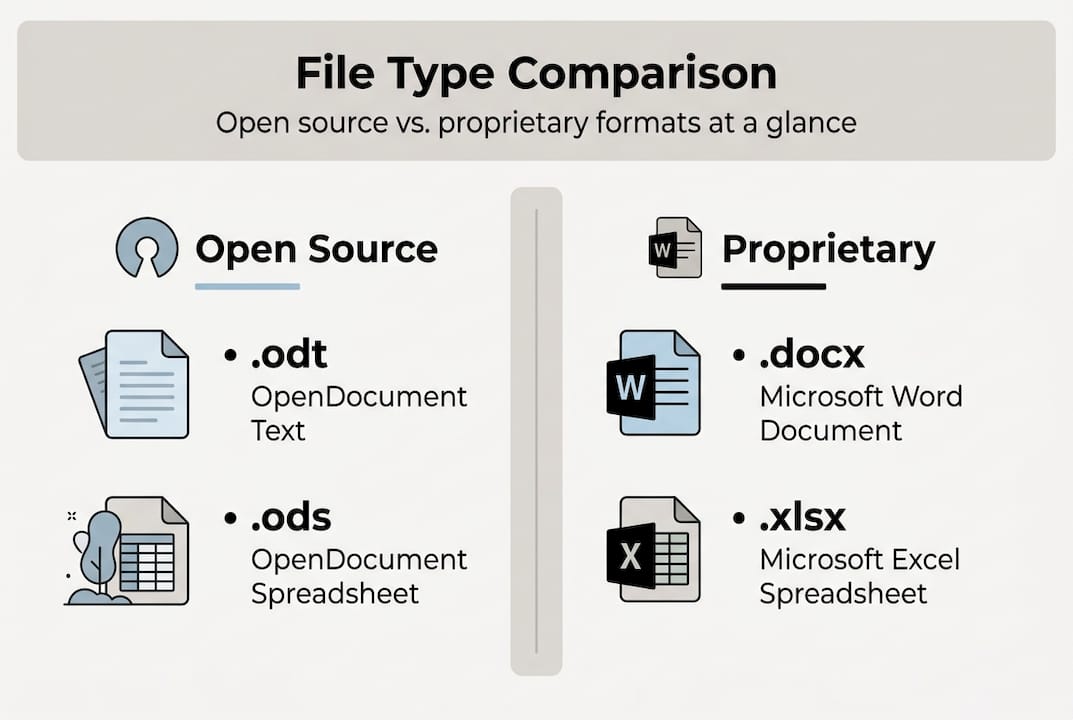
LibreOffice remains the most predictable native editor for ODF on Windows and Mac: open ODT files, open ODS files, open ODP files, and open ODC files where relevant.
Google Docs can import and export .odt; Apple Pages can open .odt with reasonable results for simpler documents. For round-trip fidelity with heavy styling, treat LibreOffice as the reference ODF toolchain.
Pro tip: For math-heavy documents, prefer ODF 1.3+ and test in LibreOffice before sharing—MathML handling still varies across suites.
Compatibility: ODF, OOXML, and mixed editors
Compatibility pain is real even though both ODF and OOXML are open standards. Mixed teams hit the same classes of issues:
- Layout and style interpretation — Word and Writer disagree on spacing, tables, and style inheritance.
- Macros — VBA (Office) and LibreOffice Basic are different; do not expect portable automation.
- Fonts and embedded objects — missing fonts and OLE-style embeds still break layouts across platforms.
Empirical write-ups such as LibreOffice files in Microsoft Word still show that disciplined workflows (pick a primary format, minimize conversions, simplify styles) reduce rework sharply compared with constant ad-hoc conversion.
Best practices:
- Choose one authoring format per project and branch only when needed.
- Prefer simple, built-in styles for documents that will cross editors.
- Ship PDF when visual fidelity is the contract.
- Test macro-heavy documents in the target suite before distribution.
- Keep a master in your chosen archive format (often ODF for vendor-neutral archives) and export copies for delivery.
For day-to-day habits, the workflow for opening documents article is a practical complement.
Advanced nuances: edge cases and expert recommendations
Math and science: ODF 1.3+ improves MathML-related behavior, but cross-suite equation layout remains an edge case—always open a test copy in the recipient toolchain.
Security: Because ODF and OOXML are ZIP+XML families, you can inspect parts for unexpected relationships or embedded payloads before opening in a rich editor. That does not replace normal malware hygiene; macros and embedded executables remain the high-risk knobs in either ecosystem.
Archiving: Many teams keep long-term masters in ODF for multi-vendor tooling, then produce .docx or PDF when a partner mandates it. Avoid round-tripping complex documents through multiple converters; each pass adds small layout deltas.
Get help with conversions and open standard formats
Theory is easy; a stubborn .odt or .ods on your machine is not. Open-The-File.com bridges that gap with practical guides.

The site covers 750+ file formats with step-by-step help for Windows and Mac. Whether you are standardizing on ODF, shipping OOXML, or fixing a one-off “cannot open file” error, the file extension directory points you to focused fixes—without fluff.
Frequently asked questions
Why not call them “open source file types”?
Open source describes software licensing. Open standards describe public specifications. Office formats are best discussed in the standards vocabulary so readers are not misled.
Is .docx proprietary?
Office Open XML is a published international standard (ECMA-376 / ISO 29500). In practice, Microsoft Office is the dominant implementation, and optional features plus extensions can still create “works in Word only” effects—but that is different from claiming the format lacks a public spec.
What is the main advantage of ODF for neutral workflows?
ODF is maintained for multi-vendor office stacks and is the native currency of LibreOffice. If your goal is tool independence and archival outside a single vendor’s UI, ODF is often the simpler hub format.
How do I safely convert ODF for Microsoft Office users?
Keep the master in ODF, simplify styles, avoid fragile macros, convert late, and verify in Word. For immutable layout, prefer PDF.
Are ODF documents automatically “more secure” than OOXML?
Both are structured packages you can inspect. Risk follows features (macros, embeds, external links), not the label “open source” on the format.
Recommended
- Articles - File Tips & Guides | Open-The-File.com
- Why convert file formats: boost compatibility now | Open-The-File.com
- Open-The-File.com — extension guides for 750+ file types
- Differences in file types: a clear guide for all users | Open-The-File.com
- What causes DLL errors: common reasons and fixes in 2026 – FixDlls Blog